People course 04 — Leave balances salary structures and compensation
Leave and compensation both rely on exact employee identity, effective dates and the correct unit. This chapter explains their forms and shows why a policy definition, a request, an approval and an applied balance are different records.
Part of People module course
In this lesson
Leave rules and compensation boundaries
Leave and compensation both rely on exact employee identity, effective dates and the correct unit. This chapter explains their forms and shows why a policy definition, a request, an approval and an applied balance are different records.
In this chapter
- Configure the leave definition deliberately
- Request and review the right dates
- Reconcile the balance rather than guessing
- Distinguish bands from employee pay
- Distinguish initial compensation from an adjustment
- Read compensation and adjustments by component
- Complete a useful readback
Configure the leave definition deliberately
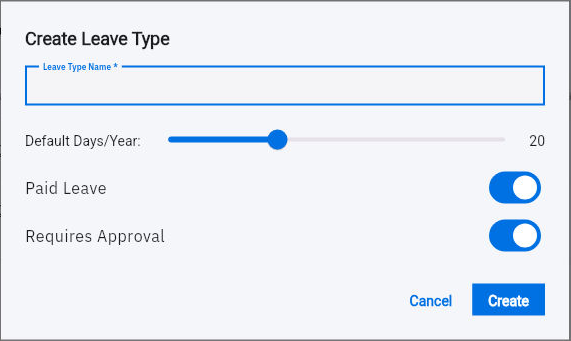
Open People → Leave. Its tabs are My Requests, All Requests, Admin and Approvals. Admin contains Leave Types, Reports and Balances. A leave-type definition has Leave Type Name, Default Days/Year, Paid Leave and Requires Approval.
Requests balances and pay decisions
Leave-type form with annual allocation, paid-leave and approval controls; defaults need deliberate review.
The screenshot shows a blank form with 20 days and both toggles on. These are defaults, not a recommended entitlement. Annual days define a type's allocation input; they are not automatically an individual's current available balance. Paid Leave describes the type, while Requires Approval governs the request's review requirement. Neither field supplies a work schedule, holiday calendar, carryover policy or employment-law decision.
Before setup, establish the approved entitlement, eligibility, unit, year, working schedule, closures and carryover treatment. Map only the fields the form actually offers. Ask the administrator how remaining rules are implemented rather than using a description as if it were an automated accrual engine.
Request and review the right dates
My Requests → Request Leave has Leave Type, Start Date, End Date, calculated Duration, Reason, Cancel and Submit. Leave Type and Reason are marked required. There is no employee selector in this requester route: confirm the signed-in requester before entering information.
Select the intended calendar dates, then reconcile Duration with the applicable schedule and policy. A two-date span is not always two chargeable workdays. Keep a reason proportionate to the decision; do not add unnecessary medical or personal information.
Submit once only when authorised, then locate the exact request in My Requests. Pending means recorded and awaiting decision, not approved time off. Reviewers should compare employee, type, dates, reason, relevant balance and authority before acting. After a decision, inspect the request's saved status and the corresponding balance separately.
Reconcile the balance rather than guessing
In Admin → Balances, match employee, full leave type and Year before reading Total Days, Used, Carried Over and Remaining. The table can extend horizontally; keep the same row while scrolling. Initialize Balances and adjustment actions are changes, not ways to refresh an inspection.
For a fictional record with Total Days 20, Used 1, Carried Over 0 and Remaining 19, the figures reconcile for that row. They do not establish that a different year or another leave type has 19 available days. If a request is approved but the balance is unexpected, preserve the request identity, dates and exact row values and ask for reconciliation. Do not create a second request or initialize balances to make the display match an expectation.
Distinguish bands from employee pay
Open People → Compensation → Salary Structure, titled Salary Bands & Grades. A band connects Level and Role with Min Salary, Mid Salary, Max Salary and Currency. Inspect exact values in the editor: abbreviated list values can round a midpoint and are unsuitable for precise comparison.
A band is structure metadata, not the employee's actual pay. The inspected band form has no pay frequency, working-time basis or effective-date field. Do not assume monthly, annual or full-time-equivalent basis from an amount or currency. Confirm the intended basis separately before interpreting the range. Currency defaults must also be checked.
Distinguish initial compensation from an adjustment
Payroll Register → Add Compensation is for an active employee without an active compensation record, according to its Employee helper. It is not the demonstrated editor for an existing active record. Fields are Employee, Base Salary, Allowances, Bonuses, Deductions, Currency, Pay Frequency, Effective Date and Reason or source, followed by Cancel and Save. Frequency offers Monthly, Bi-weekly, Weekly and Annual.
Check amount, currency, period and effective date together. Zero allowances/bonuses/deductions and Monthly are starting defaults, not the employee's agreed terms. These aggregate inputs do not establish a named component ledger or automatic tax calculation. Do not create a second initial compensation record to implement a change to existing pay.
Read compensation and adjustments by component
A payroll register and a payslip answer different questions from a salary band. Match full employee identity and explicit pay period. Base plus allowances plus bonuses gives gross in the supplied example; gross less deductions gives net. A record showing base 100, allowances 20, bonuses 10 and deductions 5 reconciles to gross 130 and net 125. This arithmetic is a teaching example, not proof that money was paid.
Create Compensation Adjustment contains Employee, Adjustment Type, Current Value, New Value, Reason and Effective Date. Types include Salary Increase, Bonus, Allowance Change, Deduction Change and Promotion. Current Value must be checked against the actual active compensation record. New Value needs the approved component and basis; a bonus is not a base-salary change.
The payroll row's Open adjustments can lead to an unfiltered Adjustments tab. Match the employee again rather than treating every visible row as theirs. Pending, approved, effective, applied and paid describe different outcomes. After an authorised change, verify the adjustment decision, the dated compensation record and the relevant payroll result separately. Do not generate, send or pay a payslip merely to inspect it.
Complete a useful readback
For practice, explain a leave request with one approved day and a separate future salary increase. Identify the exact leave balance year, the salary component and its effective date. State which record shows the approval and which shows application. If you can only see the request and adjustment, say that balance/payroll reconciliation is still needed. This is more useful than treating a green status or an Active employee as proof of all downstream results.
Turn what you learned into the way the team works.
Mark this lesson complete once the workflow exists in your workspace—not simply when you reach the bottom.