Create a workforce role
Define a position using the right department and level so it can be selected on employee records.
In this lesson
Create a workforce role
Define a position using the right department and level so it can be selected on employee records.
Before you start: Know the agreed role name and scope. The department and level should already exist; a workforce role describes a position, not application access.
Steps
1. Open People → Directory → Departments. Find the intended department and use its pencil to check the name, lead, parent department and description. Select Cancel after inspection. A department lead is not automatically every employee’s manager.
2. Open Directory → Levels and find the intended level. Check its name, Rank and description. If the level or department is missing or ambiguous, resolve that definition before creating the role.
3. Open Directory → Roles and search for the intended role. Inspect any matching row by its full name, department and level. If the correct role already exists, skip steps 4–6 and use that definition.
4. Select Add Role. Enter Name, deliberately select the intended Department, then choose the required Level. Do not accept a preselected department or level without checking it.
5. Review the role name and both relationships together. Select Create once.
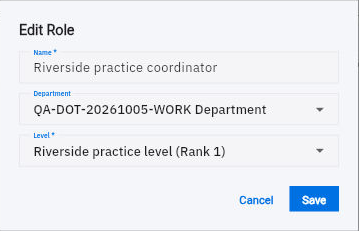
6. Find the new role in the list and open its pencil. Check the saved Name, Department and Level, then select Cancel. Leave the view and return if you need to confirm that the values are retained.
Check the result
7. Use the saved role when assigning the employee’s Role / Position. Employee assignment is a separate change; creating the role does not assign people or grant them permissions.
Expected result
The workforce role has a clear identity and the intended department and level, ready for employee assignment.
Common pitfalls
- A workforce role is not a security role. Manage account permissions through the separate access process.
- If an editor unexpectedly looks blank while the list has values, cancel and reopen before saving. Do not replace a relationship with an unintended blank.
Continue learning
In this series: Manage the employee journey — guide 2 of 25.
Turn what you learned into the way the team works.
Mark this lesson complete once the workflow exists in your workspace—not simply when you reach the bottom.