Create an employee record
Add an employee’s identity and employment details, then check the saved department and position.
In this lesson
Create an employee record
Add an employee’s identity and employment details, then check the saved department and position.
Before you start: Have the person’s correct work email, employment details, hire date and agreed organisational relationships. Use only the personal information needed for the employee record.
Steps
1. Open People → Directory → Employees in the intended workroom. Search the exact name and work email. If the correct employee already exists, skip creation steps 2–5 and check that record in step 6. Resolve conflicting identities instead of creating a second look-alike.
2. Select Add Employee. Enter First Name, Last Name and Work Email. Add Phone only when it is part of the information you should maintain.
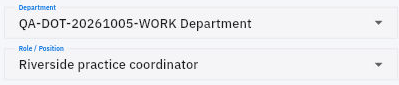
3. Check Probation Period against the agreed employment terms. Select the intended Department and Role / Position using the existing records. Use None only where no relationship is intended; do not select an unrelated default.
4. Complete the applicable Manager, Team and Location fields using the agreed relationships. Check Employment Type, Status and Hire date carefully. The default status or date may not match the person’s actual start.
5. Review the whole form, then select Create once. Return to Employees and search the original work email before retrying any uncertain save.
6. Open the employee and compare the name, email, type, location, joined date and status. Read Workspace access separately: an employee can exist without being linked to a member account.
7. If the saved department or position needs an intended correction, select Edit, choose the exact Department and Role / Position, review the other visible fields and select Save Changes. If those values are already correct, leave them unchanged.
Check the result
8. Leave the profile and reopen it from Employees. Check the retained relationships. You can also use All Depts to find the same person under the intended department, then clear the filter.
Expected result
One employee record holds the intended identity and employment details, with its saved organisational relationships checked.
Common pitfalls
- Changing employment status is not the same as granting or revoking workspace access. Handle access through the appropriate account process.
- A department lead, workforce role and employee manager are different relationships. Do not infer one from another.
- If a saved change is not retained, check the original record before retrying; do not create another employee to work around it.
Continue learning
In this series: Manage the employee journey — guide 3 of 25.
Turn what you learned into the way the team works.
Mark this lesson complete once the workflow exists in your workspace—not simply when you reach the bottom.