Edit your page content and form
Update the whole visitor journey, from the headline to the form’s success message.
In this lesson
Edit your page content and form
Update the whole visitor journey, from the headline to the form’s success message.
Before you start: Have the wording and field requirements ready, and permission to edit the draft. Keep it unpublished while you review the content.
Steps
- Open Pages, find the exact draft and choose Edit Page. Wait for the editor to settle.
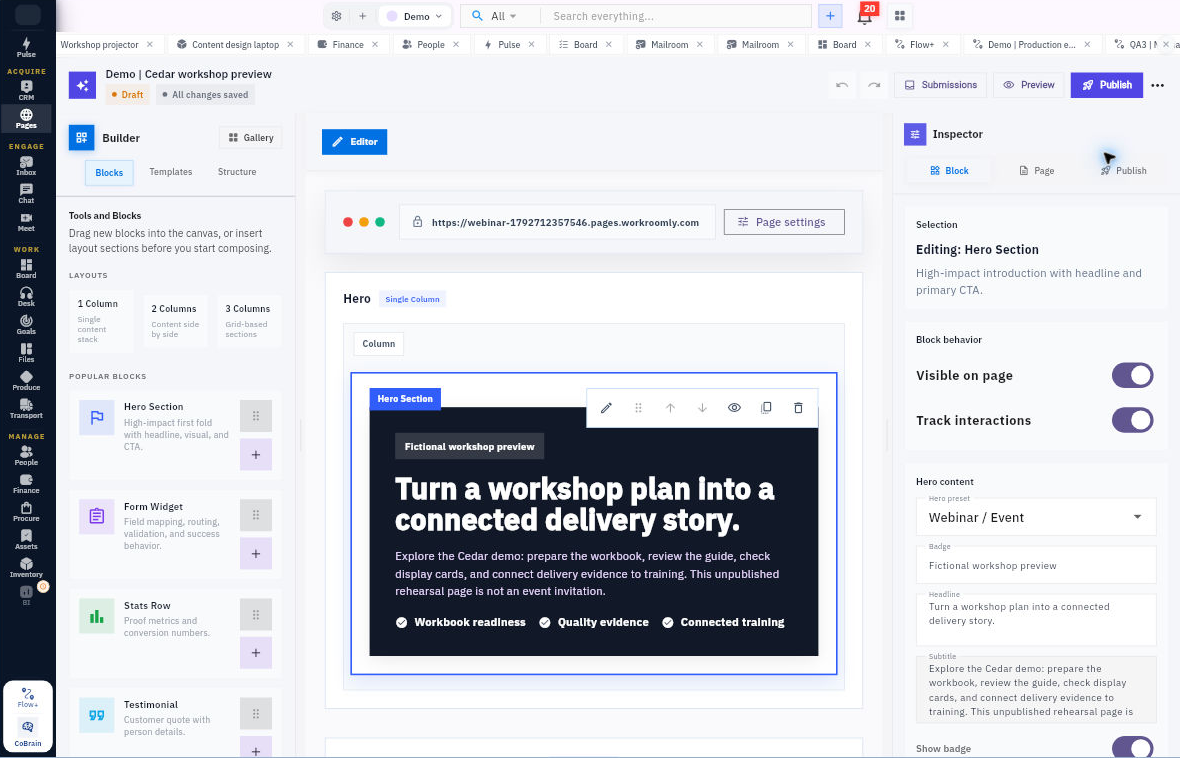
- Open Page settings. If Inspector is hidden, choose More builder actions → Inspector panel → Page. Set Page name to the internal name your team will recognise.
- Select Hero Section on the canvas. In Inspector → Block, update Hero content → Headline. Check that the canvas shows the intended wording.
- For an existing Rich Text block, select Edit content, review Title and Body, then use Done editing. Include the explanation visitors need, not just a headline.
- Select the form title on the canvas. Confirm that Inspector identifies Form Widget. Review Form title, Form subtitle, field labels and placeholders, field types and Required switches.
- Set the Submit button label and Supporting text to describe the actual request. Under Success behavior, review Thank You Panel, Success title and Success message. Do not promise a follow-up that is not arranged.
- Wait for All changes saved. Open Preview and read the whole page, including links and the form. Check the desktop, tablet and phone views available in the preview controls. Use Back to Edit to make corrections.
- Return through the Pages list, reopen the same draft and compare the saved wording and field settings. Keep Draft until the publication checks are finished.
Expected result
The draft presents one consistent offer and a clearly labelled form, with saved text that you have checked across the page.
Remember
Preview checks appearance, not whether submissions reach CRM. Before launch, test required fields and email validation through your intended visitor route, then inspect the saved response.
Continue learning
In this series: Build enquiry pages — guide 3 of 7.
- Previous: Prepare an enquiry page
- Next: Connect an enquiry form to CRM
- Browse tutorials
Turn what you learned into the way the team works.
Mark this lesson complete once the workflow exists in your workspace—not simply when you reach the bottom.