Transfer stock between warehouses
Create a warehouse transfer, follow its stages, and reconcile source, transit and destination quantities.
In this lesson
Transfer stock between warehouses
Before you begin
Confirm the exact item, unit, eligible source quantity and destination. Check named locations in Warehouses; quarantined stock is not available stock. This workflow covers a full receipt. If only part arrives, stop before Receive and resolve the supported partial-receipt process rather than recording a full arrival.
Create or reuse the transfer
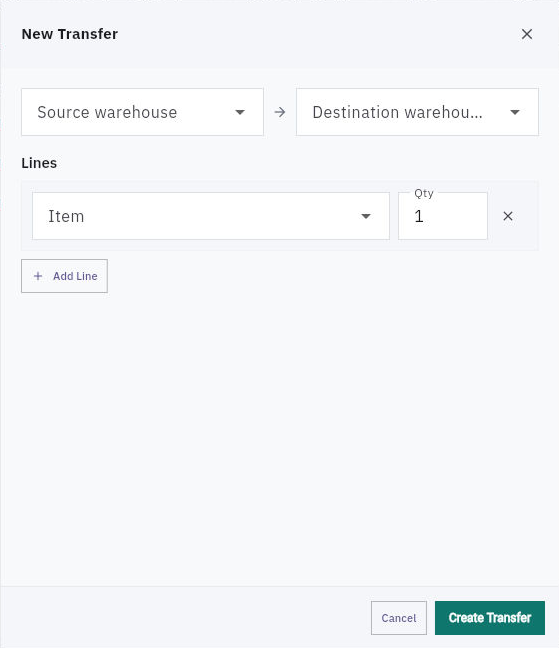
1. Open Inventory → Transfers and check for an existing transfer with the same route and item. If it exists, open it and skip steps 2–3. Continue only with the action appropriate to its current stage. 2. Choose New Transfer. Select Source warehouse, Destination warehouse, Item and Qty. Use Add Line for additional items. Check the route carefully: this form does not provide a bin selector. 3. Choose Create Transfer once. Reopen the saved reference and verify its Draft status, full route and quantities. Creating a draft is not dispatch.
Check the result
Follow the transfer
4. For a checked Draft, choose Approve when approval is due. Confirm Approved. For an Approved transfer ready for picking, choose Start Picking and confirm Picking. 5. Open the item's Stock and Reservations. Check the named source and the reservation tied to this transfer. Reserved stock is a commitment within the source quantity; do not add it to On hand as extra stock. 6. Return to the same transfer. When the goods actually leave and the transfer is Picking, choose Dispatch once. Confirm In Transit, the Dispatched line and Picked quantity. Check the item's separate In transit position and verify the application-assigned destination location through Warehouses. 7. After the full quantity arrives and its count and condition are checked, use Receive on the In Transit transfer. This action can record the full receipt immediately; do not use it for a short arrival. Confirm the header and line show Received and the correct quantity. 8. Reopen the item's Stock. Reconcile source quantity, cleared transit and destination On hand/Available. Keep unrelated quarantine positions separate. 9. Return to the Received transfer and choose Complete only after those checks. Reopen it to confirm Completed and retained received quantities. If already Completed, inspect the result without repeating any stage.
If an action's result is unclear: reopen the same reference and check its stock trail before retrying. Do not create a replacement transfer or adjust stock to force agreement.
Continue learning
In this series: Manage stock — guide 8 of 17.
Turn what you learned into the way the team works.
Mark this lesson complete once the workflow exists in your workspace—not simply when you reach the bottom.