Reserve stock for a known demand
Allocate eligible stock to the correct source and check the saved reservation before the fulfilment handoff.
In this lesson
Reserve stock for a known demand
Have the exact demand reference, item, quantity and warehouse ready. Check quality restrictions and existing allocations first; a reservation does not receive, pick or dispatch goods.
Prepare and save the reservation
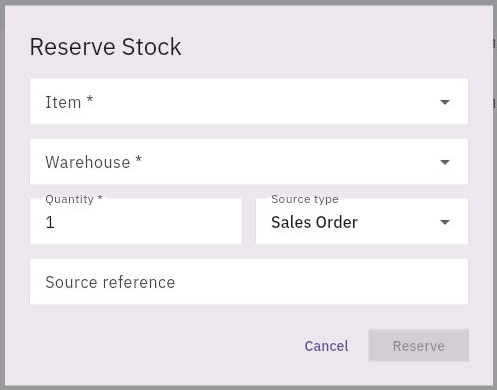
1. Open Inventory → Reservations and search for the intended allocation. Check item, source, warehouse, quantity and status. If the correct active reservation already exists, skip creation and continue at step 6. 2. Read the item’s current Stock and Available quantities at the required location/quality scope. Account for other commitments rather than assuming On Hand is free to reserve. 3. Select Reserve Stock. Choose the exact Item and Warehouse, then enter the required Quantity in its stock unit. 4. Choose the true Source type—Sales Order, Transfer, Work Order or Manual—and enter the correct Source reference. A source-type label does not create that source record. 5. Review any additional fields shown after selection and the intended location/quality treatment. When the form matches the actual demand and eligible stock, select Reserve once.
Check the result
Verify and hand off
6. Reopen Reservations and find the saved record. Compare source, item, quantity, warehouse, Created, Expires and Status, then check the current item/location balance. 7. For accepted customer orders with stocked products, use Fulfilment to follow allocation and picking. Use Picking & Packing for its actual pick records. A Manual reservation does not automatically establish a fulfilment order or pick list. 8. If the demand is internal or the expected downstream record is absent, ask the Inventory owner for the supported source-to-pick workflow rather than creating an unrelated sale.
Expected result: a verified reservation for the intended demand, with the next fulfilment step identified.
Tips: A Released row can retain its original quantity without still reserving it. Read status and current balances together. Do not assume an elapsed expiry date has released an allocation. Check order-driven auto-reservation before adding a manual reservation so you do not allocate the same demand twice.
Continue learning
In this series: Manage stock — guide 7 of 17.
Turn what you learned into the way the team works.
Mark this lesson complete once the workflow exists in your workspace—not simply when you reach the bottom.