Inventory course 03 — Receiving acceptance putaway and stock reconciliation
A receipt, its quality decision and its putaway task describe different stages of the same quantity. Reconcile their exact source identities and location changes before calling the stock ready for use.
Part of Inventory module course
In this lesson
Receipt identity and receiving stages
A receipt, its quality decision and its putaway task describe different stages of the same quantity. Reconcile their exact source identities and location changes before calling the stock ready for use.
In this chapter
- Find the receipt by its source
- Separate arrival from eligibility
- Follow the receipt-linked putaway task
- Read Stock and Movements together
- Verify cross-module handoffs
Find the receipt by its source
Open Inventory → Receiving. Tabs are Expected, Receiving, Inspection, Putaway and Completed. An empty Expected tab does not erase Completed history. Check search and warehouse filters before concluding that a source is missing. The inspected Expected list does not expose a general new-receipt launcher, so begin through the supported source workflow rather than inventing an unlinked receipt.
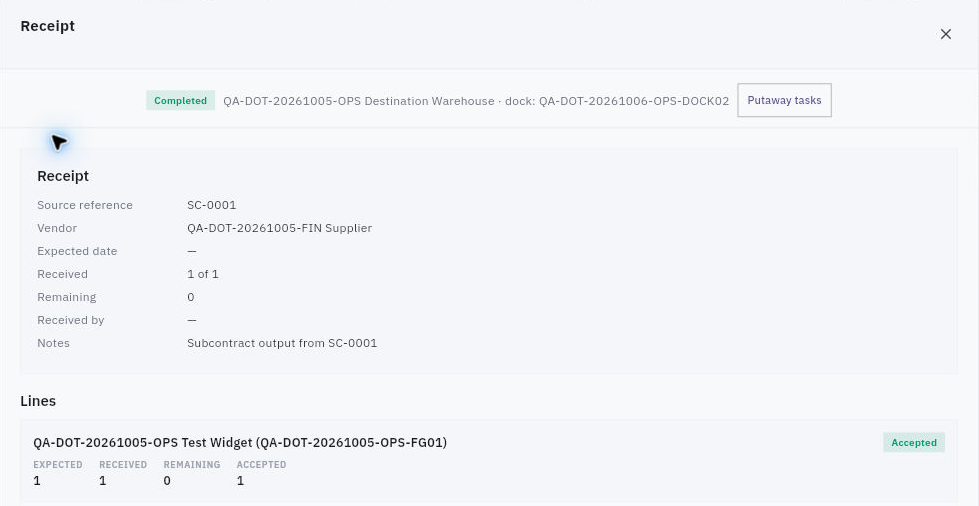
Open the exact receipt row and preserve its reference when the detail title is only “Receipt.” Compare Source reference, vendor, warehouse, dock, expected date, received-by field and notes. A dash means the value is not displayed; it is not permission to infer the receiver or date from another record.
Quality putaway and stock reconciliation
Completed receipt with source reference and separate expected, received, remaining and accepted quantities.
The declared training receipt shows Expected 1, Received 1, Remaining 0 and Accepted 1 on one item line. These are descriptions of the same unit, not three units. Match the exact SKU and unit before using any ratio or total. A one-line count is not a quantity of one unless the line itself says so.
Separate arrival from eligibility
Receiving records arrival. Inspection decides whether the specific quantity meets the approved criteria. Held or rejected goods must not be treated as available simply because they are physically present. Preserve the original failed finding and the later authorised decision if a remedy changes eligibility.
For a fictional delivery of twelve packs, ten are accepted and two held for unreadable instructions. Physical arrival is twelve, accepted eligible quantity is ten before other restrictions, and the two remain held. Do not receive another two when the held packs are later released: a release changes status, not the original arrival quantity.
Follow the receipt-linked putaway task
From the receipt, Putaway tasks shows the relevant tasks. Read task reference, item, quantity/unit, source location, destination, Lot / Serials, Operator and status. The table can extend horizontally; keep the same row while revealing the status column. A task listed in the global Putaway tab may already be Completed, so the tab name does not define its state.
In the source example, one unit moves from dock to bin under one task. The expected reconciliation is a decrease at the source and an equal increase at the destination, with no extra receipt. Blank lot or operator cells do not establish a tracking identity or responsible person. The inspected completed task list does not expose a new-task or completion editor; do not promise a control that has not been established.
Read Stock and Movements together
Open the exact item independently and compare Stock cards for the named dock and bin. Read On hand, Reserved, Available, Incoming, In transit and Quarantined as separate labelled values. A quarantine card may show Quarantined 1 while On hand is 0; do not silently reinterpret that display into a universal formula or add overlapping measures.
Use Movements to trace receipt and paired putaway entries by their exact references. A later production-output receipt belongs to its own order/lot and must not be appended to an older subcontract receipt merely because both produce the same SKU. Issuing material to production does not alone prove actual consumption or finished output.
Verify cross-module handoffs
A Replenishment Purchase Requirements card can show item, quantity, warehouse, lead time, Procure request reference and Sent to Procure. That establishes the displayed source-side relationship, not an approved purchase order or goods receipt. Open the exact Procure request and later order/receipt through their own supported views before claiming the complete chain.
Likewise, a receipt's subcontract reference is a displayed link until the exact Produce subcontract order is inspected. Keep each module's identifiers separate: similar prefixes or shared suppliers do not prove a relationship.
For a practical readback, name the receipt/source, exact line and unit; explain received versus accepted; identify putaway source and destination; compare both stock cards and movement references. If one link is unavailable, name that gap. Never perform an extra receipt or movement to make the trail appear complete. If dates or quantities disagree, preserve the mismatch and seek the owner-supported correction rather than replacing history.
Turn what you learned into the way the team works.
Mark this lesson complete once the workflow exists in your workspace—not simply when you reach the bottom.