Inventory course 02 — Warehouses storage hierarchy and handling settings
A warehouse locates stock at a broad level; locations describe the internal handling structure. A bin's name is not enough to establish its warehouse, parent or eligibility. Verify the full path before receiving, allocating or moving goods.
Part of Inventory module course
In this lesson
Warehouse structure and handling boundaries
A warehouse locates stock at a broad level; locations describe the internal handling structure. A bin's name is not enough to establish its warehouse, parent or eligibility. Verify the full path before receiving, allocating or moving goods.
In this chapter
- Read warehouse scope
- Build parent before child
- Explain the handling controls
- Check all constraints together
- Verify definition and stock separately
Read warehouse scope
Open Inventory → Warehouses. Tabs are Overview, Locations, Stock and Operations. Search by warehouse name, code or city. Overview cards can show bins, total locations, SKUs and units; these are warehouse-scoped measures, not the balance in one selected bin.
New Warehouse has Code, Name, City, Address, Manager name, Unit capacity, Status and Default warehouse. Manager name is an optional warehouse contact, not an access permission. Zero unit capacity means unconfigured. Status offers Active and Inactive; only one active warehouse can be default according to the helper. Do not change a shared default merely to make a training transaction select the desired site.
Build parent before child
In Warehouses → Locations → New Location, first select the exact warehouse, then enter Code, Name, Unit capacity, Status, Location kind and Parent. A top-level location has no intermediate parent. If STORE belongs beneath ZONE in MAIN, the intended path is MAIN → ZONE → STORE. Leaving Parent at warehouse top level creates a different relationship even when the name looks correct.
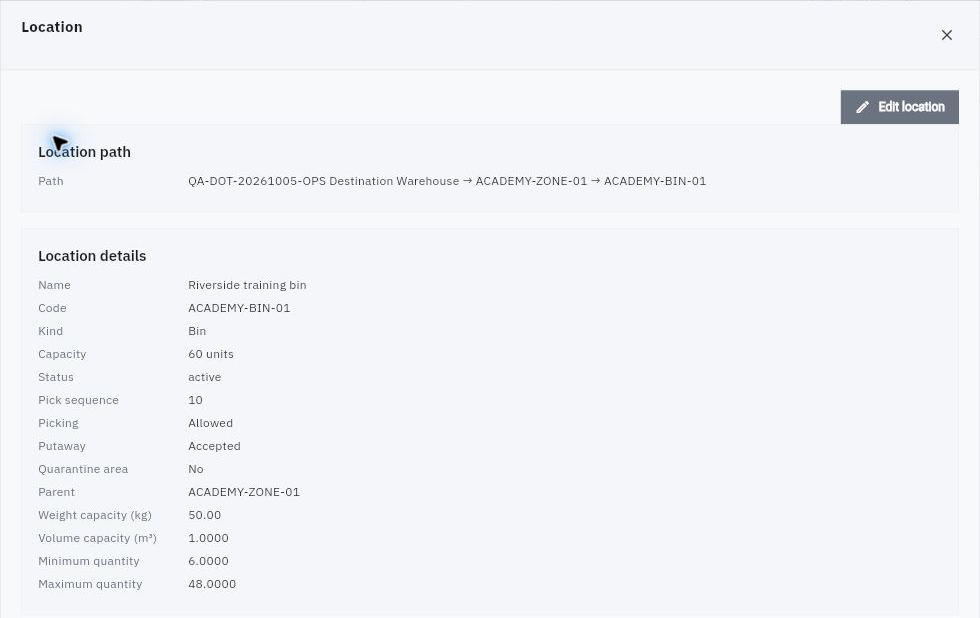
Storage restrictions and warehouse settings
Location detail showing the full warehouse-to-zone-to-bin path and separate handling and capacity settings.
Location kinds include Receiving dock, Zone, Aisle, Rack, Shelf, Bin, Staging, Inspection, Quarantine, Packing, Dispatch / loading, Returns and Damaged. Status offers Active, Blocked and Maintenance. Choose the approved combination rather than creating every possible kind. Kind Quarantine does not establish that the separate quarantine switch changed automatically.
If the intended parent is missing from the selected warehouse, pause the child setup and resolve that definition. Do not borrow a similarly named parent from another warehouse or silently leave the child top level. After an authorised save, reopen the exact code and compare the complete path.
Explain the handling controls
Pick sequence controls the stated visit order: lower values are visited first. Allow picking and Accept putaway are distinct switches. A receiving dock can accept putaway while not being eligible for picking. Quarantine area has a helper stating that stock there is excluded from availability. Verify the resulting transaction and stock state rather than treating a saved switch as proof of a quality release or successful enforcement.
Numeric controls include unit capacity, Weight capacity (kg), Volume capacity (m³), Minimum quantity and Maximum quantity. Maximum's zero means no maximum; unit capacity's zero means unconfigured. Do not apply one helper's meaning to every zero field. Capacity is not stock, minimum is not a reservation and maximum is not an automatic replenishment result.
Check all constraints together
For a fictional bin with unit capacity 30, weight limit 10 kg and volume limit 0.04 m³, packs weighing 0.5 kg and occupying 0.002 m³ have a numerical limit of twenty by both weight and volume, despite the unit capacity of thirty. A proposed twenty-four-pack load needs an approved revised plan; it is not made suitable by editing a field or ignoring one dimension.
This calculation checks supplied numerical limits, not real-world structural safety, stacking or handling suitability. The responsible warehouse owner must establish those conditions. An active location is not automatically appropriate for every item or load.
Verify definition and stock separately
After setup, compare warehouse, exact code, kind, parent, full path, state, all capacities, pick sequence, minimum/maximum and all three switches. Then read Stock at this location. “No stock” can be correct even when the bin's capacity is sixty. A stored definition does not create a receipt, putaway task or physical count.
If the save is ambiguous, search the exact code before creating another location. If the hierarchy is wrong, preserve the saved and intended paths and identify affected stock/transactions before an authorised correction. Do not rename a bin to hide a wrong parent or move goods solely to make a screenshot match the plan.
Turn what you learned into the way the team works.
Mark this lesson complete once the workflow exists in your workspace—not simply when you reach the bottom.