Create warehouse locations with the right parent
Build a clear storage hierarchy and check picking, putaway and quarantine settings.
Part of Set up an item and trace incoming stock
In this lesson
Create warehouse locations with the right parent
A warehouse, zone and bin are different levels. Create only the locations your operation needs, and decide their handling rules and capacity before entering the form.
Create the parent location
1. Open Inventory → Warehouses → Overview and identify the correct warehouse. Reuse it when it already exists; a shared name prefix does not prove which warehouse a location belongs to. 2. Open Locations and search for the intended code. If the correct parent location exists, check its saved details, skip steps 3–5 and continue at step 6. 3. Select New Location and choose the warehouse. Enter the unique Code and Name, then choose Location kind and Status. 4. For a top-level zone, select Zone and Warehouse top level as the parent. Set unit capacity, picking, putaway, quarantine and the other numerical limits according to the intended use—not just the blank form’s defaults. 5. Select Create, then find and reopen the saved code. Check its warehouse, path, parent and settings.
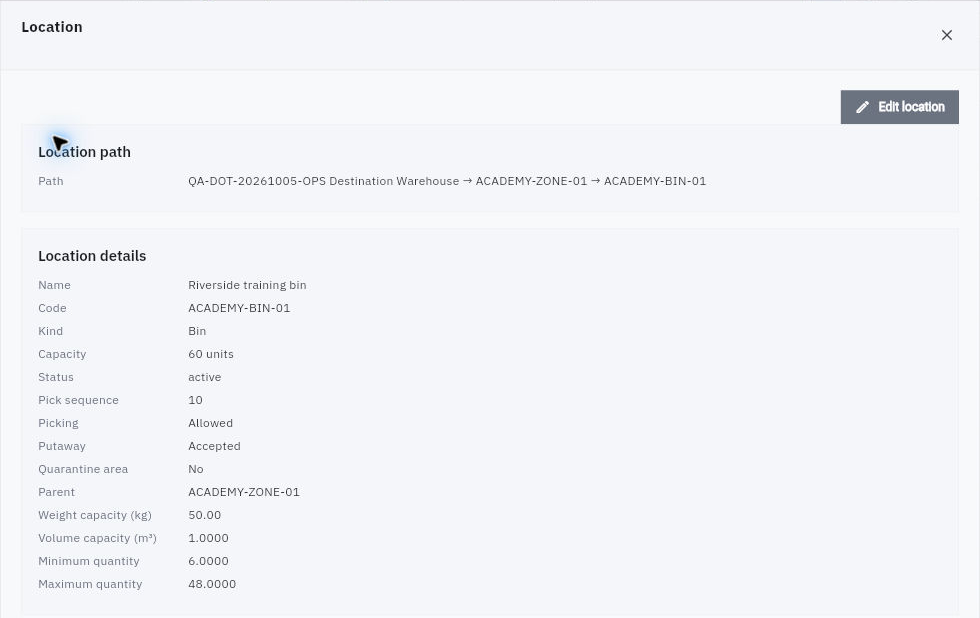
Check the result
Add the child and check the hierarchy
6. First search for the intended child bin. If it exists, skip creation and check it at step 8. Otherwise use New Location for the child bin in the same warehouse. Select the saved zone in the parent selector instead of leaving the bin at warehouse top level. 7. Set its capacity, pick sequence, weight/volume limits, minimum/maximum and handling switches. Select Create once. 8. Reopen the bin and compare the full Location path and immediate Parent. Read its Stock section separately; capacity is not stock on hand.
Expected result: the bin belongs to the correct warehouse and zone, with the intended handling settings.
Tips: Lower pick-sequence values are visited first. Zero Unit capacity means not configured; zero Maximum quantity means no maximum. The quarantine helper says stock is excluded from availability, so verify the actual switch rather than assuming the location name or kind sets it. If the parent is missing, check the warehouse and saved zone before proceeding.
For a genuinely new warehouse, use Overview → New Warehouse and complete its code, name, address/contact, capacity and status. Review Default warehouse carefully: only one active warehouse can be the default. Select Create, then reopen the exact warehouse to check its saved details and default setting.
Continue learning
In this series: Manage stock — guide 3 of 17.
Turn what you learned into the way the team works.
Mark this lesson complete once the workflow exists in your workspace—not simply when you reach the bottom.