Check an item’s stock and availability
Find the exact SKU and read its stock quantities and location records before promising availability.
In this lesson
Check an item’s stock and availability
Start with the item and quantity needed, then check stock at the right level. A module-wide total is not the balance for one SKU.
Find and inspect the item
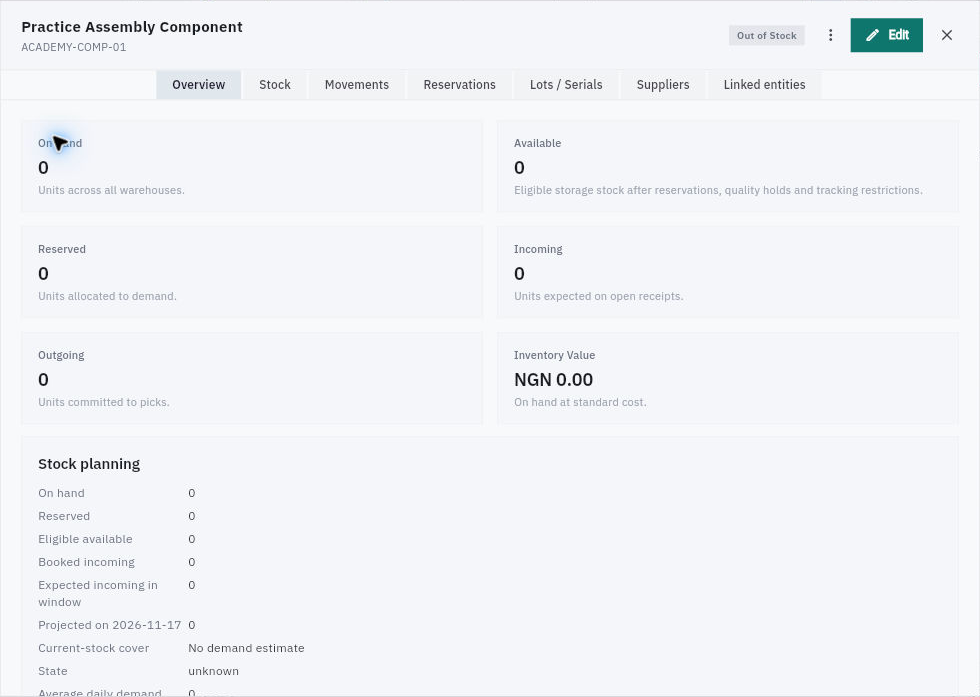
1. Open Inventory → Items. Search for the exact SKU and confirm its name, item type and stock unit. 2. Open the item’s Overview. Read each quantity with its helper text:
- On Hand: recorded units across warehouses.
- Available: eligible stock after reservations, quality holds and tracking restrictions.
- Reserved: units allocated to demand.
- Incoming: units expected on open receipts.
- Outgoing: units committed to picks. 3. Compare the requested quantity with Available, not just On Hand. Check the relevant warehouse, location, lot or serial restrictions before committing stock. 4. Select Stock inside the same item. Read the warehouse/location rows and their balances. “No stock records yet” means there is no stock row to use for this item; it does not mean every item is empty.
Check the result
Trace a quantity when needed
5. Use Movements and Reservations to understand the history behind the balance. Match the exact item, unit, location and transaction reference. 6. If a receipt exists elsewhere, trace it to the resulting Inventory record rather than assuming an Accepted receipt badge created this item’s stock. 7. State what quantity is available for the intended use and which restriction or incoming event still needs resolution.
Expected result: your stock decision is tied to one exact item and usable stock, not a similar name or aggregate total.
Tips: Activating an item is not receiving goods. A transfer’s negative source movement and positive destination movement describe the same units changing location; do not count them as new stock. A forecast with no demand estimate cannot establish future cover.
Turn what you learned into the way the team works.
Mark this lesson complete once the workflow exists in your workspace—not simply when you reach the bottom.