Submit an employee expense claim
Record an employee’s business expense, attach the receipt and send the claim into its review workflow.
Part of Submit a receipt-backed travel claim
In this lesson
Submit an employee expense claim
Record an employee’s business expense, attach the receipt and send the claim into its review workflow.
Before you start: You need permission to prepare the claim, the employee and department, the business purpose, expense details and readable receipts. Use your organisation’s expense policy and account coding.
Steps
1. Open Finance → Expenses & claims → Expense claims. Search the title or source reference for an existing claim. If the same claim already exists, skip steps 2–6 and continue at step 7 only if it is still a complete Draft. Check that you are on Expense claims rather than Direct expenses.
2. Select New. Choose the correct Employee and Department. Link an Expense request only when it is the actual source for this claim.
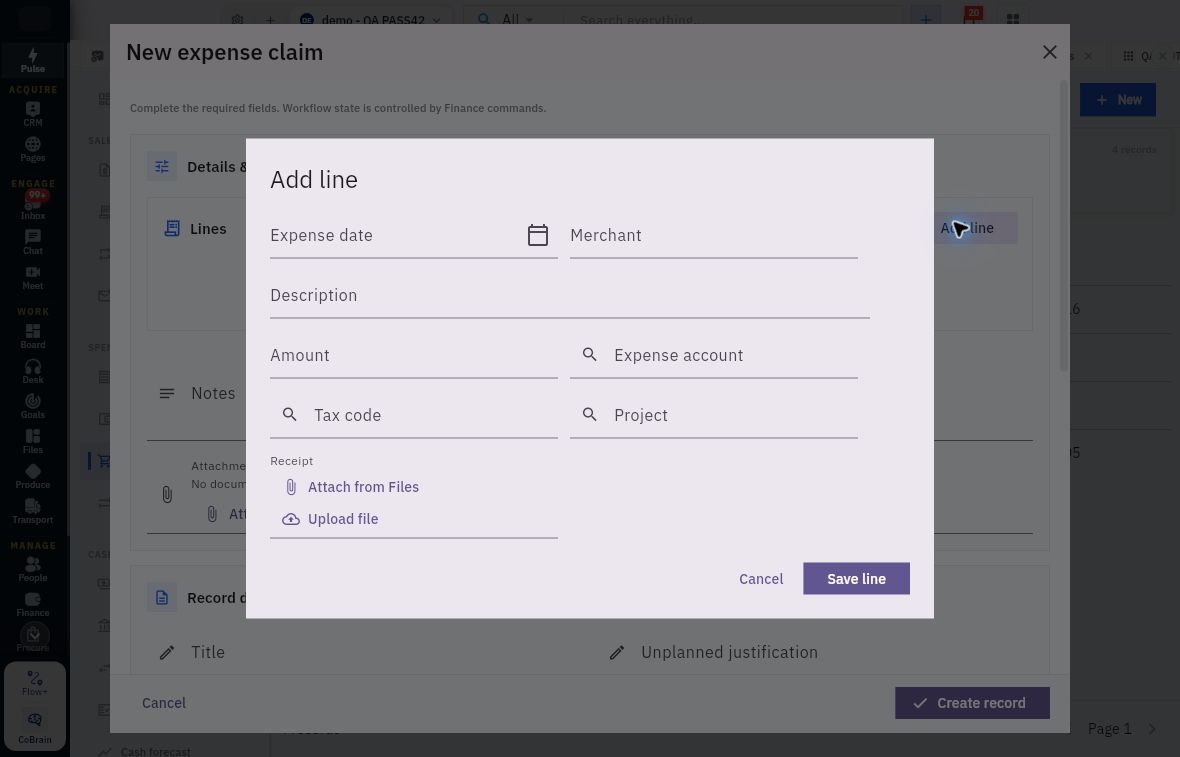
3. Select Add line. Enter Expense date, Merchant, Description and Amount. Choose the appropriate Expense account, tax code and project where required. Make the description specific enough for a reviewer to understand the business purpose.
4. In Receipt, use Attach from Files to select the exact existing receipt, or Upload file when you need to upload it. Open or inspect the document and compare the merchant, date, amount and currency with the line. Select Save line.
Check the result
5. Add any remaining expense lines. Enter a clear Title, the required Unplanned justification and useful Notes. Check Claim date, Currency and Exchange rate, then reconcile the total with the receipts.
6. Select Create record once. Return to the register, open the generated claim number and check its employee, purpose, lines and receipt associations.
7. For a complete Draft, select Workflow actions → Submit. Read the confirmation and submit the correct claim. Reopen it to check the review state and calculated total.
8. Follow up with the designated reviewer through your normal expense process if more information is needed. If the claim is already in review, do not create a second copy or submit it again.
Expected result
The claim contains the employee’s expenses and receipt evidence and is in the next review stage. Reimbursement remains a separate Finance action.
Common pitfalls
- A receipt filename is not enough: its readable contents must match the expense.
- If an in-review claim needs correction, use the supported correction route for that state. Do not assume it can be edited like a draft or reimbursed merely because it was submitted.
Continue learning
In this series: Manage business finances — guide 9 of 15.
Turn what you learned into the way the team works.
Mark this lesson complete once the workflow exists in your workspace—not simply when you reach the bottom.