Create a budget with allocation lines
Save a budget proposal whose total is calculated from its account, department and period allocations.
In this lesson
Create a budget with allocation lines
Save a budget proposal whose total is calculated from its account, department and period allocations.
Before you start: Have the agreed budget scope, dates, currency, accounting basis and allocation amounts. You need the existing account, department, fiscal year and accounting period references.
Steps
1. Open Finance → Planning → Budgets. Inspect matching budgets by dates, currency, department, version and status. If the intended proposal already exists, skip steps 2–7 and check its saved allocations in step 8; do not create another version simply because the name matches.
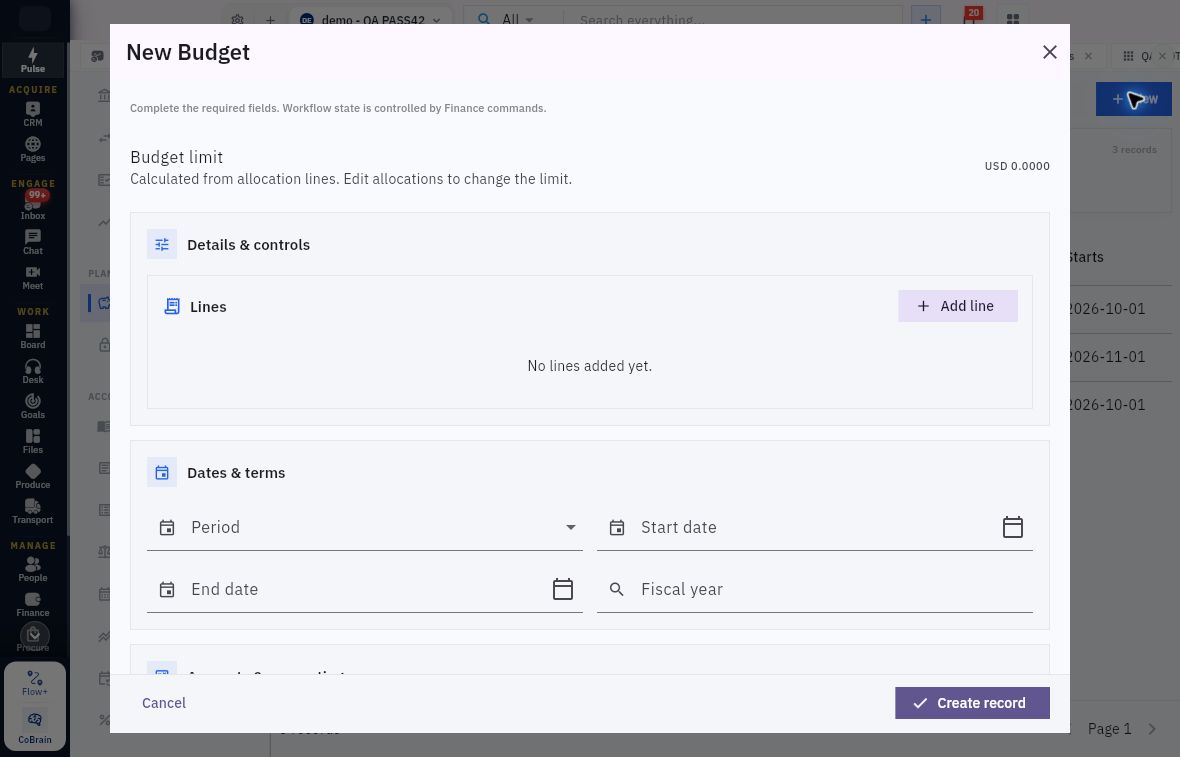
2. For a new proposal, select New. In New Budget, the Budget limit is calculated from allocation lines. You will build the total below rather than type a separate limit.
3. Set Period interval, Start date, End date and Fiscal year. Confirm the calendar selections, then check Currency, Basis, Department ref and Owner as applicable.
4. Select Add line. Choose the exact Account, Department and accounting Period, then enter Amount and a useful Notes description. Add Account group or Project only when they belong to this allocation.
5. Select Save line. Repeat for each allocation, checking that an account and period have not been added twice unintentionally.
6. Review the retained lines and calculated Budget limit. Add the amounts independently and compare them with the displayed total. If the total is wrong, correct the allocations rather than looking for a separate limit override.
Check the result
7. Review the complete proposal and select Create record once. Return to the list and identify the saved budget using its dates, version, currency and notes.
8. Open the saved budget and compare every allocation and the total with your plan. Check its current state. A draft is a proposal; follow your organisation’s budget review process before using it as the governing budget.
Expected result
Your budget proposal contains the intended allocations and an explainable total, ready for the budget owner’s review.
Common pitfalls
- The header interval, such as Monthly, is not the allocation’s accounting period reference. Select the actual period for each line.
- A budget total is neither a bank balance nor permission to spend. The governing version and purchase approval still matter.
Continue learning
In this series: Manage business finances — guide 10 of 15.
Turn what you learned into the way the team works.
Mark this lesson complete once the workflow exists in your workspace—not simply when you reach the bottom.