Run profit and loss for a selected period
Apply a reporting date range and explain the revenue, expenses and net income shown for that period.
In this lesson
Run profit and loss for a selected period
Apply a reporting date range and explain the revenue, expenses and net income shown for that period.
Before you start: Know the workroom and reporting period you need. Use the actual accounting dates of posted entries when investigating what belongs in the result.
Steps
1. Open Finance → Administration → Reports. In Financial report, select Profit & loss and make sure Report is selected.
2. Read the currently applied range and the Revenue, Expenses and Net income summary. Keep the original range in mind if you are making a temporary comparison.
3. Open Date range, then use the pencil icon in the calendar header to enter Start Date and End Date. Read the input format carefully; date entry and the applied label can use different date orders.
4. Enter the required first and last dates. Confirm the calendar months and select OK. Wait for the report to settle, then check that the applied range shows the dates you intended.
5. Read Revenue, Expenses and Net income together and compare revenue less expenses with net income. Scroll through the account rows to see which accounts explain the totals.
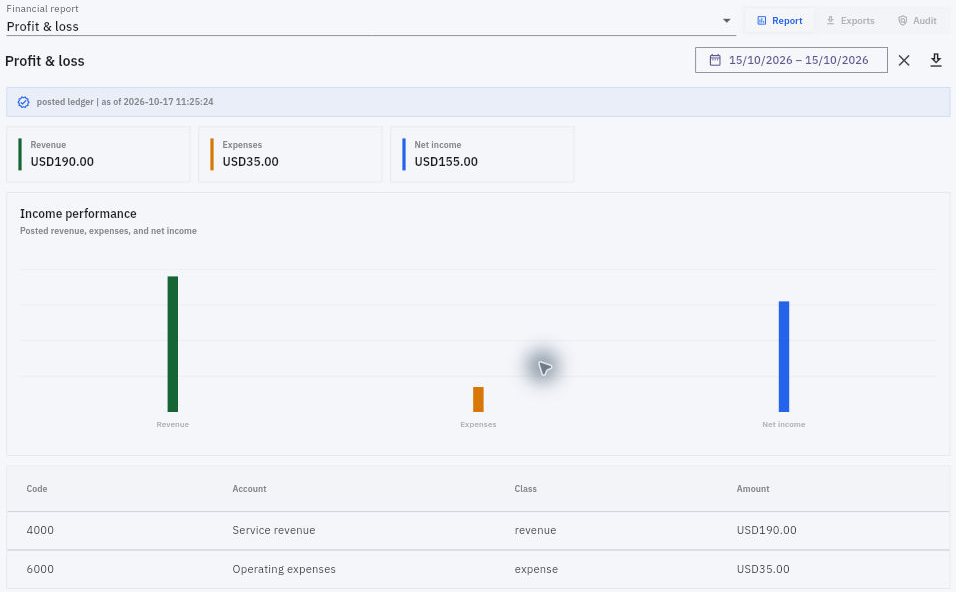
Check the result
6. If a value is unexpected, open Finance → Accounting → General ledger for the relevant scope. Find the underlying journal references, then open Accounting → Journals → Journals and inspect those exact journals. Compare their entry dates, accounts, amounts and source records.
7. If this was a temporary comparison, reopen Date range, restore the original start and end dates, select OK and check the applied range again. Otherwise leave the report on the intended reporting period.
Expected result
The P&L shows the intended period, and you can connect significant totals to their posted accounting sources.
Common pitfalls
- A zero result does not prove that no activity occurred; check the date scope and underlying account rows. It also does not establish a zero cash balance. Check the sources before creating or reposting anything.
- An entry’s accounting date and the time it was posted are different. A later posting timestamp does not necessarily move the entry into that later reporting period.
- Profit is not cash collected. Review receivables, payables and cash separately when explaining the business position.
Continue learning
In this series: Manage business finances — guide 13 of 15.
Turn what you learned into the way the team works.
Mark this lesson complete once the workflow exists in your workspace—not simply when you reach the bottom.