Record a customer payment and its allocation
Save a customer payment against the correct receivable, attach its supporting evidence and submit it for review.
In this lesson
Record a customer payment and its allocation
Save a customer payment against the correct receivable, attach its supporting evidence and submit it for review.
Before you start: You need the genuine payment source, customer identity, invoice or receivable reference, amount, currency and receiving cash account. Your role must allow payment preparation. A payment record is not a substitute for evidence that money was received.
Steps
1. Open the relevant invoice and receivable. Match the customer, currency and current outstanding amount to the remittance or payment source. Search existing payments by provider reference, amount, date and customer. If the same receipt is already recorded, open and review that payment; skip steps 2–7 and do not restart a submitted or approved record.
2. Open Finance → Payments → Customer payments and select New. Confirm that the form is New customer payment, not a vendor-payment form.
3. Enter Payment date, Amount, Currency, the applicable Exchange rate, Payment method and actual Provider reference. Add useful source context in Notes. Select the correct Customer and receiving Cash account.
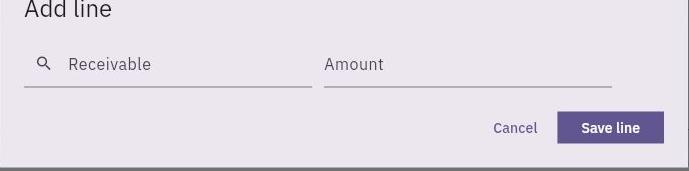
4. Under Allocations, select Add line. Choose the exact Receivable and enter the amount to apply. Compare the underlying invoice reference, customer and outstanding balance before selecting Save line. If the picker’s label is ambiguous, resolve the identity rather than guessing from its position.
Check the result
5. For additional invoices, repeat the allocation step and add the amounts independently. Check the allocation total against the payment and confirm the expected balance left on each invoice.
6. Under Payment evidence, use Attach from Vault for an existing file or Upload file for the payment document. Confirm that the file actually attached and that its contents match the payer, amount, date and reference before moving the record into review.
7. Review the complete header and allocations, then select Create record. Reopen the payment from Customer payments and check its generated number, source details, evidence and allocations.
8. For a complete draft, select Workflow actions → Submit and confirm the correct record. The designated reviewer completes the next approval step. Keep the payment’s posting or release outcome separate from the fact that its draft allocation is saved.
Expected result
The payment and its intended receivable allocations are saved and submitted with supporting evidence for the next Finance decision.
Common pitfalls
- An allocation row or Unapplied amount 0 does not prove that the invoice balance has settled. After the payment completes its posting workflow, check the actual receivable and source journal.
- Attach the required evidence before submission and approval. If a later state prevents editing, use the supported correction process rather than creating a replacement payment.
Continue learning
In this series: Manage business finances — guide 6 of 15.
Turn what you learned into the way the team works.
Mark this lesson complete once the workflow exists in your workspace—not simply when you reach the bottom.