Create and issue a customer invoice
Prepare an invoice, complete its review workflow and check the receivable created when it is issued.
In this lesson
Create and issue a customer invoice
Prepare an invoice, complete its review workflow and check the receivable created when it is issued.
Before you start: You need the customer’s agreed charge, billing details, dates, currency, line items and finance-approved tax and account coding. Your role must allow the actions you perform; an authorised reviewer or issue operator may complete later steps.
Steps
1. Open Finance → Invoices → Invoices. Search the customer, source reference and date across the relevant status filters. If this charge already has an invoice, skip steps 2–5 and continue at step 6 with its current workflow state. Do not recreate it or repeat actions already completed.
2. For a new invoice, select New. Enter Client name and useful Notes. In the customer-reference fields, select the correct Customer and Billing contact rather than relying only on a typed client name.
3. Enter Payment terms days, Issue date, Due date, Currency, the applicable exchange rate and any header Discount amount. Check the dates individually rather than assuming one always recalculates the others.
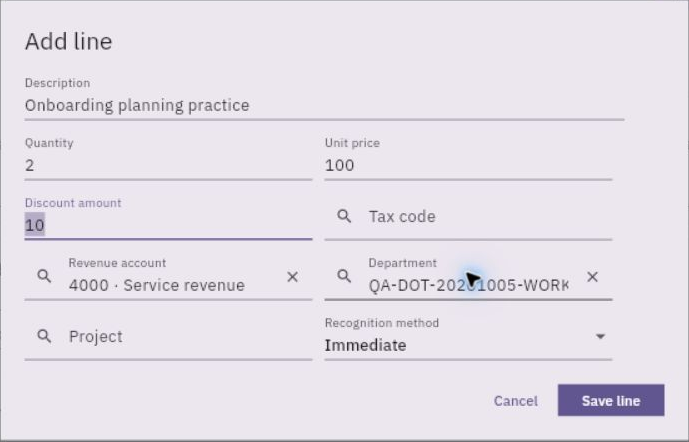
4. Select Add line. Enter the description, quantity, unit price and any line discount. Select the agreed revenue account, tax code, department and other applicable classifications. Review the Recognition method against the intended accounting treatment.
5. Select Save line to return the line to the parent form. Add any remaining lines, recalculate the charge and review the complete header and lines. Select Create record once and keep the generated invoice number.
Check the result
6. Reopen the invoice from the register. For a Draft ready for review, use Workflow actions → Submit, check the confirmation and select Submit. Inspect the calculated amount and current state after submission; resolve any mismatch before approval.
7. The authorised reviewer checks the customer, source, complete amount, tax basis, coding and dates. Only while the invoice is awaiting approval and the review is complete, they use Workflow actions → Approve and confirm the decision. Skip approval if the record has already progressed beyond that review stage.
8. The issue operator opens the approved invoice and checks whether Issued At is already populated. If it has not been issued and is ready, select Workflow actions → Issue and confirm the “Issue and post” prompt. This creates the accounting effect, so check the exact invoice before confirming.
9. Reopen the invoice and check Issued At. Then open Finance → Receivables → Receivables, find the same invoice number and compare its customer, currency, original amount, outstanding amount and due date.
10. For accounting detail, open Accounting → Journals → Journals and find the source journal using the invoice reference. Compare its amount, accounts and period with the issued charge.
Expected result
The invoice has completed its issue workflow, and you can trace the resulting amount owed back to the source invoice and journal.
Common pitfalls
- Issuing and sending are separate actions. This guide does not establish that the customer received the invoice or paid it.
- If the result of Create, Submit or Issue is unclear, reopen the exact record before repeating the action. Do not add a manual journal for an effect the invoice already posted.
Continue learning
In this series: Manage business finances — guide 5 of 15.
Turn what you learned into the way the team works.
Mark this lesson complete once the workflow exists in your workspace—not simply when you reach the bottom.