Create a tax code
Add a tax-code definition with the correct category, price basis and ledger-account references.
In this lesson
Create a tax code
Add a tax-code definition with the correct category, price basis and ledger-account references.
Before you start: You need permission to configure Finance and a tax specification confirmed by your finance professional, including tax type, recoverability, price basis and account mappings. This guide explains the software fields, not which tax treatment applies to your business.
Steps
1. Open Finance → Tax → Tax codes. If the correct code already exists, open and check its definition, skip the creation actions in steps 2–6 and continue with the rate check in step 7. Do not add another definition for the same purpose.
2. Select New. Enter a unique Code and a meaningful Name so the correct treatment is recognisable on later transactions.
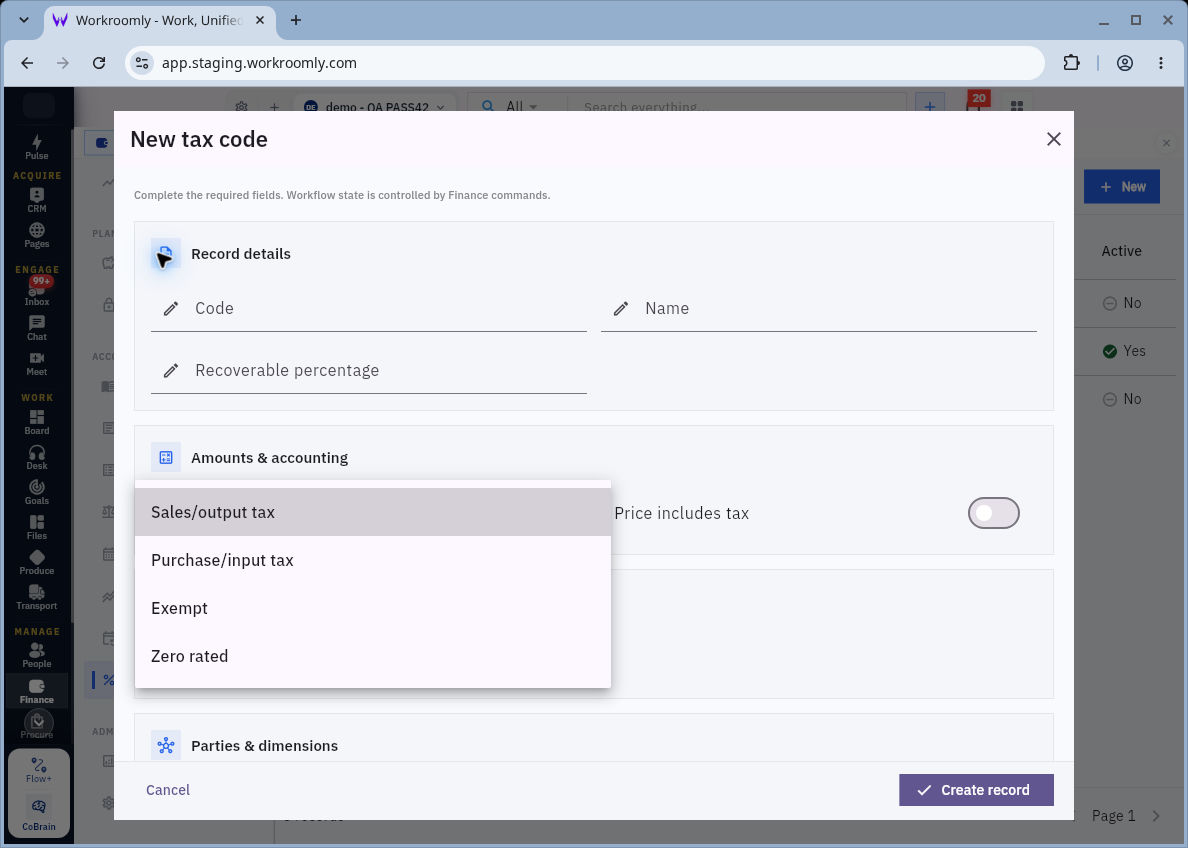
3. Choose Tax type from the agreed specification. The form offers Sales/output tax, Purchase/input tax, Exempt and Zero rated. These are different treatments; do not choose one simply to produce a preferred total.
Check the result
4. Enter Recoverable percentage where the specification requires it. This is distinct from the tax rate. Set Price includes tax to match whether the agreed prices are tax-inclusive or tax-exclusive.
5. Select the required Output account or Input account using the account search. Compare the selected account’s code and purpose with the agreed mapping; text in a search field is not yet a selected account reference.
6. Check Is active, review the complete definition and select Create record. Reopen the tax code and confirm the saved type, recoverability, price basis, mappings and active state.
7. Check Tax rates separately for the code’s effective rate and dates. The code form does not contain the rate. Resolve a missing or conflicting rate before using the code in a transaction.
Expected result
The tax code is saved with an explicit purpose and account mapping. Its effective rate still needs to match the approved setup before the code is used.
Common pitfalls
- Do not confuse recoverability with the tax rate, or assume a bare Rate field establishes whether a percentage is entered as a whole number or decimal. Confirm the required representation before entering a rate.
- Keep historical rates and effective dates intact. A new code or rate must not silently rewrite the basis of earlier transactions.
Continue learning
In this series: Manage business finances — guide 4 of 15.
Turn what you learned into the way the team works.
Mark this lesson complete once the workflow exists in your workspace—not simply when you reach the bottom.