Create a missing accounting period
Add a period with the correct date range and fiscal-year reference so transactions can be reviewed in the intended reporting window.
In this lesson
Create a missing accounting period
Add a period with the correct date range and fiscal-year reference so transactions can be reviewed in the intended reporting window.
Before you start: You need permission to manage accounting periods and your organisation’s agreed accounting calendar. Confirm the fiscal year and exact period dates before creating anything.
Steps
1. Open Finance → Accounting periods and select Periods. Search for the intended period and inspect matching names and dates. If it already exists, use that record; do not create another period with an overlapping range.
2. Check Fiscal years for the year that should contain the period. Open the matching year and confirm its dates. If the year is genuinely missing, select New, enter the agreed Fiscal year starts date and select Create record. The form generates the year name.
3. After creating a year, return to Periods and check which periods now exist before adding one manually. Do not assume that the year form created the period you need.
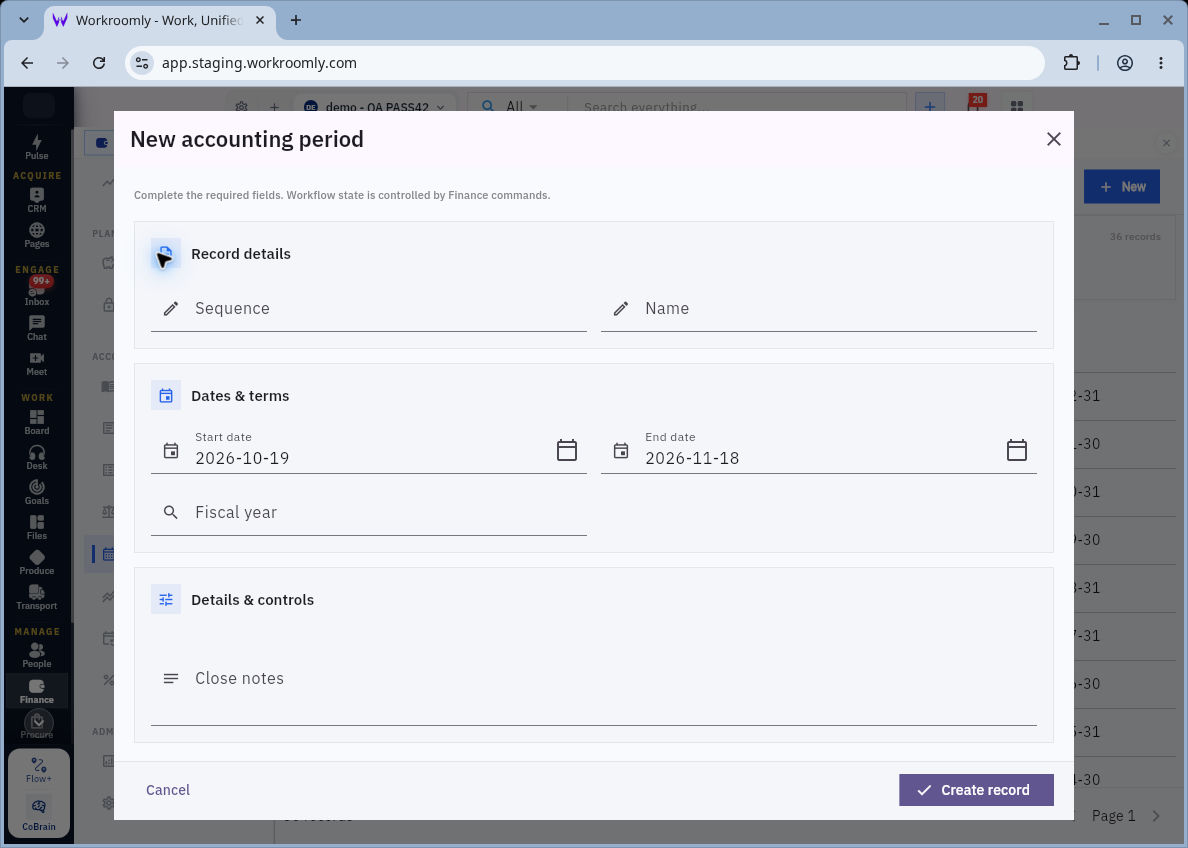
4. For a missing period, select New. In New accounting period, enter Sequence, Name, Start date and End date from the accounting calendar. Replace date prefills rather than accepting them automatically.
5. Open Fiscal year, search for the correct existing year and select it. Check that the period falls within that year and does not conflict with neighbouring periods. Use Close notes only for an appropriate explanatory note; creating a period does not mean its books are closed.
Check the result
6. Review the form and select Create record once. Find and open the saved period from the list. Check its sequence, name, dates, fiscal year and actual Status.
7. Before recording a transaction, compare its accounting date with the saved period boundaries and state. If the period is not open for the intended work, use your finance team’s period-opening or correction process.
Expected result
The period exists with the intended dates and fiscal year, and you know whether its current state supports the transaction you want to record.
Common pitfalls
- The panel’s Close control dismisses the panel; Soft Close under Workflow actions changes an accounting period. They are different actions.
- Do not move a transaction to an unrelated date to get around a closed or missing period.
Continue learning
In this series: Manage business finances — guide 3 of 15.
Turn what you learned into the way the team works.
Mark this lesson complete once the workflow exists in your workspace—not simply when you reach the bottom.