Finance course 13 — Reading reports and preparing the period review
Use Workroomly's native reports to answer a specific question, then trace material figures back to their posted sources. This chapter covers the Trial balance and General ledger workspaces, the Financial report selector, the P&L date controls and the boundary between a period review and an actual close.
Part of Mastering Workroomly Finance
In this lesson
Reporting questions, scope and period review
Use Workroomly's native reports to answer a specific question, then trace material figures back to their posted sources. This chapter covers the Trial balance and General ledger workspaces, the Financial report selector, the P&L date controls and the boundary between a period review and an actual close.
You need read access to the intended workroom and a defined reporting population: entity, currency, period or cutoff, relevant sources and responsible reviewer. You do not need to create adjustments or close a period for this exercise. View-only date comparisons are optional and should leave the report restored to its original scope.
The populated examples use USD190 revenue, USD35 expenses and USD155 net income. Keep them separate from Riverside’s conceptual USD300 invoice and USD200 receipt. Your Demo view may instead show NGN0 summary cards; always read its actual currency and population.
In this chapter
- Start with scope and the right workspace
- Match the report to its source basis
- Read the Trial balance columns and totals
- Trace a report account through the ledger
- Apply a P&L range and check the result
- Read the Balance sheet with its own cutoff control
- Read the Cash-flow statement independently of profit
- Choose the other native report views deliberately
- Keep report export, export jobs and audit separate
- Prepare a concise period-review handoff
- Distinguish review readiness from period closing
- Read-only practice and expected result
Start with scope and the right workspace
Use Finance → Trial balance or Finance → General ledger, under the Accounting heading, for account-level review. Use Finance → Reports, under Administration, for the native financial-report workspace. These headings group destinations; they are not extra pages to click. Native Finance reporting is separate from a BI Studio canvas.
In Reports, choose a view with Financial report, then use the Report tab. Exports and Audit are separate record lists; Export report is the download control on a report. Keep the selected report, its source basis and its date control together as you move between views.
Record the displayed workroom, report name, currency, date range or as-of date, filters and observation time before interpreting figures. Keep four dates distinct:
- Entry Date identifies the accounting date in the example journals.
- Posted At records when the posting action occurred.
- A report's as of timestamp records the displayed observation.
- A date-picker value is only a requested input until the applied scope and output read back correctly.
Changing a report scope is not a source correction. If a known invoice is missing from a report, check the applied dates and its exact journal before creating or issuing another invoice.
Match the report to its source basis
The source strip below the report title tells you which population you are reading. Its as of time is a refresh/observation timestamp, not a substitute for the selected accounting cutoff. The eight views use these controls and summaries:
| Financial report | Date control and source basis | What to read |
|---|---|---|
| Profit & loss | Date range; posted ledger | Revenue, Expenses, Net income; Income performance shows posted revenue, expenses and net income. An empty population reads No posted income or expense activity. |
| Balance sheet | As of date; posted ledger | Assets, Liabilities, Equity; Financial position shows posted account balances by statement class. Read Accounting equation difference alongside the balances. An empty population reads No posted statement balances. |
| Cash-flow statement | Date range; posted ledger | Inflows, Outflows, Net change. Cash movement uses direct posted cash-control account activity; Cash by activity separates Operating, Investing and Financing net movement. |
| Receivables aging | Date range; open item subledger | Outstanding customer balances by days overdue: Current, 1–30, 31–60, 61–90, 90+. The empty view reads No open Receivables. |
| Payables aging | Date range; open item subledger | Outstanding supplier balances using the same displayed overdue buckets. The empty view reads No open Payables. |
| Budget variance | Date range; posted ledger and active commitments | Budget versus actual and its active-budget-line scope. The empty view reads First 0 active budget lines, No activity yet and No active budget lines. |
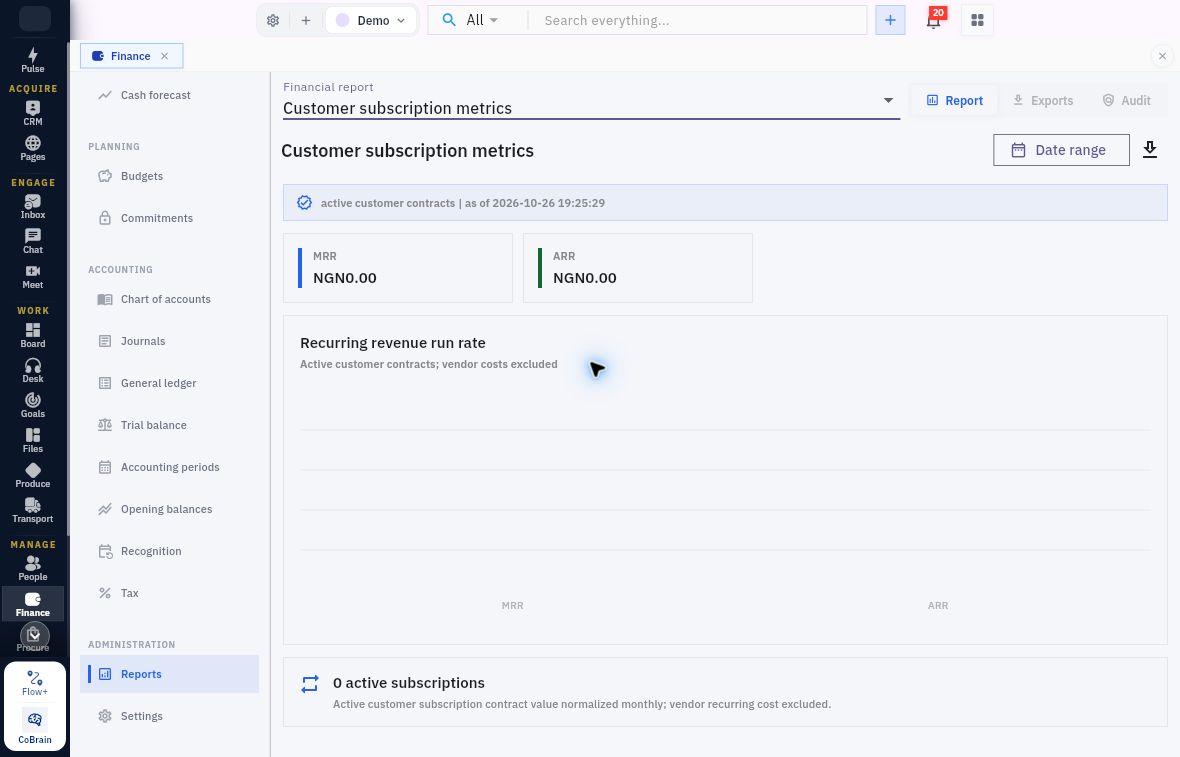
| Customer subscription metrics | Date range; active customer contracts | MRR, ARR, Recurring revenue run rate and active subscription count. Contract value is normalized monthly; vendor recurring cost is excluded. |
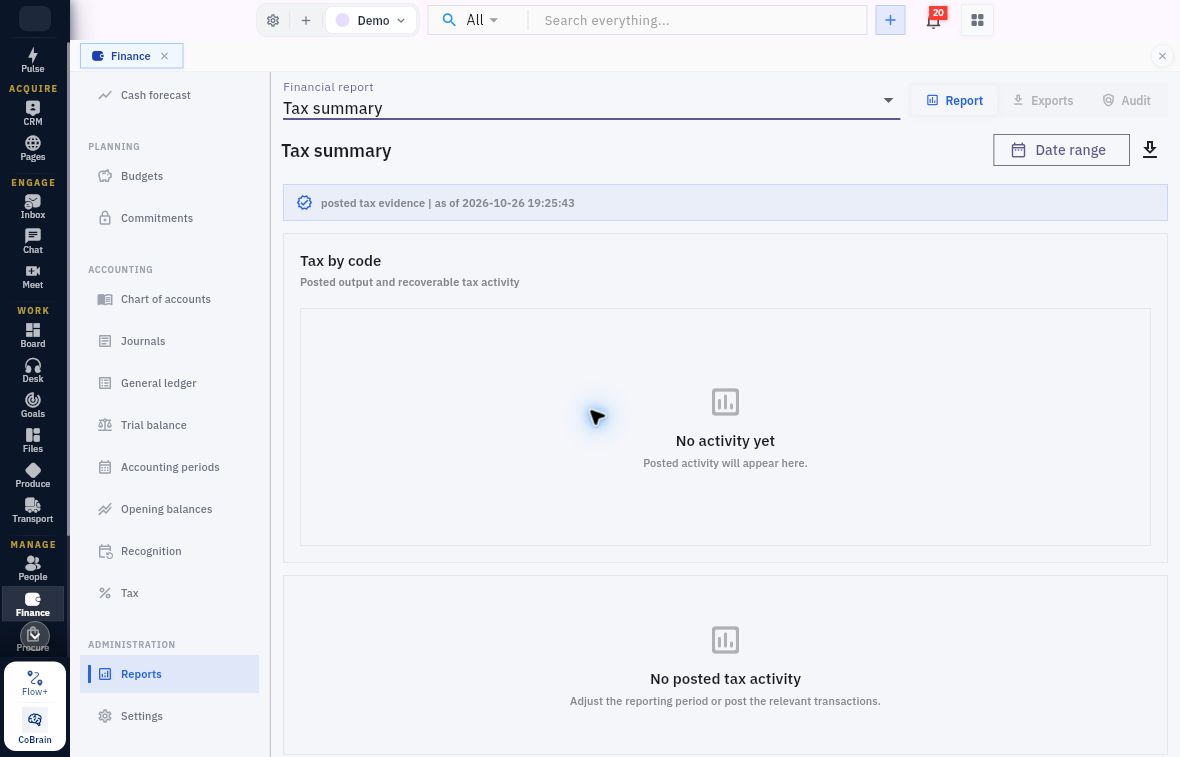
| Tax summary | Date range; posted tax evidence | Tax by code, described as posted output and recoverable tax activity. The empty view reads No activity yet and No posted tax activity. |
All these report views offer Export report. Read the applied date scope and actual output before relying on either the chart or a file. A Date range button on two different reports does not make their populations identical: aging uses open items, whereas the P&L uses posted ledger activity. The examples below retain a populated USD training dataset so you can practise tracing actual lines; the empty NGN Demo views teach scope and controls, not a second set of completed transactions.
Read the Trial balance columns and totals
Open Finance → Trial balance and wait for the view to settle. Read posted ledger, the as-of timestamp, Total debits, Total credits and the Balanced indicator. The table contains Code, Account, Type, Debit, Credit and Balance.
| Column or indicator | How to read it |
|---|---|
| Code, Account, Type | The account's identity and classification; compare the code as well as a familiar name |
| Debit and Credit | The displayed amounts for that account in the report population |
| Balance | The signed balance in this presentation; a credit balance may display as negative |
| Total debits and Total credits | The totals to reconcile to the displayed account rows and the intended population |
| Balanced | An arithmetic check, not proof that every transaction is present, correctly classified or unique |
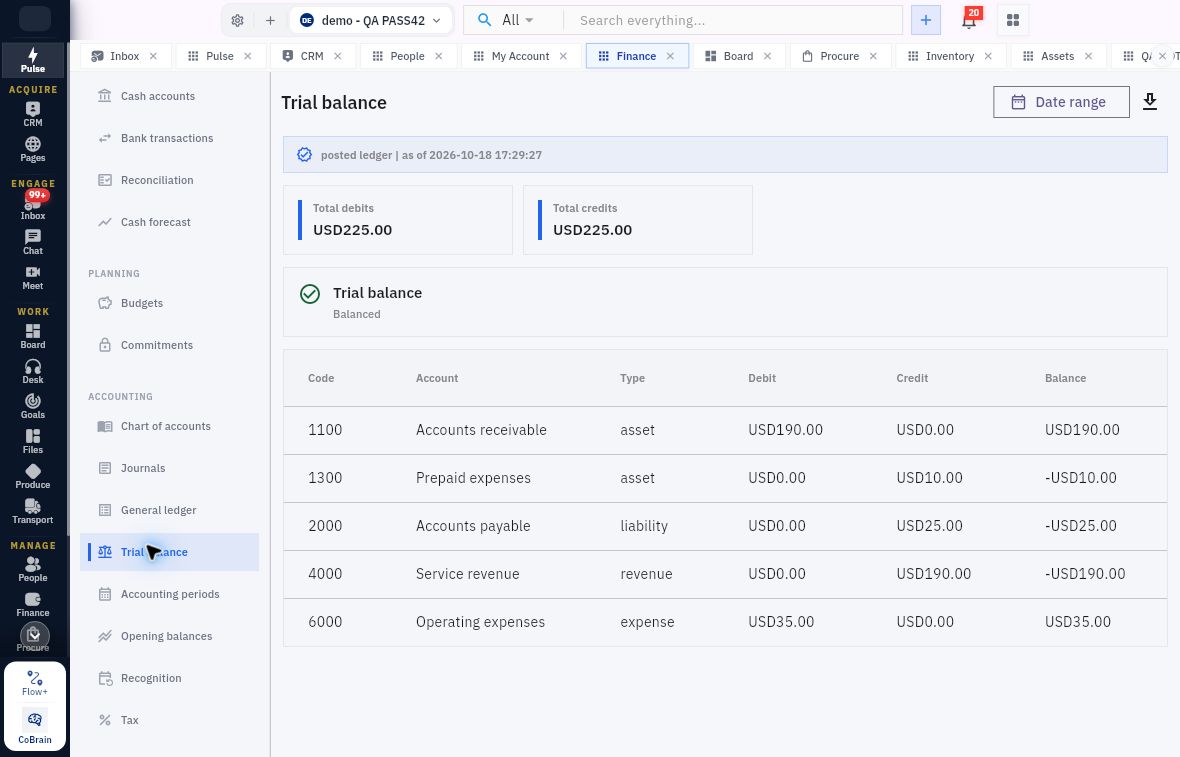
Trial-balance signs and reporting population
Read the sign convention and the population.
Debit totals and credit totals are both USD225. Account 1100 has debit 190; account 6000 has debit 35. Credits are 10 on 1300, 25 on 2000 and 190 on 4000. The Balance column displays those credit balances as negative. A negative revenue balance here does not mean negative sales.
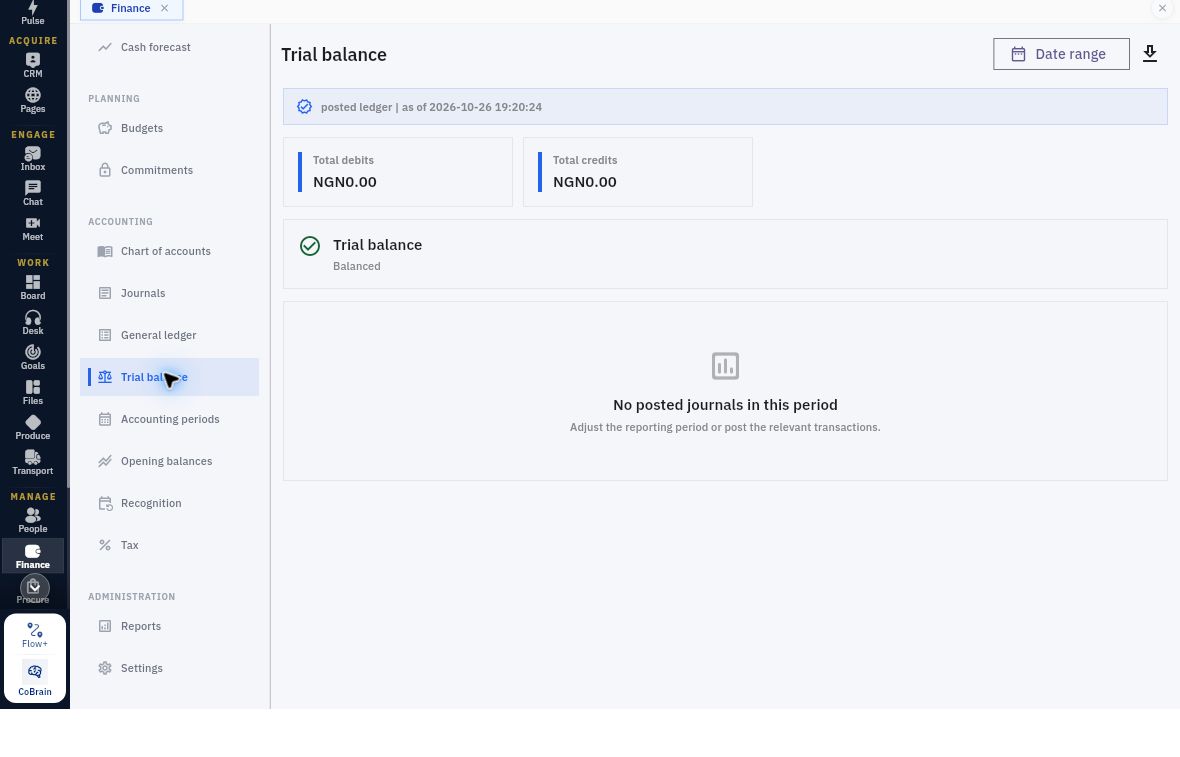
Balanced totals and empty accounting periods
Balanced can accompany an empty period. Check the message below the totals.
This Demo view has Total debits and Total credits of NGN0.00 and says No posted journals in this period. Its General ledger counterpart says No ledger activity in this period; both use Date range and identify posted ledger as their source. Do not post a transaction merely to clear the empty message. Check workroom, period and intended source records first. The populated USD table above remains a separate worked example.
Check Date range, the applied cutoff and opening-balance treatment before using the Trial balance for a close. Do not assume its date behavior matches the P&L procedure below. Check any downloaded output against the displayed scope.
Trace a report account through the ledger
Open Finance → General ledger. The columns are Date, Journal, Account, Description, Debit, Credit and Running balance. Read the individual movement separately from the running account total.
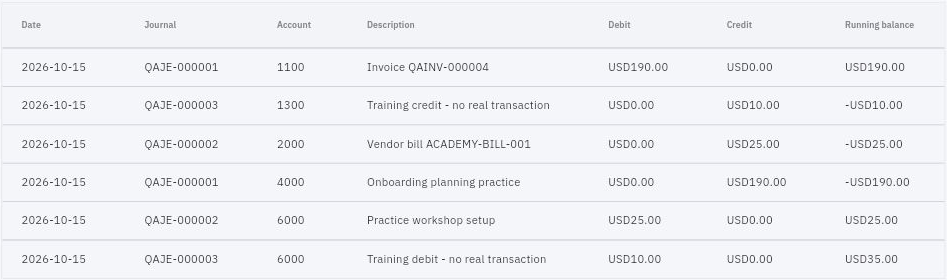
Trace journal and account together
Follow the exact journal and account together.
In these lines, account 6000 receives USD25 from QAJE-000002, then USD10 from QAJE-000003, producing running balance USD 35. The second adjustment is USD10, not USD 35. A total or row count alone cannot identify a missing or duplicated source line.
Use Finance → Journals → Journals to open each exact reference independently. The source trace for this example is:
| Journal | Source relationship and accounting lines |
|---|---|
| QAJE-000001 | Invoice QAINV-000004; debit 1100 Accounts receivable 190, credit 4000 Service revenue 190 |
| QAJE-000002 | Bill ACADEMY-BILL-001; debit 6000 Operating expenses 25, credit 2000 Accounts payable 25 |
| QAJE-000003 | Manual adjustment; debit 6000 Operating expenses 10, credit 1300 Prepaid expenses 10 |
All six lines have Entry Date October 15. The posting events occurred October 17. Invoice and bill journal headers were Posted Version 1, while their source versions differed: the invoice source was Version 3 and the bill source Version 2. Do not treat a source version as the journal's own version.
The adjustment was Posted Version 3 even though its narration retained the old word “unposted.” The state and ledger evidence establish posting. Do not create another journal because an old description is misleading, and leave Reverse untouched during inspection.
Apply a P&L range and check the result
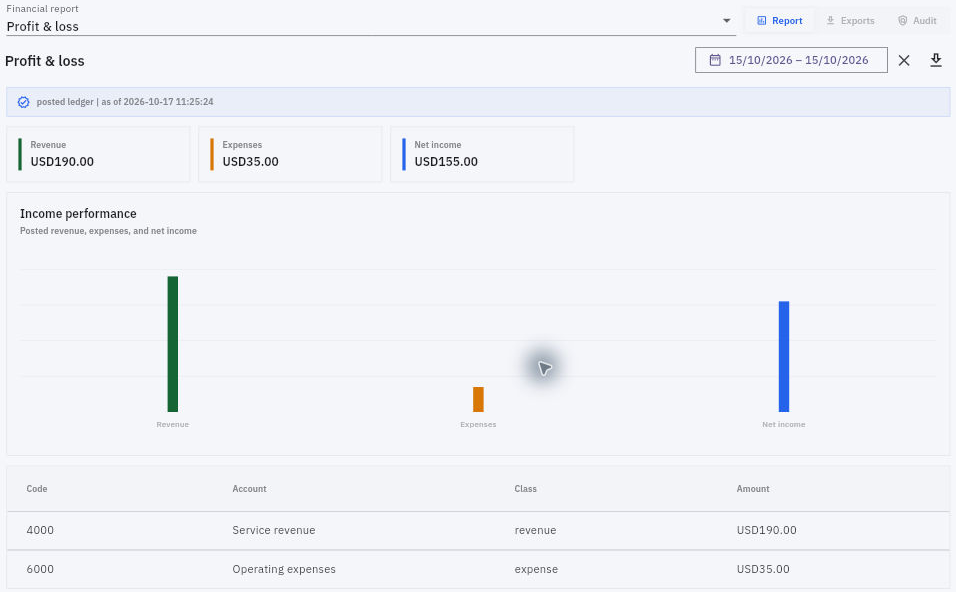
Select Finance → Reports → Financial report → Profit & loss, then make sure Report is selected. Read Revenue, Expenses and Net income together. The Income performance chart describes posted revenue, expenses and net income. The account table in the populated example contains Code, Account, Class and Amount.
The example’s baseline is January 1 through October 17, 2026, with Revenue 190, Expenses 35 and Net income 155, all USD. The two account rows were Service revenue 4000 at 190 and Operating expenses 6000 at 35. Recalculate 190 − 35 = 155 before tracing the source journals.
For a permitted view-only comparison:
- Record your actual starting range and values. Do not substitute the example’s baseline for your own current view.
- Open Date range, then the pencil icon in the calendar header to expose Start Date and End Date text entry. Use Cancel if you only intend to inspect the input.
- Read the input format and the named calendar months. In this example, input used month/day/year while the applied label used day/month/year. That is not a universal locale rule.
- Enter the intended dates, select OK once and wait for the report to settle.
- Check the applied date label, summary values and account rows. A typed date without OK and changed readback is not an applied comparison.
- If this is a temporary investigation, restore the exact starting range, choose OK and confirm the restored output.
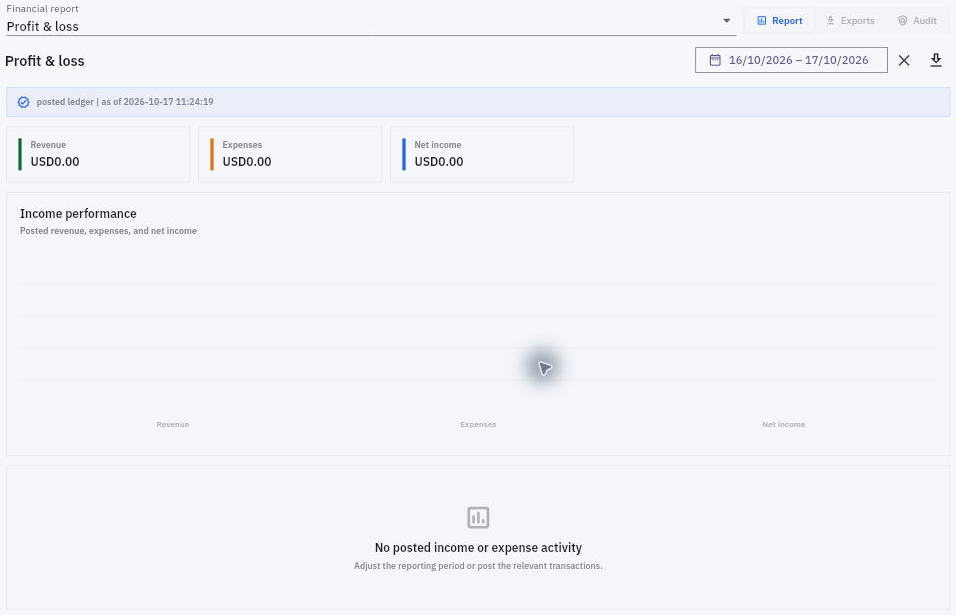
Date exclusions and zero activity
Zero is scoped.
The test range 16/10/2026–17/10/2026 returned zero Revenue, Expenses and Net income and No posted income or expense activity. It excluded the October 15 entry dates even though the journals were posted October 17. This did not mean the sources were deleted, the business had no cash or October had no activity.
Date inclusion and income calculation
Check inclusion as well as exclusion.
October 15 alone returns 190/35/155. Restoring January 1 through October 17 returns the same figures. These entries follow their accounting dates in this P&L. Check date behavior separately for other reports and around any relevant timezone boundary.
Read the Balance sheet with its own cutoff control
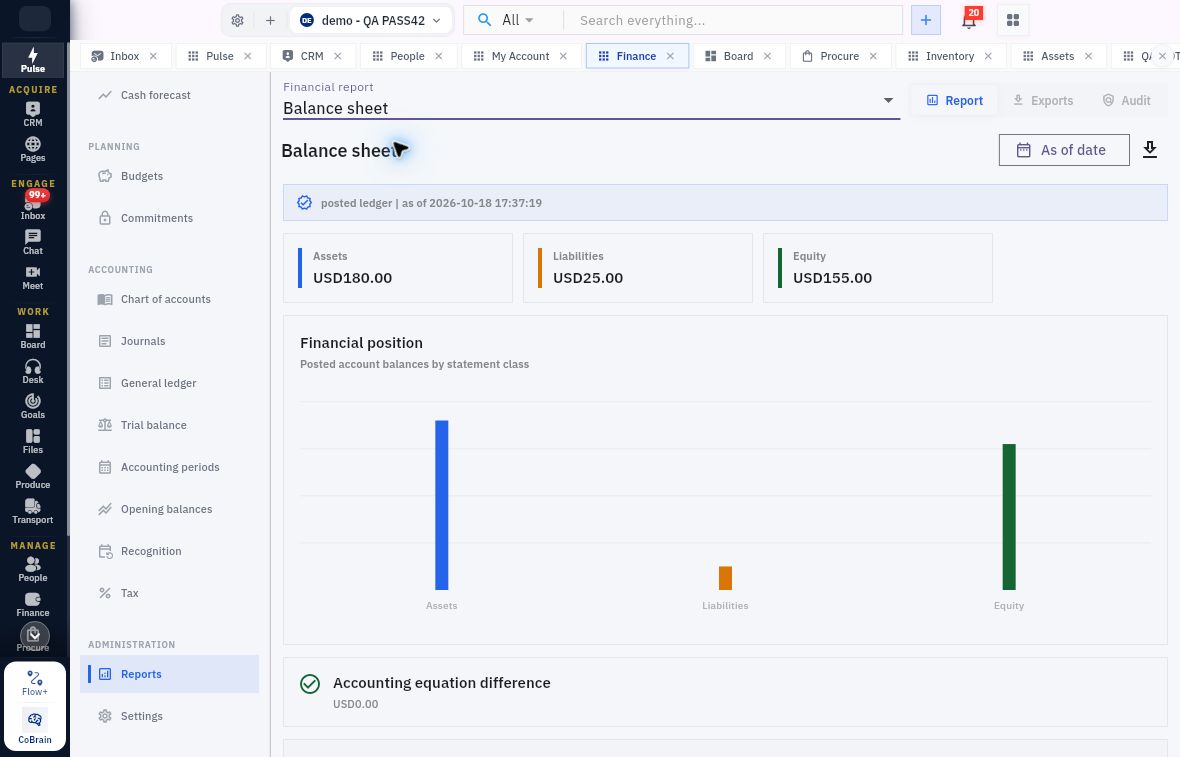
In Financial report, select Balance sheet. This view exposes As of date, rather than the P&L's Date range. The example shows Assets, Liabilities, Equity, the Financial position chart and Accounting equation difference.
Balance-sheet equation and completeness
A zero equation difference is not a completeness certificate.
The displayed assets 180 equal liabilities 25 plus equity 155. The source account rows were receivables 190 and prepaid expenses minus 10, giving assets 180. The liability appears as positive 25 here even though the Trial balance displayed its signed balance as negative 25.
The negative prepayment is an exception to investigate: the example adjustment credited prepaid 10 without that isolated training population supplying an opening prepaid debit. That explains the source of the negative amount; it does not prove a healthy real asset balance, a product defect or permission to invent a purchase to remove it.
Apply and read back the required As of date before using a Balance sheet for review. Check the complete opening and current population. Do not assume the cutoff behaves identically to the P&L range simply because both controls use a calendar icon.
Read the Cash-flow statement independently of profit
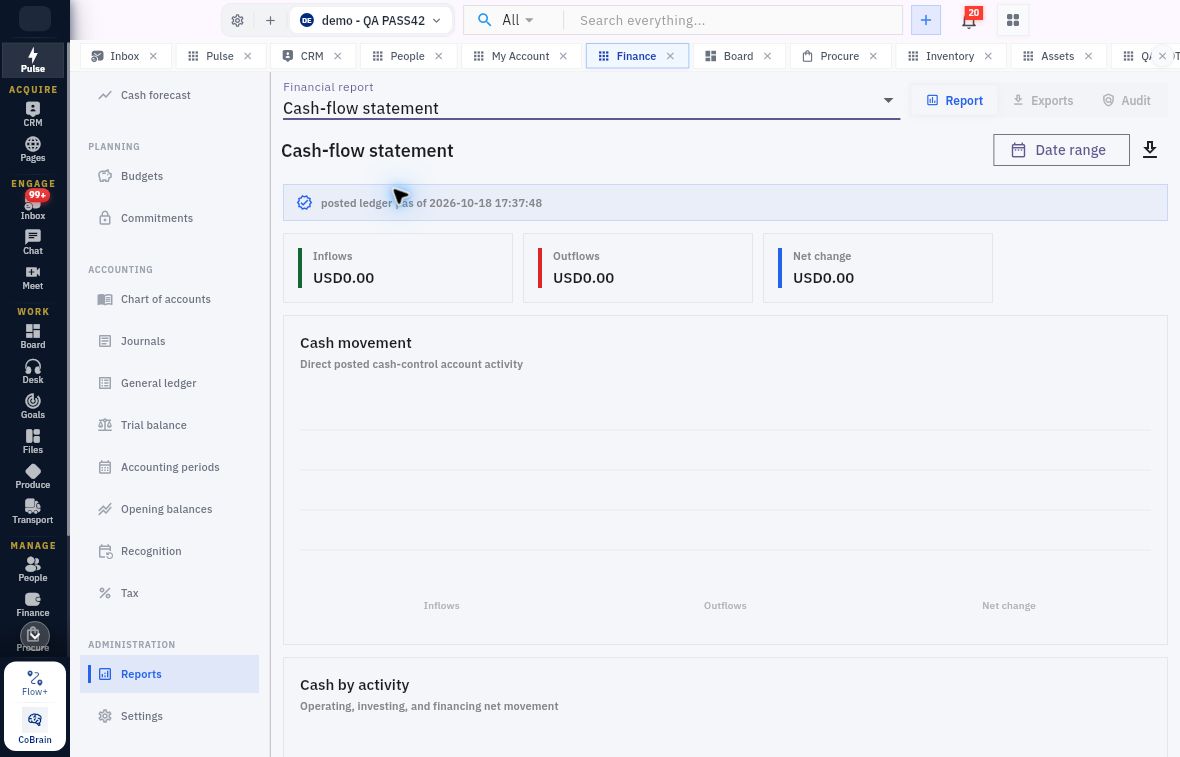
Choose Cash-flow statement in Financial report. Read the summary cards Inflows, Outflows and Net change. Cash movement is described as Direct posted cash-control account activity. Below it, Cash by activity is described as Operating, investing, and financing net movement.
Cash-flow sources and zero movements
The source lines explain the zero.
None of the six example journal lines above uses a cash-control account, so the cash report shows zero despite profit 155. The invoice and bill therefore do not represent collected or paid cash in this view. The later receipt's blocked Release also did not establish a cash posting.
Check the Cash-flow statement’s own Date range and any downloaded output. For a nonzero view, inspect activity classification, transfers and completeness across cash accounts. Cash forecast is a separate forward-looking view, not a replacement for posted movements or bank records.
Choose the other native report views deliberately
Use the source-basis table above to choose the right view, then inspect the underlying records rather than treating a chart as a complete schedule.
Aging buckets and outstanding-item scope
Read the overdue buckets and the open-item scope together.
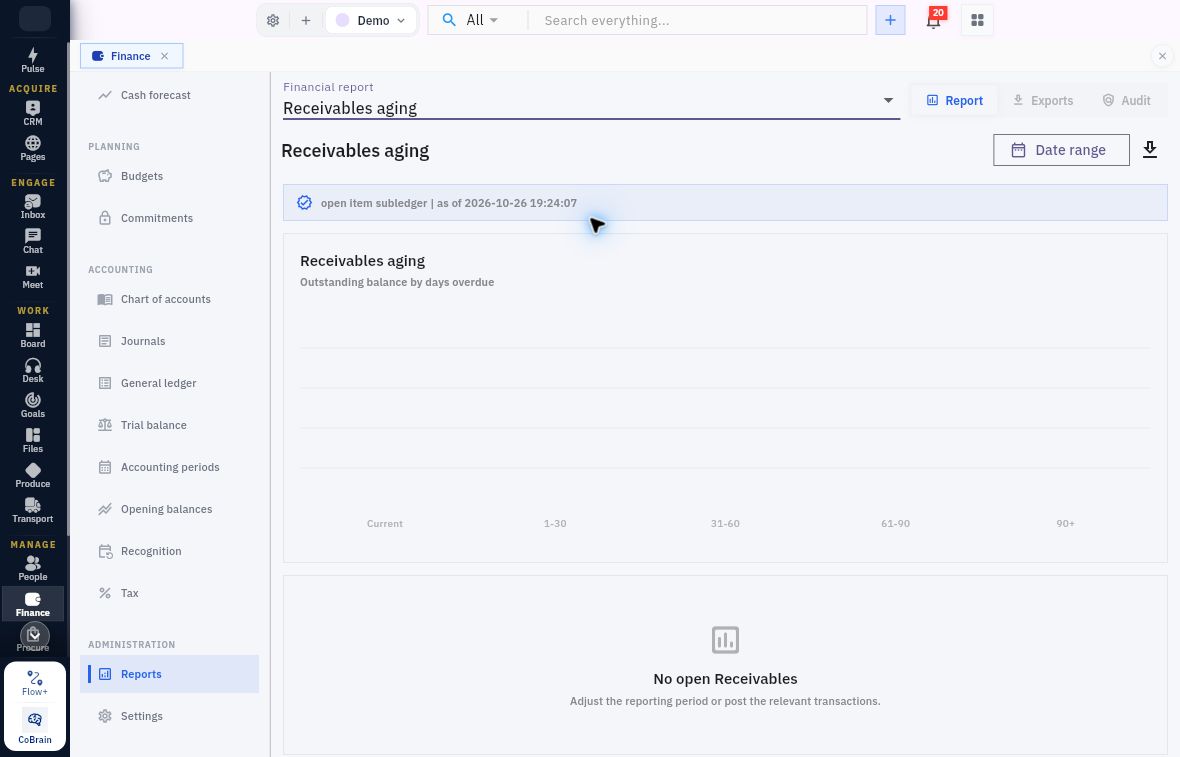
For Receivables aging and Payables aging, the chart describes Outstanding balance by days overdue. Compare the applied range, source due dates and remaining balances. Current is a bucket label, not the current calendar month. The empty Demo views do not show individual customer/vendor rows or transaction-level columns, so use the Receivables or Payables workspace to inspect an exact source when no report detail is available. A missing open item calls for a source/status/scope check, not another invoice or bill.
Recurring metrics versus recognised revenue
Recurring contract value is not collected cash or posted revenue.
The subscription view shows MRR and ARR at NGN0.00 and 0 active subscriptions. Its helper defines the population as active customer subscription contract value normalized monthly, with vendor recurring cost excluded. An active reusable plan is not itself an active customer contract. Check the subscription’s actual state, service unit, cycle and currency before explaining a run-rate amount. Do not subtract supplier subscription costs from this customer metric or infer an invoice, receipt, recognition event or a tested conversion formula from the zero cards.
Tax summary and posted source activity
Trace Tax by code to posted output and recoverable tax activity.
Check the range and source tax treatment before interpreting this report. The empty view supplies no tax-code amount rows to reconcile. A zero chart does not establish a nil filing obligation, a completed return or a tax payment. Use the approved tax-review process and actual posted sources; do not create a tax entry just to populate the view.
The Budget variance example shows account 6300, Budget 100, Actual 0, Committed 0 and Available 100 USD. Read its selected date range and refresh/as-of time. Available is a reported planning value, not permission to spend or proof that bank funds are available. Chapter 9 explains the budget and commitment relationships; check this report’s aggregation and scope before using it for a spending decision.
Check each report’s own date controls, sign convention and export output. If a definition or source population is unclear, name the specific question for the owner before relying on the result.
Keep report export, export jobs and audit separate
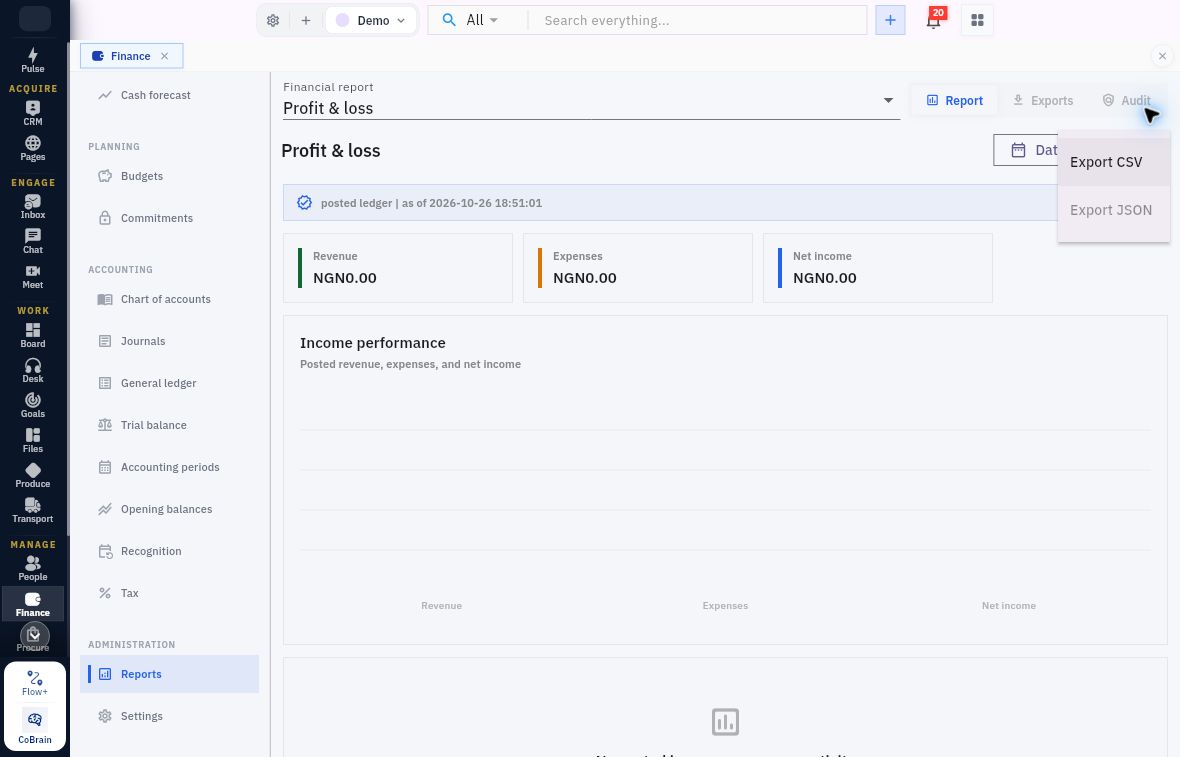
Open Export report only to inspect its menu during this read-only tour, then dismiss it without choosing a format. The menu offers Export CSV; Export JSON is greyed out in this view. A format choice is not a retained or checked file.
Export format and report scope
Check the report and its scope before choosing an export format.
For an authorised export outside this exercise, check the resulting file’s report identity, currency, applied scope and contents against the report. Keep it in the approved location. Do not assume the menu creates a finance export job or that its file structure is identical across reports.
The Exports tab has Search records, All statuses, New and Create finance export job. Its empty message is No finance export jobs yet. This is a job register, not confirmation that a download has succeeded. Leave creation controls untouched during the tour; use the approved job procedure before creating or scheduling an export.
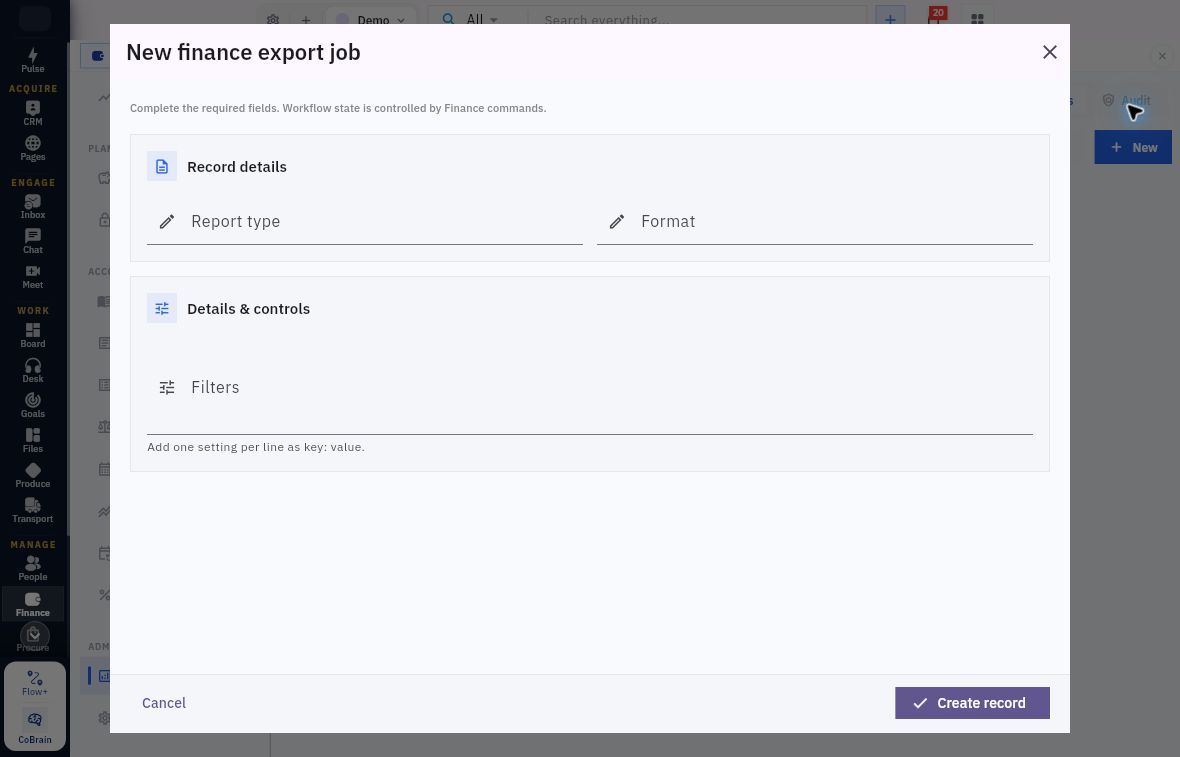
New on Exports opens New finance export job. This is a separate preparation form from the report’s Export CSV menu:
| Input | What to establish before an authorised job |
|---|---|
| Report type | The supported report identifier for the intended output. This is a text input, not the Financial report selector; do not guess an identifier from a display title. |
| Format | The supported output-format value. Do not assume every value or format shown elsewhere is accepted here. |
| Filters | One setting per line as key: value. Obtain the supported filter keys and values for that report; the helper explains syntax, not which keys work. |
Export-job fields and download checks
Specify the report and scope through supported values; a saved job is not a checked download.
All three inputs are blank in this example. The parent controls are Cancel and Create record. Use Cancel during the tour. Before any authorised creation, confirm the accepted identifiers, filters, access and execution procedure. Afterwards, check the job’s actual outcome and the resulting file separately; neither a configuration save nor an empty Exports list establishes successful generation, delivery or retention.
The Audit tab has Search records and reads No security audit logs yet, with Records will appear here when this workflow has activity. This empty view has no New action or status filter. Check the relevant record and available history for your actual review question; an empty audit list is not proof that no one acted or that every workflow event is covered here.
Prepare a concise period-review handoff
For Riverside, keep the review tied to its actual sources rather than constructing a second fictional month. If its USD 300 invoice and USD 80 bill have been properly recorded, and USD 200/USD 50 payments validly applied, the conceptual outstanding amounts are 100 and 30. Those calculations become Workroomly results only when the actual source, allocation, journal and balance readbacks support them.
A useful review sequence is:
- Confirm scope and completeness. Agree workroom/entity, currency, period, opening position and source population; identify late documents and unfinished drafts.
- Tie balances to sources. Compare receivable/payable schedules with their ledger controls, cash with statements/reconciliation, and relevant recognition/adjustment records with their source evidence.
- Trace exceptions. For each material difference, record reference, amount if known, scope, evidence checked, responsible owner and next action. Separate “not relevant” from “not checked.”
- Reread reports after authorised corrections. Inspect actual postings and applied scopes; do not post a balancing plug simply to force an expected answer.
- Retain the review decision. Preserve the report scope, source references, reconciliation and unresolved items through the organisation's verified storage/export procedure. A visible download icon is not proof a file was retained.
Your conclusion should say what is supported and what is still held. A complete paper calculation does not prove complete sources, successful settlement, a nonzero bank reconciliation or a completed close.
Distinguish review readiness from period closing
Open Finance → Accounting periods → Periods for the actual period identity and state. The list has Period, Status, Sequence, Starts and Ends; its status filter offered Future, Open, Soft closed and Hard closed. Filtering the list does not change a period.
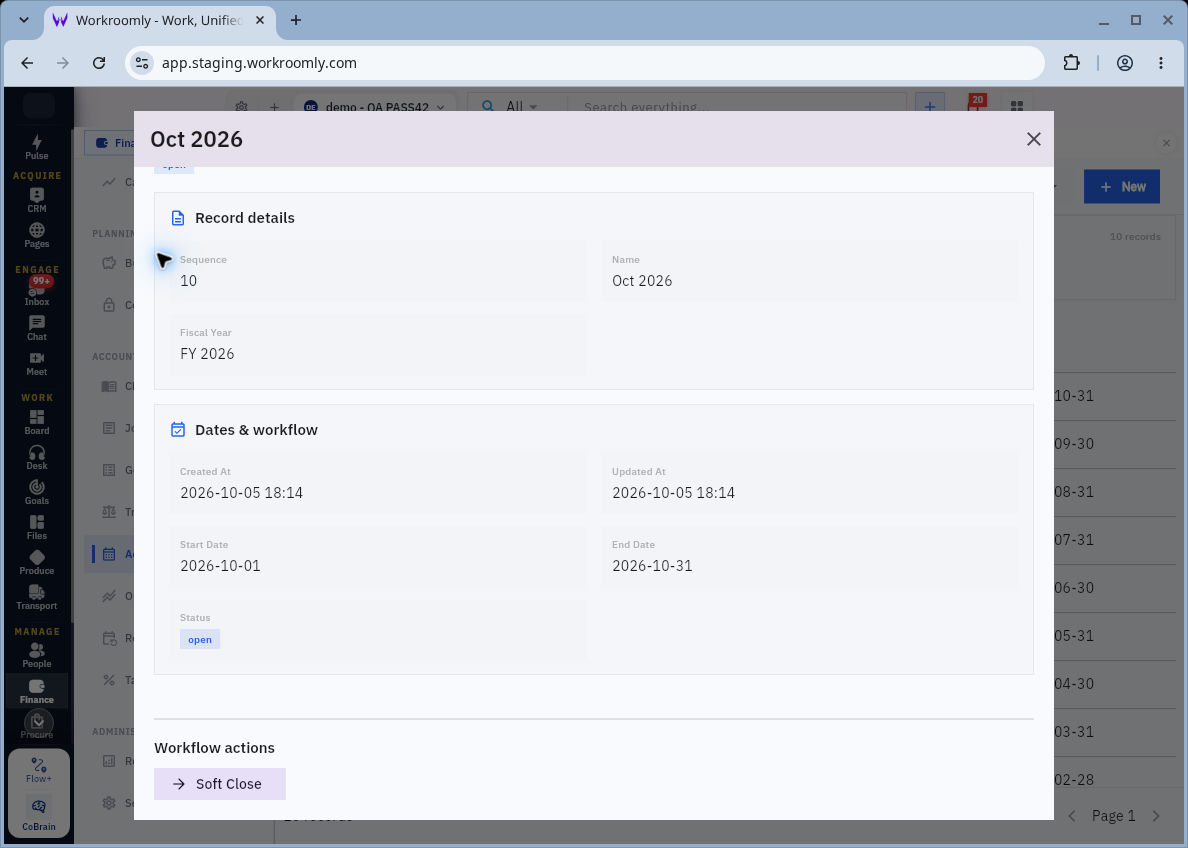
Period controls and read-only review practice
Use the right Close control.
This Oct 2026 record is open and offers Soft Close under Workflow actions. The detail panel’s header Close only dismisses the panel. A Future period can offer Open. Leave all period workflow actions unchanged during this tour.
Before closing a real period, confirm the responsible actor, posting restrictions, required reasons, Hard Close sequence and reopening procedure. Check the resulting state and control effects after any authorised transition. A visible action alone does not settle these operating rules.
Read-only practice and expected result
Choose one permitted existing source journal and its accounting date. Find its account movements in General ledger and identify the corresponding account in Trial balance or a relevant report. Record the report's actual currency and applied scope. If view-only changes are allowed, compare a P&L range that includes the date with an appropriate comparison range, then restore the initial range and verify it.
Prepare a brief handoff naming the source/journal, account, report scope, supported result and one unresolved question if present. If the workroom has no suitable posted records, use the historical images as a source-reading exercise and label it as such; do not create a transaction to populate the report.
Expected result: You can explain why a figure appears, where its source can be inspected and which scope or evidence limits remain. You can distinguish a balanced report and a reviewed period from a closed period. No duplicate source, balancing journal or period transition has been created to make the demonstration succeed.
Turn what you learned into the way the team works.
Mark this lesson complete once the workflow exists in your workspace—not simply when you reach the bottom.