Finance course 12 — Reviewing bank statements and reconciliations
Bank transactions and Reconciliation are different workspaces. An import record describes a statement; ingested rows describe its transactions; a reconciliation session compares a particular account and period with the books. Inspect all three before concluding that an account is reconciled.
Part of Mastering Workroomly Finance
In this lesson
Statement imports versus transactions and sessions
Bank transactions and Reconciliation are different workspaces. An import record describes a statement; ingested rows describe its transactions; a reconciliation session compares a particular account and period with the books. Inspect all three before concluding that an account is reconciled.
You need the complete statement, its account and currency, the intended cutoff and access to the corresponding cash-account and book records. This tour is read-only: do not upload, ingest, match, create, lock or reopen anything. The examples include empty Demo registers and a separate zero-value training session. That Locked session is not a worked nonzero reconciliation, and neither example confirms that Riverside’s payments cleared a bank.
In this chapter
- Establish the account and cutoff before opening a record
- Open Statement imports and inspect the register
- Map the import form to its source
- Distinguish bank rows from an import header
- Open Reconciliation and read its scope
- Understand the new-session fields without manufacturing completion
- Investigate a difference by its evidence
- Read-only practice and expected result
Establish the account and cutoff before opening a record
Identify the approved Cash account record, not just a bank-like name in the chart. The statement and books must refer to that same account, currency and cutoff. Read all statement pages and the opening position; a correct closing number is not enough if the underlying population is incomplete.
Riverside's USD200 customer receipt and USD50 supplier payment provide a simple timing illustration. If those payments are already correctly in the books but clear the bank after the cutoff, they remain reconciling timing items. Do not enter them again when they appear on the next statement. Check the actual payment and allocation results as described in Chapter 7 before treating either amount as recorded or settled.
An invoice or supplier bill is not an additional bank movement just because it generated a posted journal. Begin with the cash entries and their source evidence, then identify which statement rows explain them.
Open Statement imports and inspect the register
Select Finance → Bank transactions, under Cash. The workspace has Statement imports and Bank transactions tabs. Start with Statement imports, using Search statement imports and All statuses to locate the actual statement. Cash is a sidebar section heading, not an extra click target.
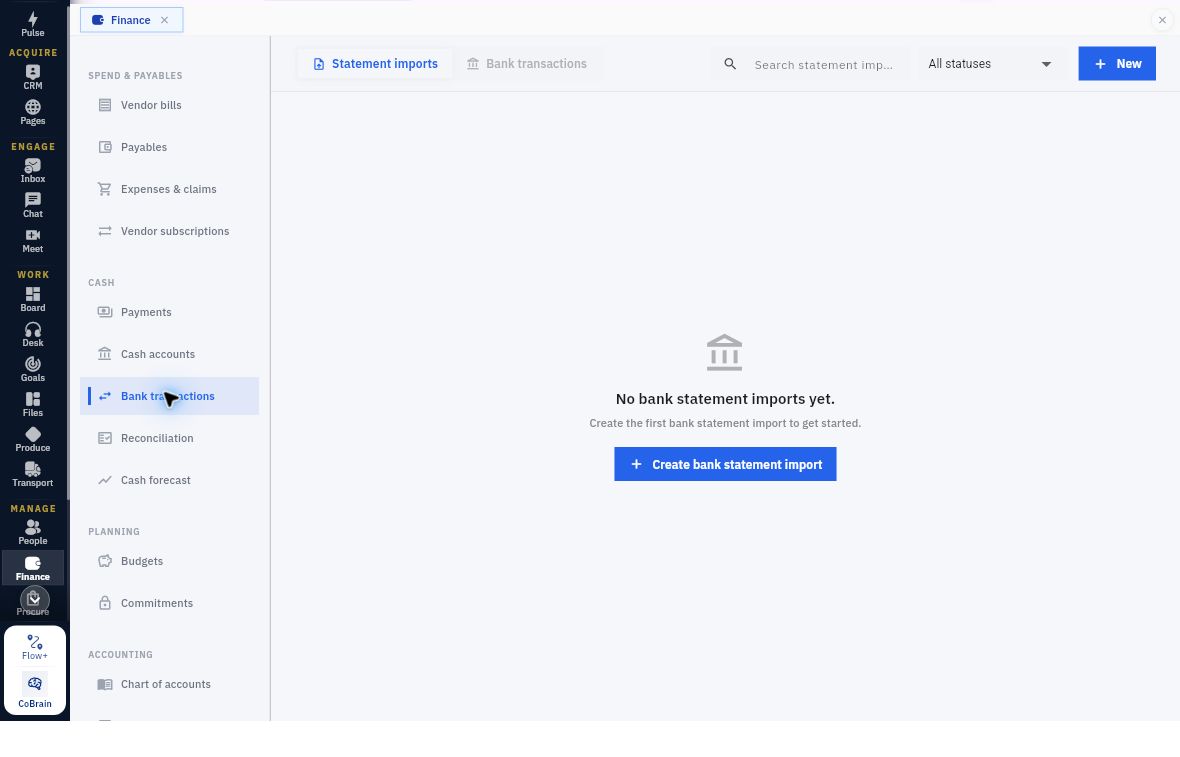
Check for an existing import first
Check the register before importing again. This Demo view says No bank statement imports yet and offers New and Create bank statement import. Check your workroom and scope; an empty list does not mean the account has no bank activity.
The next example shows why an existing import can still need attention:
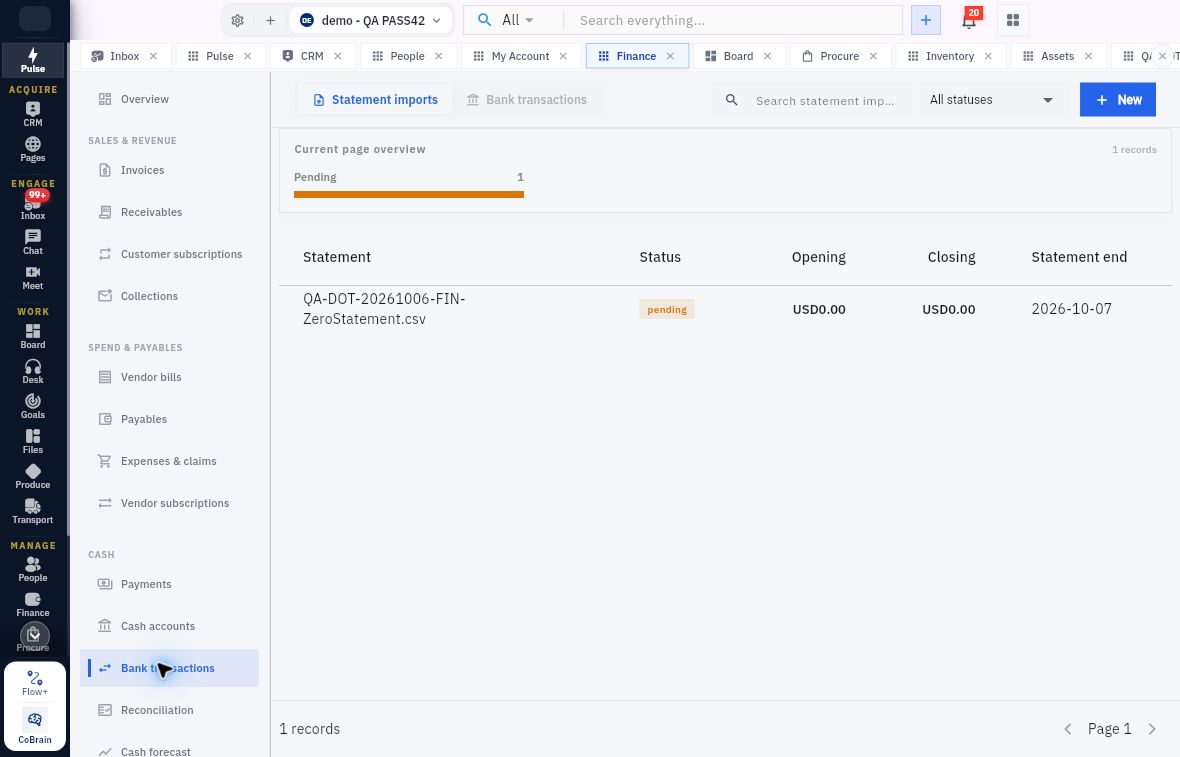
Import status versus ingested transactions
The register describes an import record, not necessarily imported transactions. The example row is QA-DOT-20261006-FIN-ZeroStatement.csv, Pending, opening USD0, closing USD0, statement end October 7. The visible columns are Statement, Status, Opening, Closing and Statement end. That filename and Pending state do not prove successful ingestion.
Open the detail as well as the row. This example has Statement Start October 5, Statement End October 7, Row Count 0, currency USD and Test Cashbox - no real funds. Ingest is available, but the record is still Pending with zero rows. Do not use this test record for ingestion practice.
When examining your own existing import, compare its source file, exact account, dates, opening and closing amounts, row count and current state. If identity is uncertain, preserve the uncertainty before attempting any re-import.
Map the import form to its source
On Statement imports, New opens New bank statement import. Inspecting the form can help you understand the stored metadata, but a permitted read-only tour ends with Cancel.
| Field | Source and interpretation |
|---|---|
| Statement start and Statement end | The range covered by the complete statement, not the day the import is entered |
| Opening balance and Closing balance | The statement's balances for that range and account; compare them with the source rather than deriving them from a desired reconciliation result |
| Currency | The statement/account currency |
| Cash account | The exact configured cash-account relationship |
| Source file | The authorised statement file; a worksheet with the same closing number is not equivalent |
| Attach from Vault / Upload file | Existing-file association or file selection for upload; neither a chooser closing nor a filename alone proves successful ingestion |
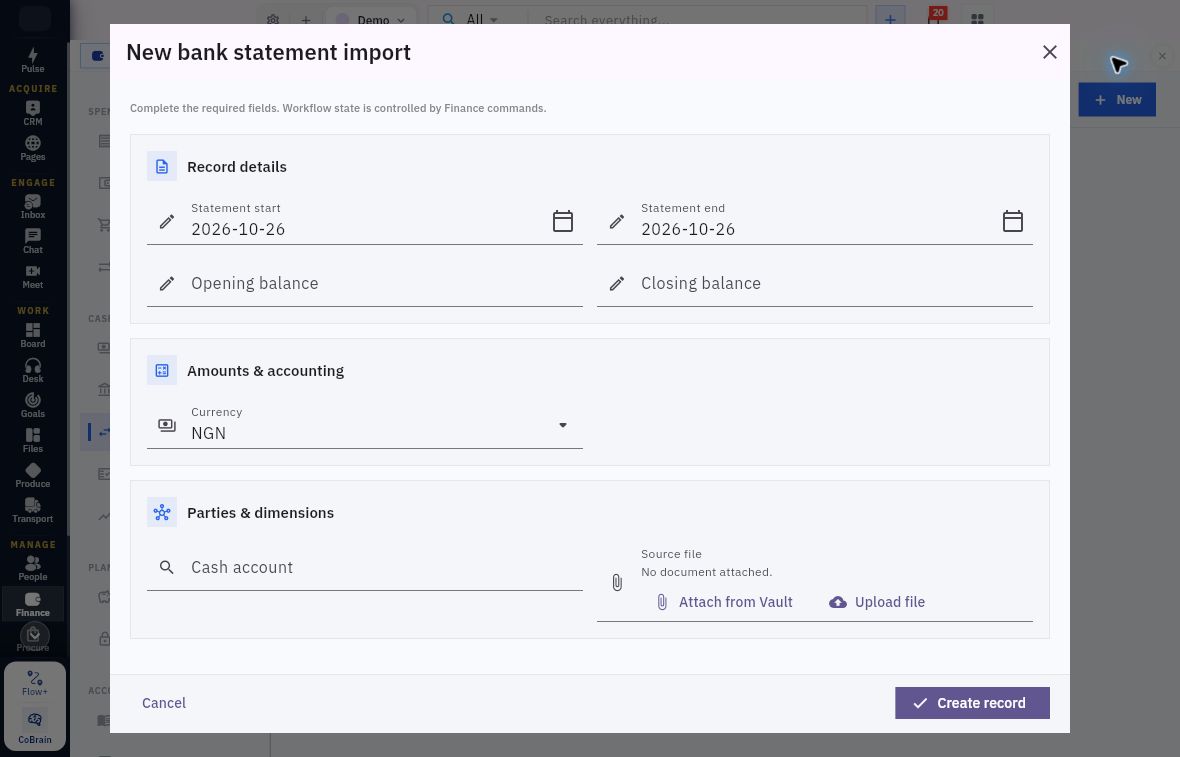
Statement dates, balances and source attachment
Use the statement’s dates, not the prefills. This blank form shows 2026-10-26 in both date inputs and NGN as Currency. Opening and Closing balance are blank, Cash account is unselected and Source file says No document attached. Check every value against the source. There is no Exchange rate input on this form.
Create record saves the parent import; it does not by itself confirm that rows parsed successfully. Check required inputs and attachment validation in your approved import procedure. For this tour, leave Source file untouched and use Cancel.
Before importing, obtain Workroomly’s supported file layout, date and amount formats, duplicate-handling rules and ingestion procedure. Do not upload a guessed CSV format. Check existing attempts for the same statement before starting another import.
Distinguish bank rows from an import header
Select Finance → Bank transactions → Bank transactions. Use Search bank transactions. The empty Demo view reads No bank transactions yet, followed by Records will appear here when this workflow has activity. Unlike Statement imports, this view has no New, Create or All statuses control.
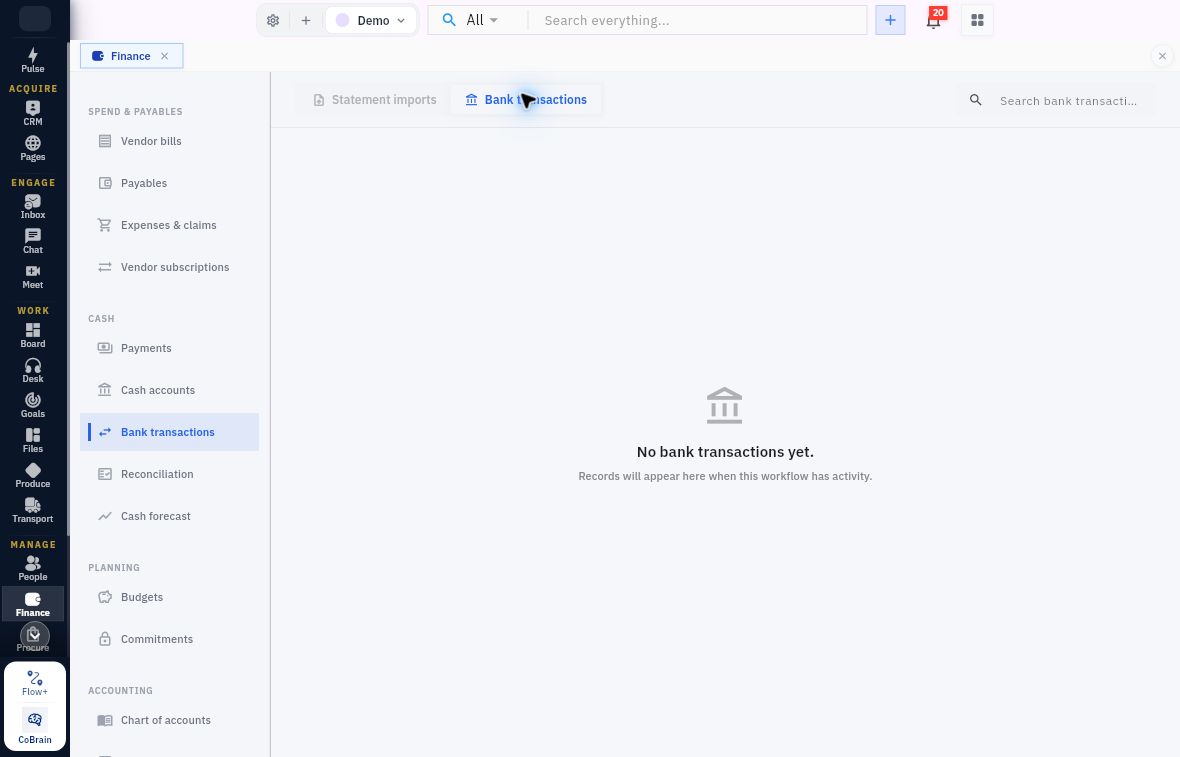
Transaction scope versus bank balance
An empty transaction list is not a zero bank balance. Check the workroom, scope, source file and import status before drawing a conclusion about bank activity.
For populated records, compare statement reference, date, currency, direction and amount with the book source. Use the supported matching procedure for populated records. Confirm which correction controls are available before changing a match; this tour does not cover them.
Do not treat a matching amount as a unique match. Two customers may each pay USD200. Identify the actual payer/reference and the correct allocation before concluding that one particular receivable is settled.
Open Reconciliation and read its scope
Select Finance → Reconciliation, under Cash. Use Search reconciliations and All statuses. The empty Demo view reads No reconciliation sessions yet, with New and Create reconciliation session available.
Where an authorised existing session is available, find the same account and dates as the statement and books. Inspect the exact source relationships before interpreting Difference. Do not create a replacement just because the current Demo register is empty. The saved training session below is a separate example:
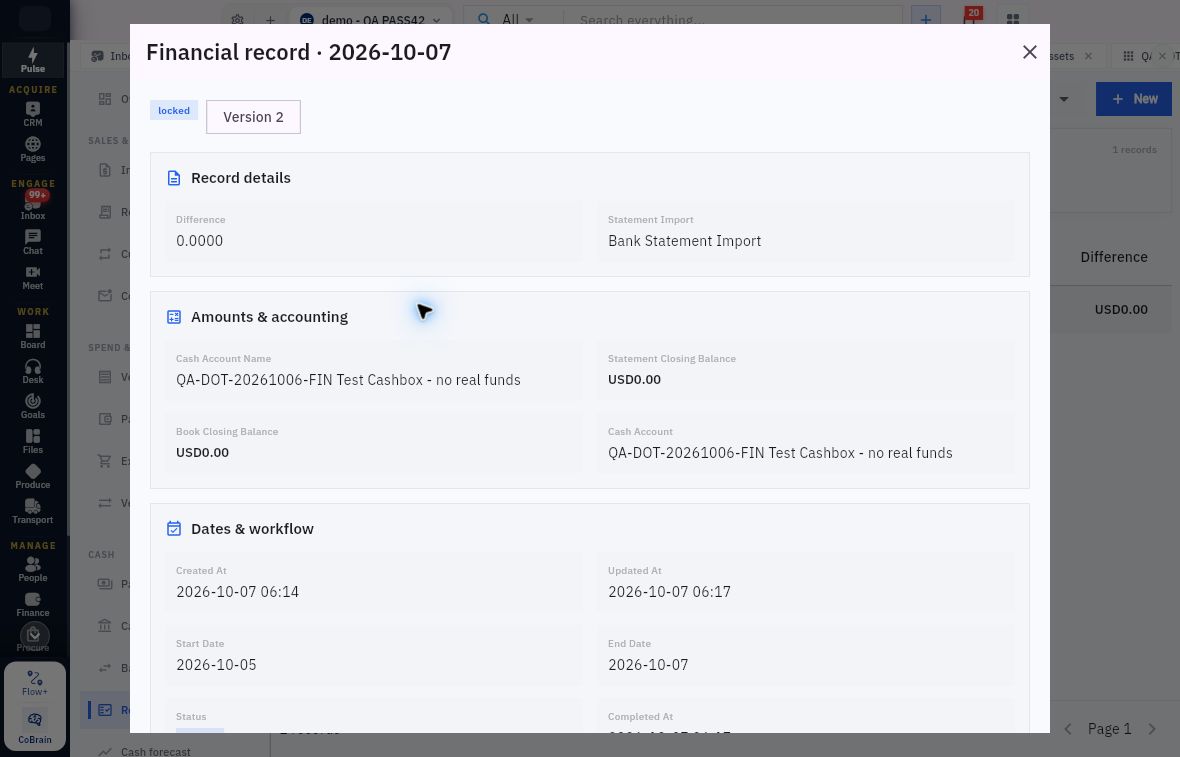
Locked state and reconciliation evidence
Locked is a state, not proof of the missing steps. This retained record is Locked, Version 2, for the synthetic cashbox, with Statement Closing Balance USD0, Book Closing Balance USD0 and Difference 0.0000. It covers October 5–7. Its relationship displays the generic label Bank Statement Import, which does not by itself identify the source file.
Scroll through the full detail to check Completed At and Locked At as well as balances. This example records both on October 7 at 06:17 and offers Reopen. Leave Reopen untouched. Zero balances and Locked status do not demonstrate that nonzero items were imported and matched.
Use the exact account, dates, import identity and supporting items to establish scope. A generic title such as Financial record and a zero Difference cannot replace that evidence.
Understand the new-session fields without manufacturing completion
New opens New reconciliation session, with Cancel and Create record as parent controls. Cancel ends this inspection without saving; Create record alone must not be described as matching, completion or locking. Read these inputs:
| Field | What must support it |
|---|---|
| Start date and End date | The intended reconciliation range for the same account |
| Statement closing balance | The complete statement's closing position |
| Book closing balance | The relevant book position for the matching account and cutoff |
| Difference | The reconciled comparison under the supported workflow, not a value chosen to make the result look finished |
| Locked at | A workflow-related timestamp field whose actual validation and effect must be understood before use |
| Cash account | The specific account being reconciled |
| Statement import | The actual source import, not just a similar display label |
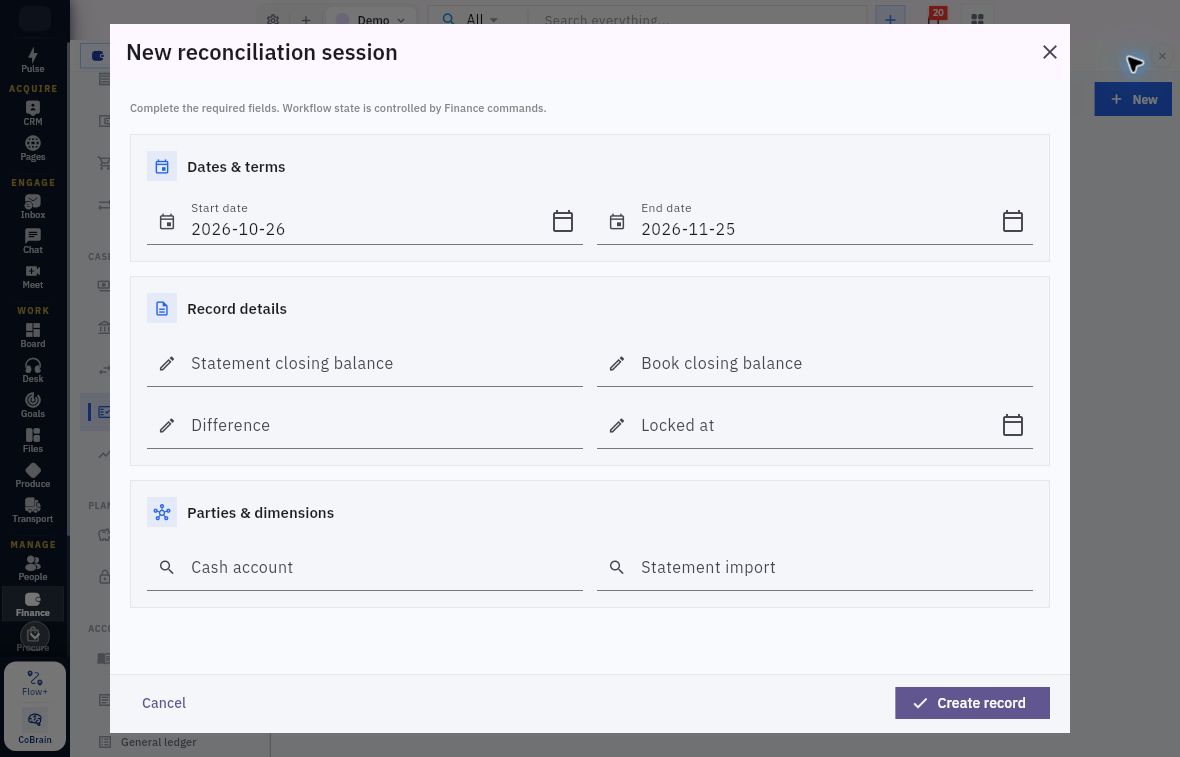
Session boundaries and safe reconciliation practice
Match the form to the actual statement range. Here Start date is 2026-10-26 and End date is 2026-11-25. The balances, Difference and Locked at are blank, with neither relationship selected. There is no Currency input on this form; obtain the account and statement currency from their records rather than borrowing NGN from the import form.
Do not manufacture a completed-looking session. A visible Difference or Locked at input is not an instruction to enter zero or a lock date. Follow the approved matching and completion procedure, including its calculation and validation checks. During this tour, use Cancel and leave the session unsaved.
Investigate a difference by its evidence
Separate timing differences from supported omissions or errors. Riverside's already-recorded USD200 deposit clearing later and USD50 payment clearing later would explain a net USD150 timing difference between unadjusted views. That does not authorise a USD150 expense or a second receipt/payment.
A genuine fee shown by the statement but missing from the books is a different case: identify its reference, date, amount and account, check for an existing entry and obtain the permitted source/journal correction. Do not infer a fee merely because a net deposit is slightly below the invoice amount.
If a record appears twice, disappears after a command or produces a timeout, keep the source/file identity and last verified state. Reopen and reconcile the original attempt before another import or financial action. A new filename or changed reference does not make the same statement a new event.
If the difference is zero, still check completeness. Equal and opposite omissions can cancel numerically. The expected rows must be accounted for once, and long-outstanding items need evidence and an owner rather than indefinite rollover.
An actionable exception note names the account, cutoff, source reference, amount and direction, what does not agree, evidence checked and the responsible next step. Keep “awaiting source evidence” distinct from “confirmed book error.”
Read-only practice and expected result
Use one permitted existing statement and its reconciliation session, if available.
- Identify the account, currency and statement range. Compare opening/closing balances with the complete source.
- Open the import and record its state and row count. Check whether the Bank transactions view contains the expected rows; do not infer them from the import's existence.
- Open the matching reconciliation. Compare account, dates, source-import identity, balances and actual state/timestamps.
- Identify one supported timing item or unresolved difference, or state that no populated evidence is available. Do not adjust it during this exercise.
- Write a short conclusion naming what agrees and what remains for the Finance owner.
Expected result: Explain whether the statement, rows, books and session cover the same scope. Identify the example import as Pending with zero rows and the separate session as Locked with zero balances—not a completed nonzero reconciliation. If your workroom has no suitable populated records, ask for an authorised worked example rather than guessing an import, match or lock command.
Next, use the financial reports and period review to assess the broader result without losing the source and scope checks you have just made.
Turn what you learned into the way the team works.
Mark this lesson complete once the workflow exists in your workspace—not simply when you reach the bottom.