Finance course 04 — Understanding tax setup and posting controls
A transaction can have the right commercial amount and still use the wrong tax code or accounting mapping. This chapter shows where Workroomly keeps those decisions and how to inspect the configuration behind a posting.
Part of Mastering Workroomly Finance
In this lesson
Tax and posting prerequisites
A transaction can have the right commercial amount and still use the wrong tax code or accounting mapping. This chapter shows where Workroomly keeps those decisions and how to inspect the configuration behind a posting.
You will work in Tax and Journals, with occasional checks in Chart of accounts and Settings. You need read access in the intended workroom and your organisation's approved tax and account-mapping specifications. Configuration, activation and posting require their own authority. The practice here is read-only: do not save a new rule, change a tax rate or post a transaction.
The examples use Demo and training definitions. Apply your organisation's approved treatment and mappings rather than copying example values.
In this chapter
- Know which configuration you are inspecting
- Read the Tax workspace as four different views
- Understand a tax code before using it
- Check the rate and its effective dates separately
- Read registration configuration without exposing identifiers
- Inspect a posting rule at the correct level
- Follow one mapping row from condition to destination
- Keep attempts and asset postings distinct from rules
- Connect configuration to an actual result
- Practice a read-only readiness check
Know which configuration you are inspecting
Workroomly separates four related layers:
| Layer | Where to go | What to check |
|---|---|---|
| Account definition | Finance → Chart of accounts | Exact code, name, type, currency and active state. |
| Control purpose | The account's definition | Whether a special role such as Accounts receivable, Output tax or Input tax is assigned. A familiar account name is not enough. |
| Workflow mapping | Finance → Settings | The account selected for a particular process. For example, the inspected Commercial revenue account helper names CRM agreement handoff and subscription billing. |
| Posting rule | Finance → Journals → Posting rules | Which source event and proposed journal lines the rule matches, and where those lines should post. |
Accounting is a sidebar section heading containing Chart of accounts and Journals, not an additional page to open. Settings is under Administration. Scroll the Finance sidebar when the required workspace is below the visible area.
Keep this separation in mind for Riverside's service invoice. Choosing its revenue account, applying the approved tax treatment and examining the journal generated by issue are related checks. Creating an account named “Output tax” does not create a rate. Finding an invoice rule does not establish that its mappings are appropriate for every source event.
Read the Tax workspace as four different views
Open Finance → Tax. The documented workspace has Tax codes, Tax rates, Registrations and Tax activity tabs.
- Tax codes holds treatment definitions and account relationships.
- Tax rates holds a rate linked to a code, with effective dates.
- Registrations stores registration configuration; it is not evidence of a registration granted by an authority.
- Tax activity is where you look for tax lines associated with relevant transactions.
The current Tax codes register has Search tax codes, New, and columns Code, Tax code, Type, Price mode and Active. Demo contains three inactive simulation definitions. Read their actual type and active value rather than treating their names as configuration approval.
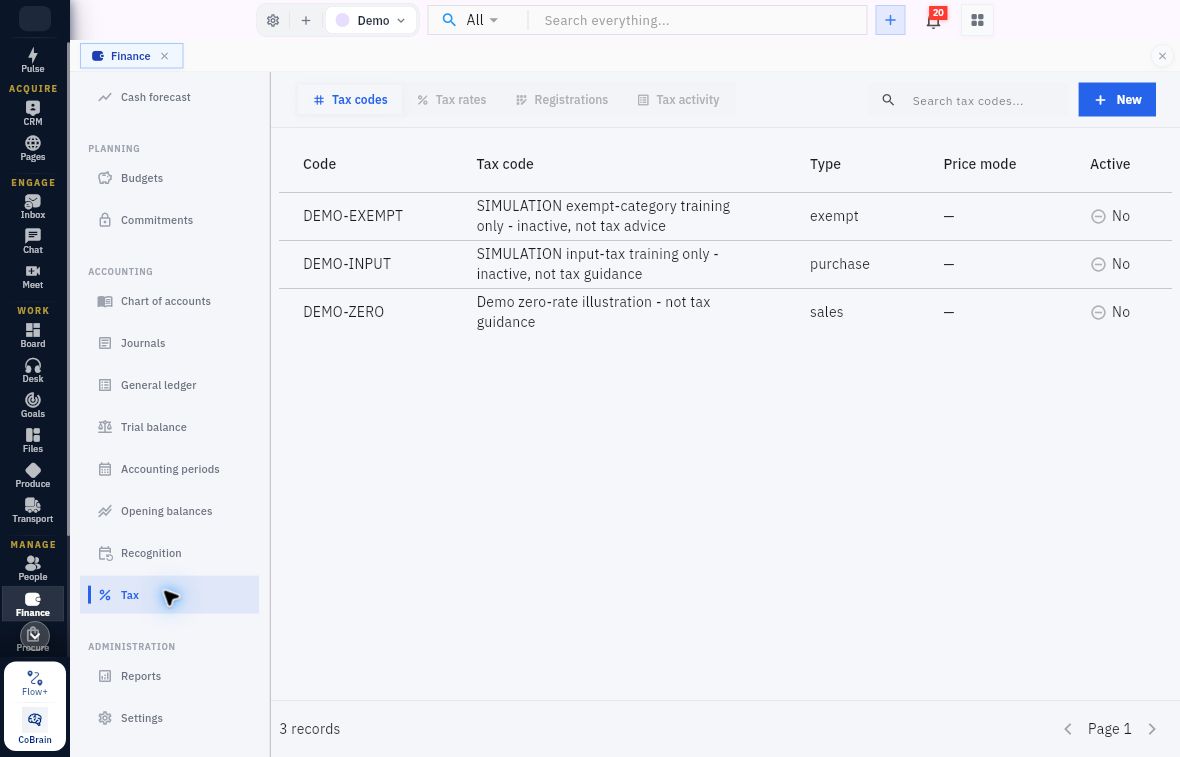
Tax-code readiness checks
Read Active and Price mode, not just the name. These simulation definitions all show Active No. Before using a real code, check its type, effective rate, price basis and account mappings against the approved treatment.
Start with existing records. Compare exact identities rather than creating another definition because a name looks unfamiliar. If the required code or dated rate is missing, record the gap for the configuration owner. An empty list is not a reason to enter an estimated value.
Understand a tax code before using it
On Tax codes, New opens New tax code. You can inspect the form and then choose Cancel without creating a record. Scroll through the complete form: the account references are lower than the initial identity and treatment fields.
| Field | Meaning and inspection question |
|---|---|
| Code | The identifier used to distinguish the definition. Does it match the approved code, rather than a similar test code? |
| Name | The readable description. Does it make the intended treatment clear to a preparer? |
| Recoverable percentage | The configured recoverability value. This is not the tax rate; compare it with the approved treatment. |
| Tax type | The choices are Sales/output tax, Purchase/input tax, Exempt and Zero rated. Do not substitute one for another simply because a calculation might produce zero. |
| Price includes tax | Whether the configured price basis includes tax. Compare it with how the source price is stated. |
| Output account and Input account | References to the applicable ledger accounts. Check the selected account's identity and purpose, not just text entered into a search box. |
| Is active | The definition's active flag. Check the saved value; the name of a record does not control this switch. |
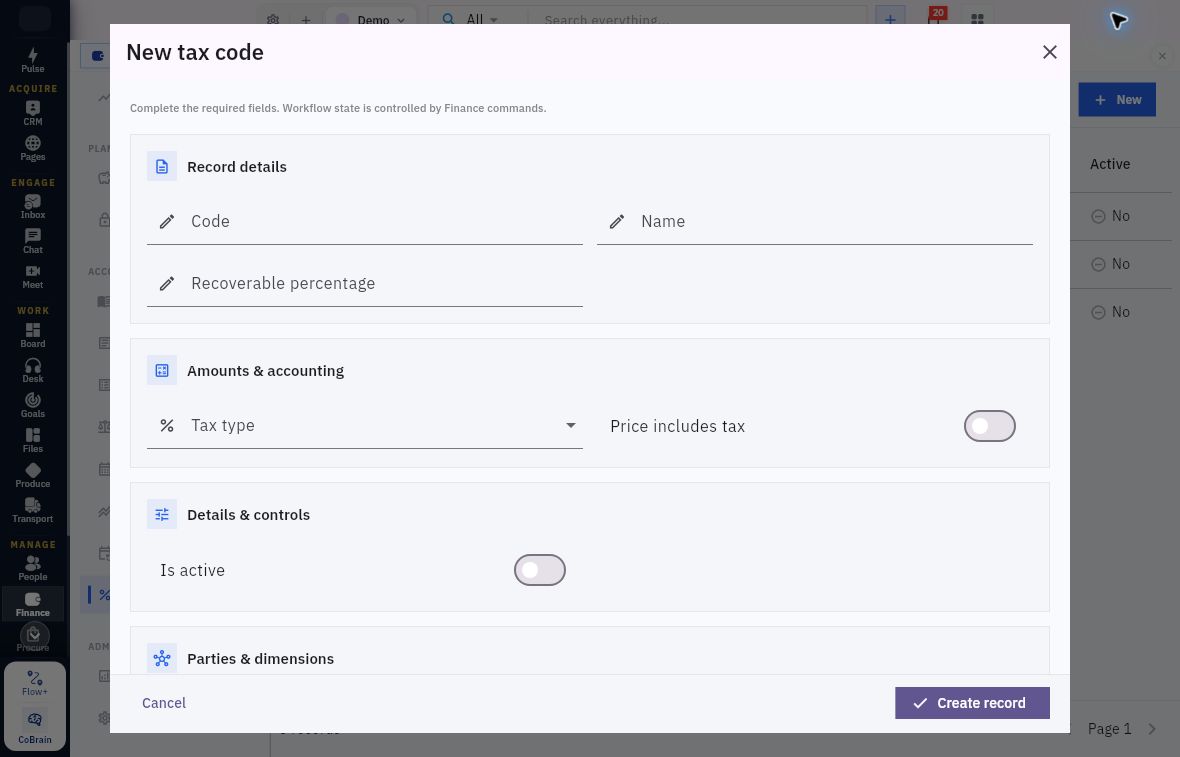
Recoverability and tax-code fields
Read Recoverable percentage separately from the tax rate.
The blank form has Code, Name and Recoverable percentage empty, Tax type unselected, and Price includes tax and Is active off. Choose each deliberately for the approved treatment; an empty recoverability input is not a stored zero, and a complete form is not an activation decision.
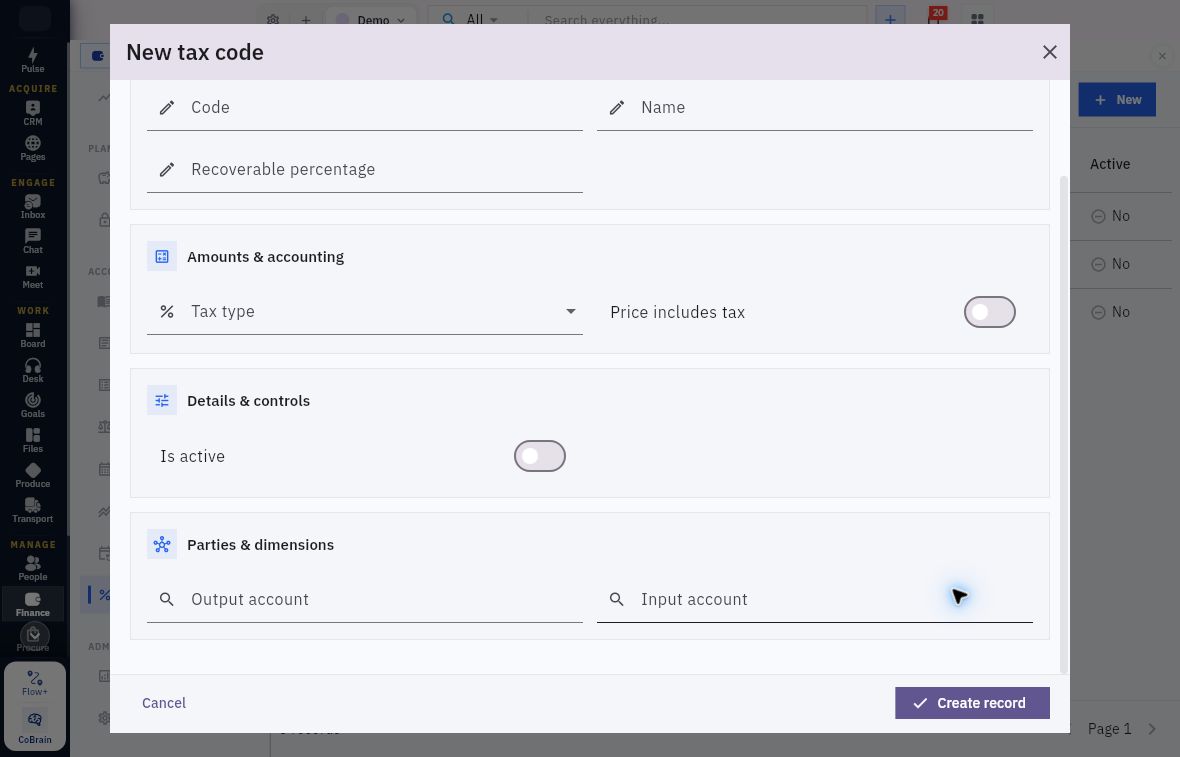
Input and output account relationships
Inspect both account relationships before deciding the code is ready.
Output account and Input account are separate lookups, both blank here. Confirm the applicable account identity and purpose against the approved treatment. Use Cancel for this tour; Create record would save configuration, not post tax or create an effective rate.
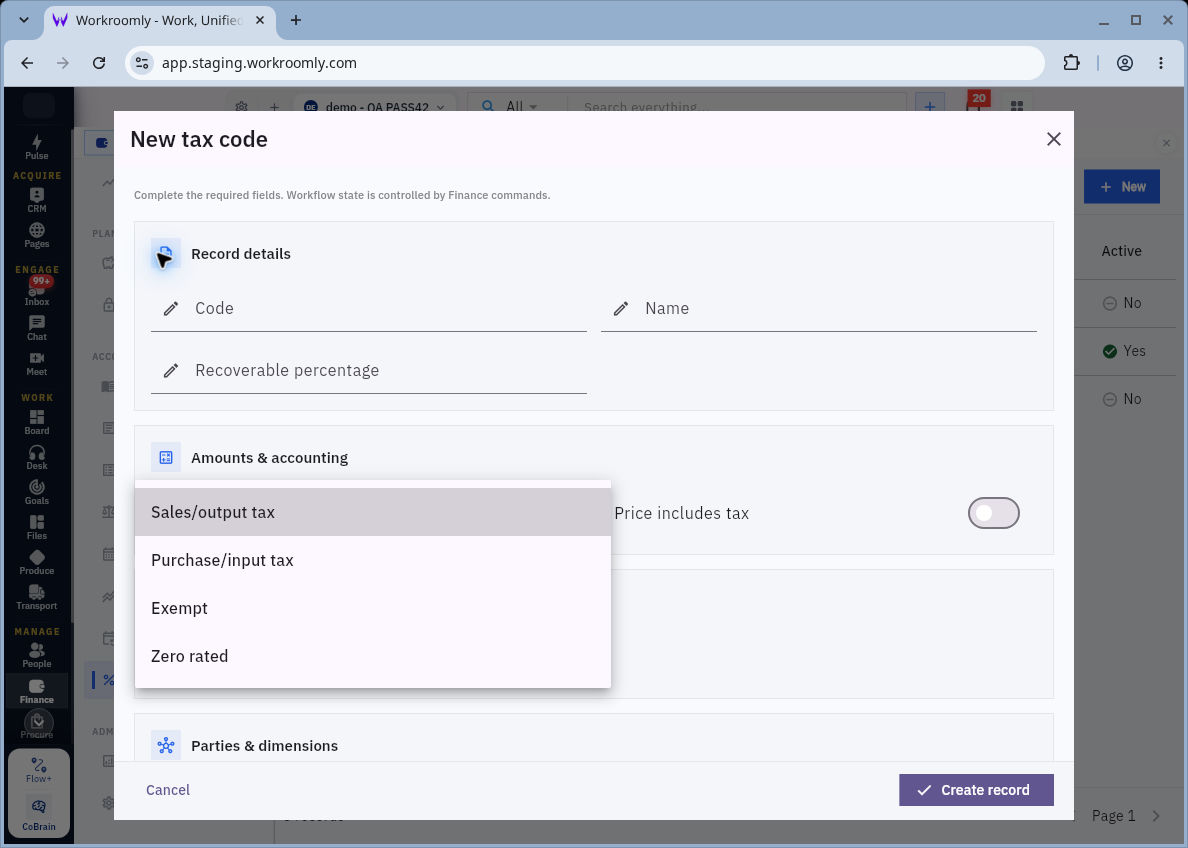
Tax types and price treatment
Read the four choices in the expanded Tax type menu, then the separate Price includes tax switch to its right.
Recoverable percentage is above them. Scroll further down the form to inspect the account mappings before making a setup decision.
For an existing code, compare its type, recoverability, price basis, mappings and active flag with the approved specification. Leave inactive training definitions out of real transactions. The code form contains no rate field; continue to Tax rates before concluding that a code is ready for a dated transaction.
Check the rate and its effective dates separately
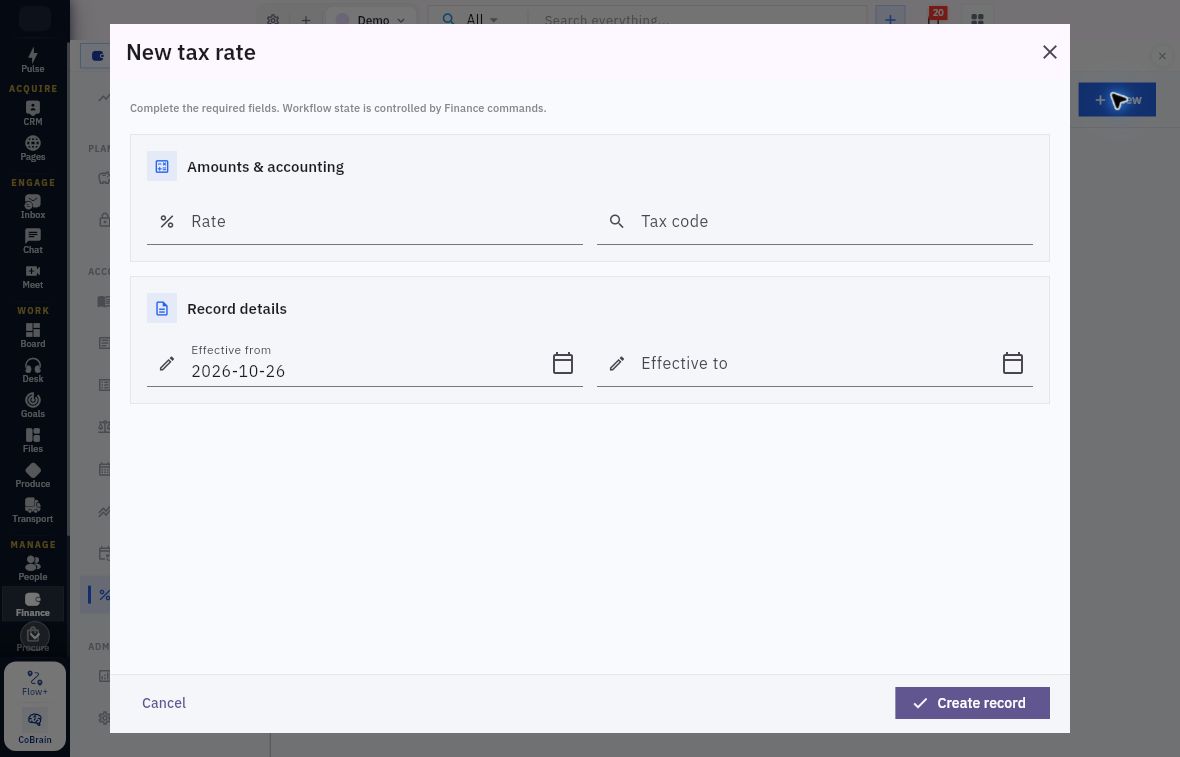
Open Tax → Tax rates. Match any existing rate to the exact code and the transaction's relevant date. The New tax rate form has Cancel and Create record as parent controls. Use Cancel for this walkthrough. It exposes four fields:
| Field | What to check |
|---|---|
| Rate | The numeric rate input. Confirm its required representation before entering a value. |
| Tax code | A reference to the definition to which the rate belongs. A matching name alone is insufficient if multiple definitions exist. |
| Effective from | The beginning date recorded for the rate. Compare it with the approved schedule instead of accepting the prefilled date. |
| Effective to | The end-date field. Confirm the intended date coverage and resolve overlapping definitions with the configuration owner. |
Rate representation and effective dates
Check the rate representation before entering a value: the percent icon does not tell you whether ten percent requires 10 or 0.10.
Confirm the supported format with the configuration owner. Also replace the prefilled Effective from date with the approved date when authorised to configure the rate.
Do not enter a guessed rate to discover the answer on a live transaction. Obtain the supported representation from the responsible product or configuration owner before a separately authorised setup. Do not overwrite a historical rate to make a new transaction calculate differently. If two records appear to cover the same date, flag the conflicting identities and dates; do not guess which rate will take precedence.
When reviewing an actual transaction, compare its calculated tax and accounting with the approved treatment as well as checking the configuration.
Read registration configuration without exposing identifiers
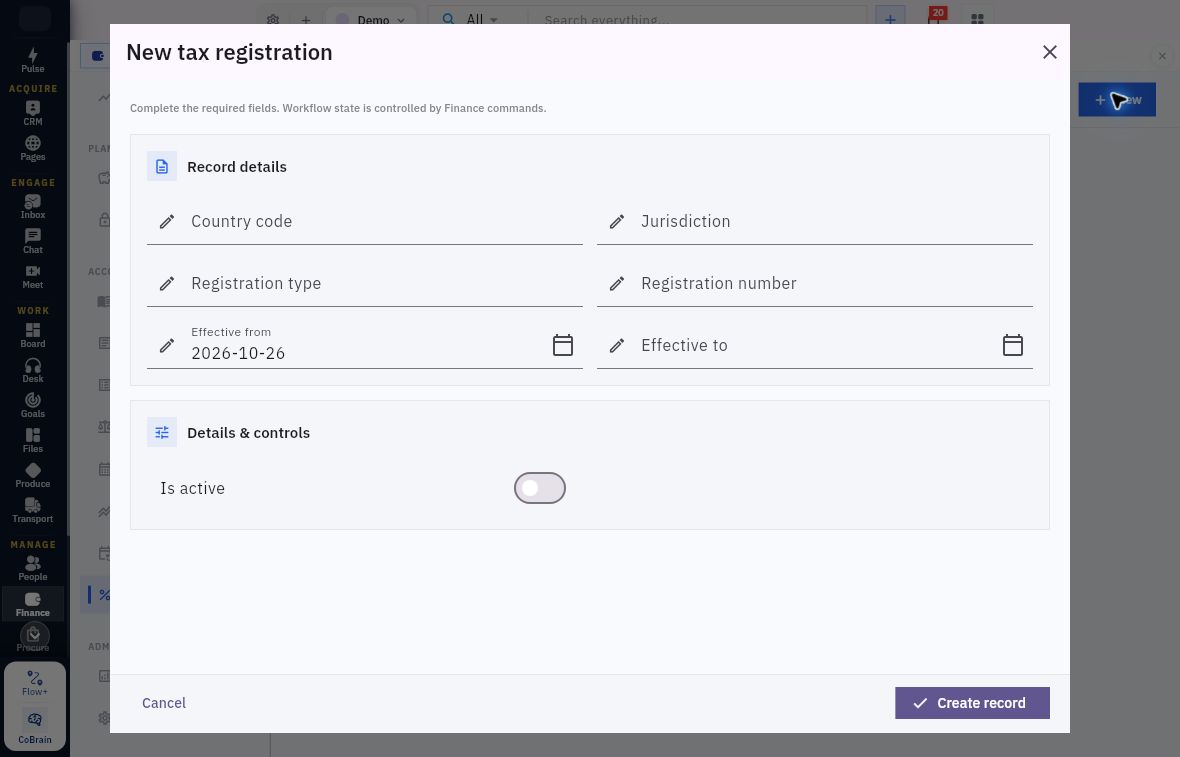
Open Tax → Registrations. The current New tax registration form has Cancel and Create record, and contains Country code, Jurisdiction, Registration type, Registration number, Effective from, Effective to and Is active.
Compare the country, jurisdiction and registration type with the organisation's approved details. Treat the registration number as identifying information, not sample data to copy into a public screenshot or course note. The two dates and active flag are distinct configuration values. A saved record would establish stored information, not that an external registration was obtained or remains valid.
Registration dates and activation
Read the dates and active flag separately. The example has October 26 in Effective from, a blank Effective to and Is active off. Compare these with the registration's actual details. Use Cancel to leave the form without saving.
Keep registration numbers in the appropriate restricted records. This walkthrough covers reading the stored configuration, not obtaining or renewing a registration.
Inspect a posting rule at the correct level
Open Finance → Journals → Posting rules. Posting rules is a tab inside Journals, not a Settings tab. The current register has Search posting rules, New, and columns Rule, Event, Version, Effective from and Active. Demo has 16 rules in this example. Find the event relevant to your source and read its mappings; the Active column alone does not tell you whether a transaction has posted.
An event describes the action that causes accounting. One example event is invoice.issue, rather than just “invoice”. This matters because preparing, approving and issuing a source are not interchangeable accounting events.
Open the exact existing rule you are reviewing. Retain its event, version, dates, active state and mappings together. A rule with “validation” in its name is not permission to activate it. For example, an inactive version 2 rule for invoice.issue still needs the configuration owner's approval before activation.
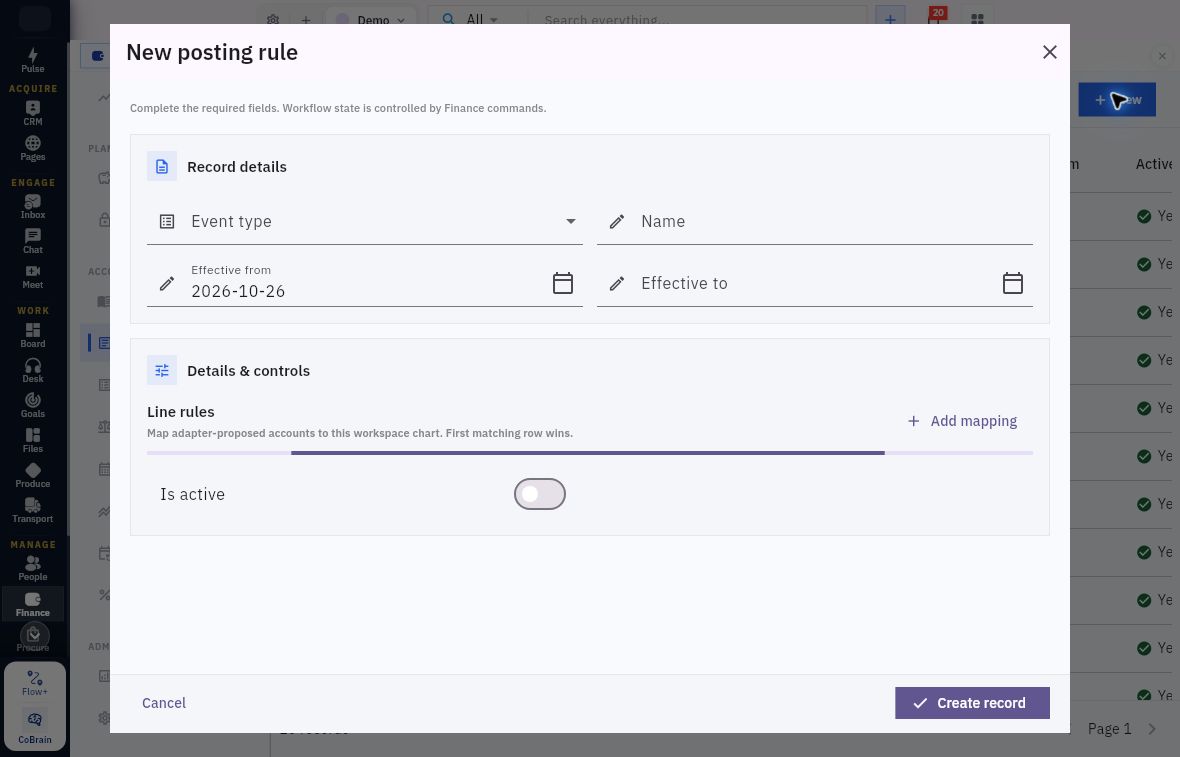
New opens New posting rule with Event type, Name, Effective from, Effective to, Line rules and Is active. Add mapping adds a mapping row; Cancel and Create record are the parent actions. Use Cancel for this inspection.
Posting-event scope and effective dates
Check event scope and effective dates before inspecting mappings.
The blank form has Event type and Name unset, Effective from 2026-10-26, Effective to blank and Is active off. Use the intended approved date range rather than the prefill. The active switch does not validate a mapping or post a transaction.
Mapping conditions and destinations
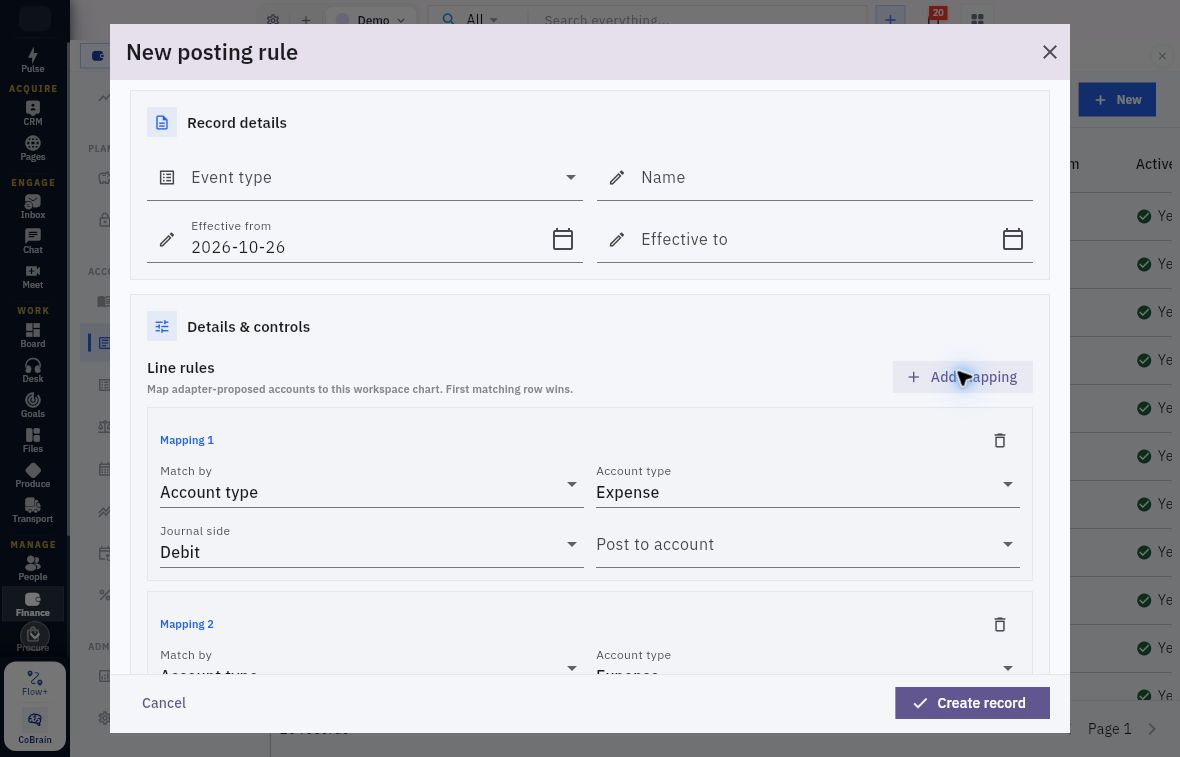
Read each condition and destination in row order.
The two unsaved rows shown start with Match by Account type, Account type Expense and Journal side Debit, with Post to account unset. These starting choices are not a recommendation for your source. Add mapping adds another row; each row has Remove mapping. Neither changes an already-posted journal. Cancel the parent form when inspecting only.
Follow one mapping row from condition to destination
The Line rules helper states that proposed accounts are mapped to this workroom's chart and that the first matching row wins. Read the row order as part of the rule, not as cosmetic presentation.
| Match by choice | Matching value shown |
|---|---|
| Account type | Account type selector |
| Control purpose | Control purpose selector |
| Account code | Account code input |
| Exact source account | Source account selector |
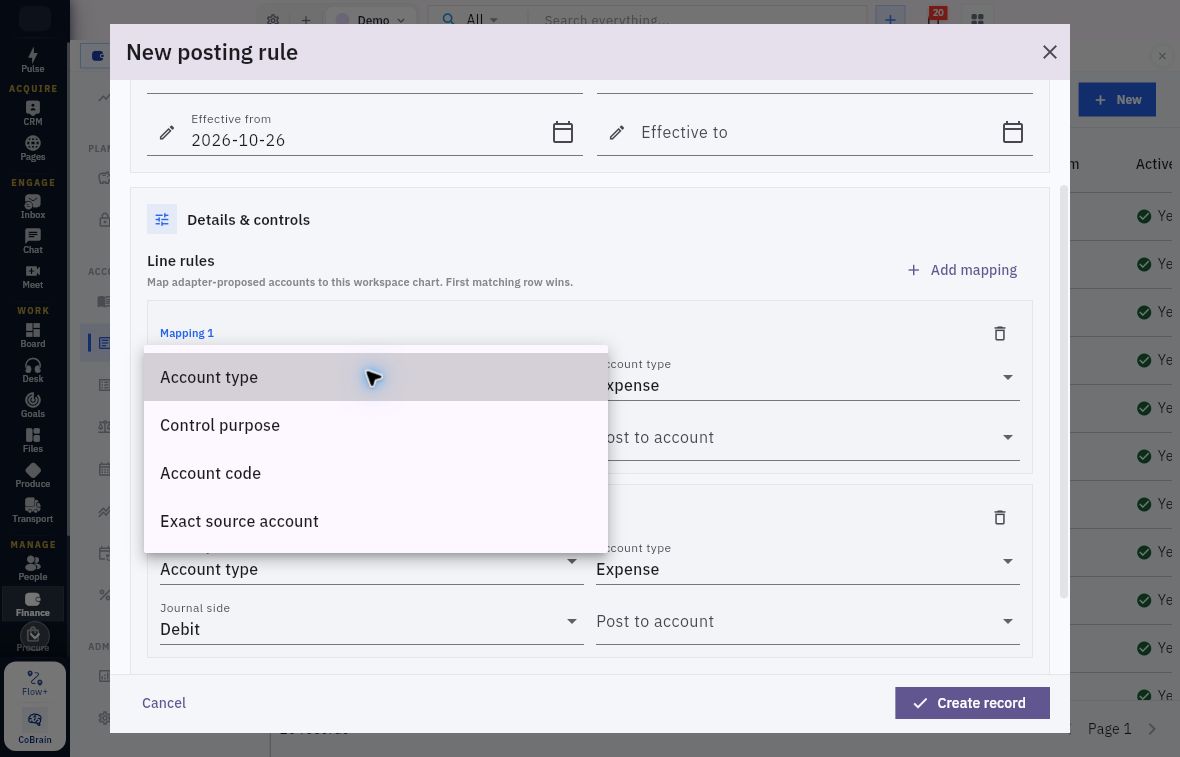
Matching basis and rule precedence
Choose the matching basis that expresses the intended source condition.
Each mapping also has Journal side and Post to account. Together they describe which proposed line is matched and which account receives it. Verify the destination using the approved account code and purpose. The first-match rule applies within these mapping rows. If separate rules overlap, ask the configuration owner to resolve their precedence rather than applying that helper across different rules.
For example, a rule that matches every Expense debit could affect more than the particular supplier cost you had in mind. Before approving that design, ask which other expense lines would match and which should remain unchanged. Do not use a broad mapping merely to make a report total look tidy.
Before a rule is approved for use, the configuration owner should validate intended matches, nonmatches and effective-date boundaries through the authorised configuration process. Leave activation unchanged during this walkthrough.
Keep attempts and asset postings distinct from rules
The current Journals workspace exposes Journals, Posting rules, Posting attempts and Asset postings tabs.
The current Posting attempts tab has Search posting attempts, All statuses, and No posting attempts yet. Records will appear here when this workflow has activity. No result columns or record-detail actions are available in that empty Demo view.
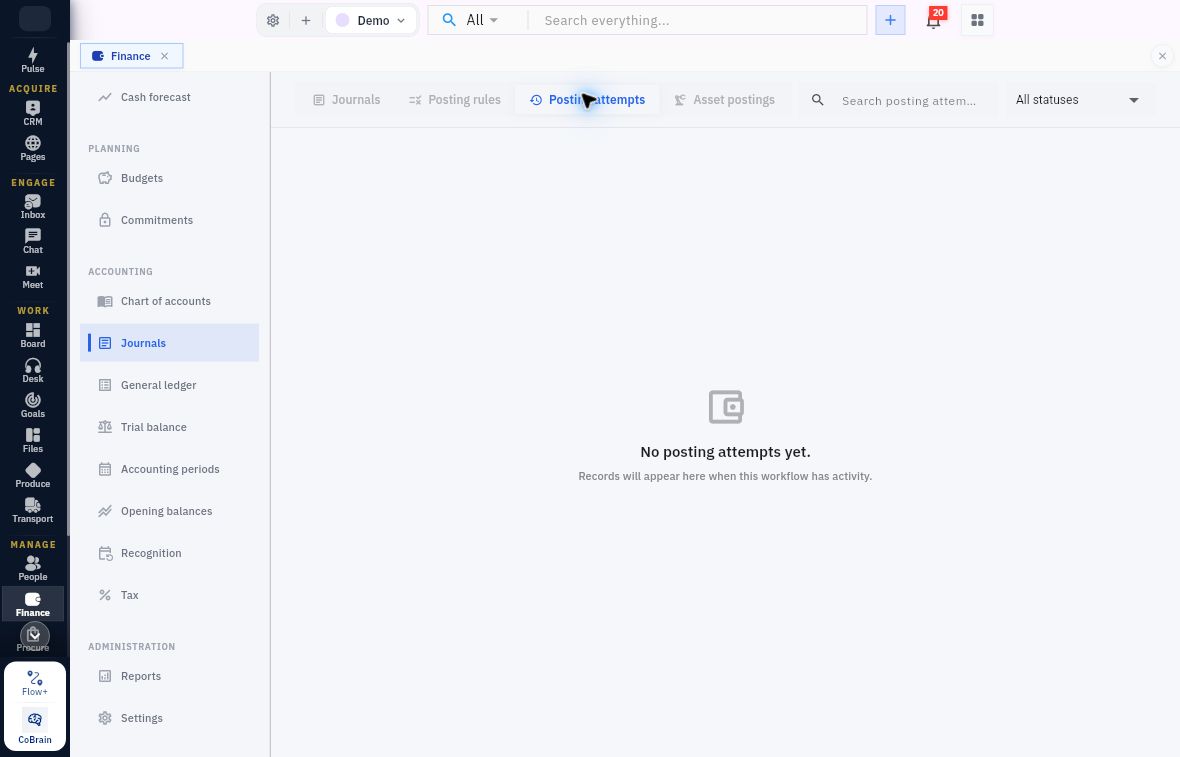
Source references and posting attempts
Start with the source reference and status. If the list is empty, check the workroom and search/filter scope. Do not create another transaction just to produce an entry in this list.
Use Journals to inspect actual accounting entries. Posting attempts is the relevant tab to inspect when a source posting has failed or its result is uncertain. Preserve the source reference, error, workroom and observation time, then compare the available result with the intended source action. For a failed attempt, use the supported recovery procedure from the responsible Finance or product owner. This chapter does not provide a retry sequence.
Asset postings is a separate tab, not another name for manual journals or posting-rule setup. The current tab has Search asset postings, All statuses, and No asset accounting events yet, followed by the same activity helper. Use this view to look for the relevant asset event; detailed asset-posting actions are outside this walkthrough. Do not create a manual entry to simulate an asset posting merely because the tab is empty or unfamiliar. Keep the asset's source evidence and intended accounting decision for the responsible owner.
A failed posting is a reason to investigate account identity, period, role, mapping and effective dates—not to disable controls or add a balancing journal. If the outcome is uncertain, inspect the exact source and existing journals before any repeat action.
Connect configuration to an actual result
After a separately authorised source workflow has completed, inspect its exact journal and relevant receivable or payable. Compare the source amount and date with the accounting result and any tax lines. Then inspect Finance → Tax → Tax activity for the related result, where available. Do not assume a direct drill-through exists; use exact references in the available registers.
The current Tax activity view exposes Search tax activity and the empty-state message No tax lines yet. Records will appear here when this workflow has activity. No result columns or new-record action are shown in that empty view.
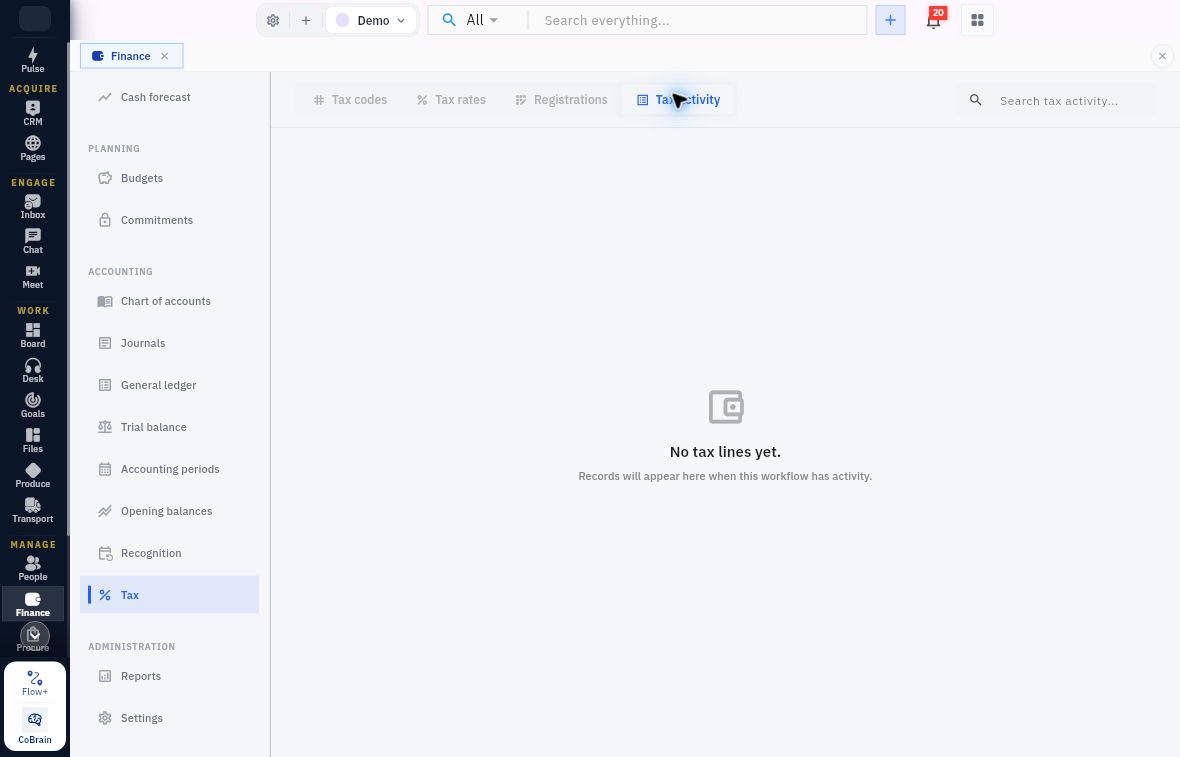
Tax activity, safe checks and practice
Follow the transaction before drawing a tax conclusion.
If no tax lines appear, check the source document, its workflow state, the applied code and date, and its accounting result. Do not turn an empty list into a zero-liability conclusion. Use Tax summary for the reporting view after identifying the source; Chapter 13 explains report scope.
For Riverside, the question is not “does a tax screen contain a number?” It is “does the configured treatment for this particular invoice produce the intended result on this date?” Check the actual source-linked result before relying on the treatment for that transaction. Do not add a second manual journal for tax already posted by the source workflow.
Practice a read-only readiness check
Choose one permitted existing tax code relevant to your work and an approved transaction date. Do not create a code if none exists.
- Open Finance → Tax → Tax codes. Record its code, type, active flag and account references. Compare them with the approved specification.
- Open Tax rates. Identify the linked rate and its dates, if present. Record any missing rate, uncertain units or overlapping date coverage without changing it.
- Inspect the relevant rule in Finance → Journals → Posting rules, if your workflow uses one. Identify the event, active state, first applicable mapping condition and destination account. If the match cannot be established, say so.
- Finish with one readiness statement: what matched, what remains unresolved and who must decide. Cancel any inspection-only form.
Expected result: you can identify the correct code, dated rate and posting mapping, or name the missing prerequisite and its owner. If the rate is missing, stop at that gap rather than entering zero. Finish without changing tax configuration or accounting records.
Next, use this configuration context when reading the customer invoice header, lines and source-accounting result.
Turn what you learned into the way the team works.
Mark this lesson complete once the workflow exists in your workspace—not simply when you reach the bottom.