Finance course 02 — Checking the configuration behind your work
Finance settings and accounting periods supply the context for the transactions you prepare. This chapter shows you where to inspect that context, which fields describe a policy versus an actual period record, and how to report a prerequisite problem without changing the books to make a transaction pass.
Part of Mastering Workroomly Finance
In this lesson
Configuration prerequisites and safe inspection
Finance settings and accounting periods supply the context for the transactions you prepare. This chapter shows you where to inspect that context, which fields describe a policy versus an actual period record, and how to report a prerequisite problem without changing the books to make a transaction pass.
You need read access to Finance Settings and Accounting periods, the approved currency and accounting calendar, and the name of the person responsible for configuration. The examples show Demo settings and an example accounting calendar. Compare them with your approved setup rather than copying their values. Do not select Save settings, create a year or period, or use period workflow actions during the read-only practice.
In this chapter
- Find Settings and inspect the complete form
- Compare currencies and the financial-year setting
- Understand numbering without renaming history
- Read approval and spending controls as configuration
- Check the mappings used by the intended workflow
- Check the actual fiscal year and period
- Interpret the accounting-period form
- Read-only readiness check
Find Settings and inspect the complete form
Select Finance → Settings, under Administration. Scroll the Finance sidebar if Settings is not initially visible. The current Settings screen is one long scrolling form, not a set of separate settings tabs. Read the top, middle and bottom before deciding whether a value is present.
Begin with the workroom name and the particular workflow you are checking. Riverside's next task is to prepare its service invoice. Readiness for that draft is narrower than permission to issue it, post a journal or release a payment. A missing optional advance mapping does not by itself mean every Finance workflow is unusable.
Compare currencies and the financial-year setting
| Field | Meaning in this screen | Readback to make |
|---|---|---|
| Workroom default currency | The workroom's default currency, with the helper Managed in Workroom settings | The actual value and whether it matches the approved workroom setup; do not look for an unrelated transaction field to repair it |
| Functional currency | The accounting measurement currency in the Finance configuration | The displayed value and lock state; the helper says Locked after the first posted journal |
| Fiscal year starts | The starting month used in financial-year setup | The approved month, followed by a separate inspection of actual fiscal years and periods |
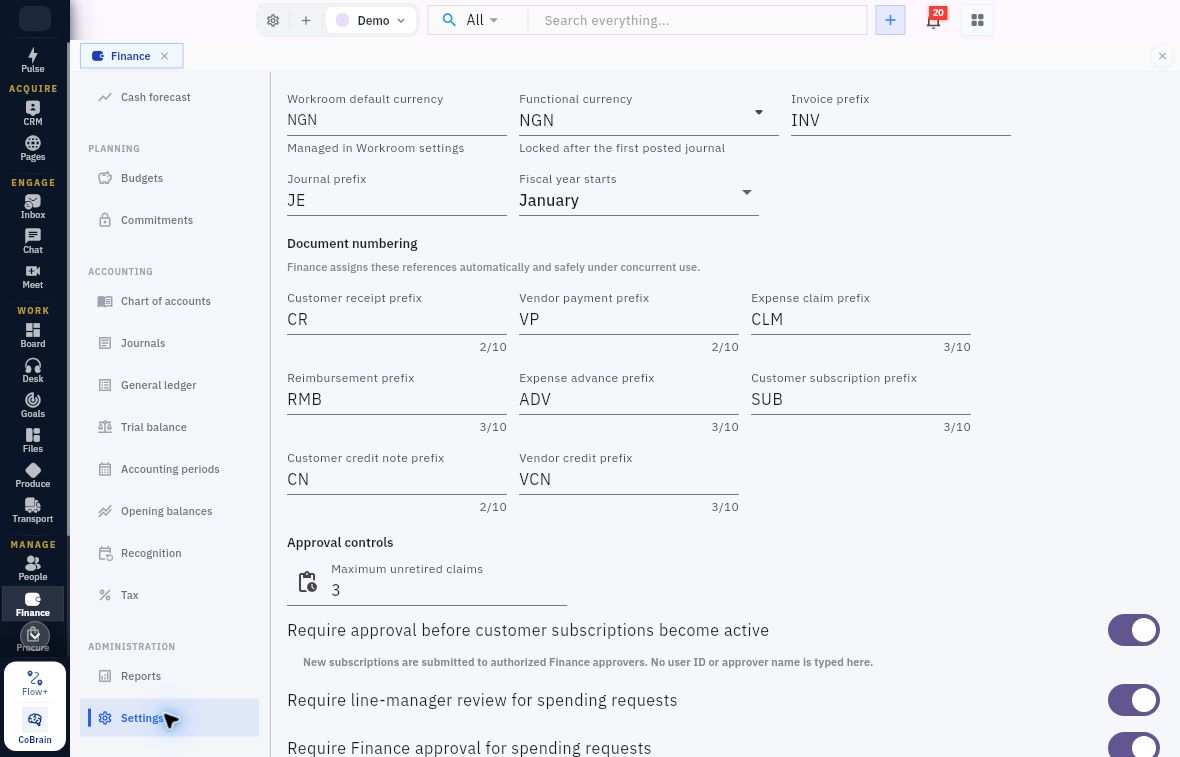
Currency, calendar and numbering policies
Read the helper as well as the value. Both currencies display NGN in the current Demo workroom, and Fiscal year starts displays January. The Functional currency helper says it locks after the first posted journal. Treat that choice as a setup decision; individual transactions can have separate currency and exchange-rate fields. Inspect actual fiscal-year records separately rather than assuming a setting rewrites their dates.
If the functional currency is locked and differs from the agreed basis, preserve the current values and ask the Finance owner for the supported correction or migration decision. Do not create a posting to test the lock. A source document's Currency or Exchange rate field is not a substitute for a correct workroom accounting basis.
Understand numbering without renaming history
The same form contains Invoice prefix, Journal prefix, Customer receipt prefix, Vendor payment prefix, Expense claim prefix, Reimbursement prefix, Expense advance prefix, Customer subscription prefix, Customer credit note prefix and Vendor credit prefix. The displayed helper says Finance assigns the references automatically.
These prefixes distinguish document families. They are not account codes, amounts or workflow states. For a Finance operator, their immediate value is recognising a reference and using that exact reference to trace a record. The current Demo uses INV and JE, then CR, VP, CLM, RMB, ADV, SUB, CN and VCN for the other displayed document families. Use the prefixes agreed for your organisation, which may differ from Demo.
Configuration changes require an agreed naming policy and an assessment of their effect on future documents. Do not renumber a historical source or alter a prefix to make two unrelated records appear connected. Check the supported format with your configuration owner before changing a prefix.
Read approval and spending controls as configuration
The current form includes controls for approval before customer subscriptions become active, line-manager review for spending requests, Finance approval for spending requests, budget-limit enforcement, advance retirement/open-advance limits and segregation of duties. The right question is “What workflow and responsibility does this policy govern?”, not “Which switch lets my exercise continue?”
The upper screenshot shows Require approval before customer subscriptions become active. Its helper says new subscriptions go to authorised Finance approvers and that no user ID or approver name is typed there. Confirm the actual approver and your own permissions through your organisation's approval process.
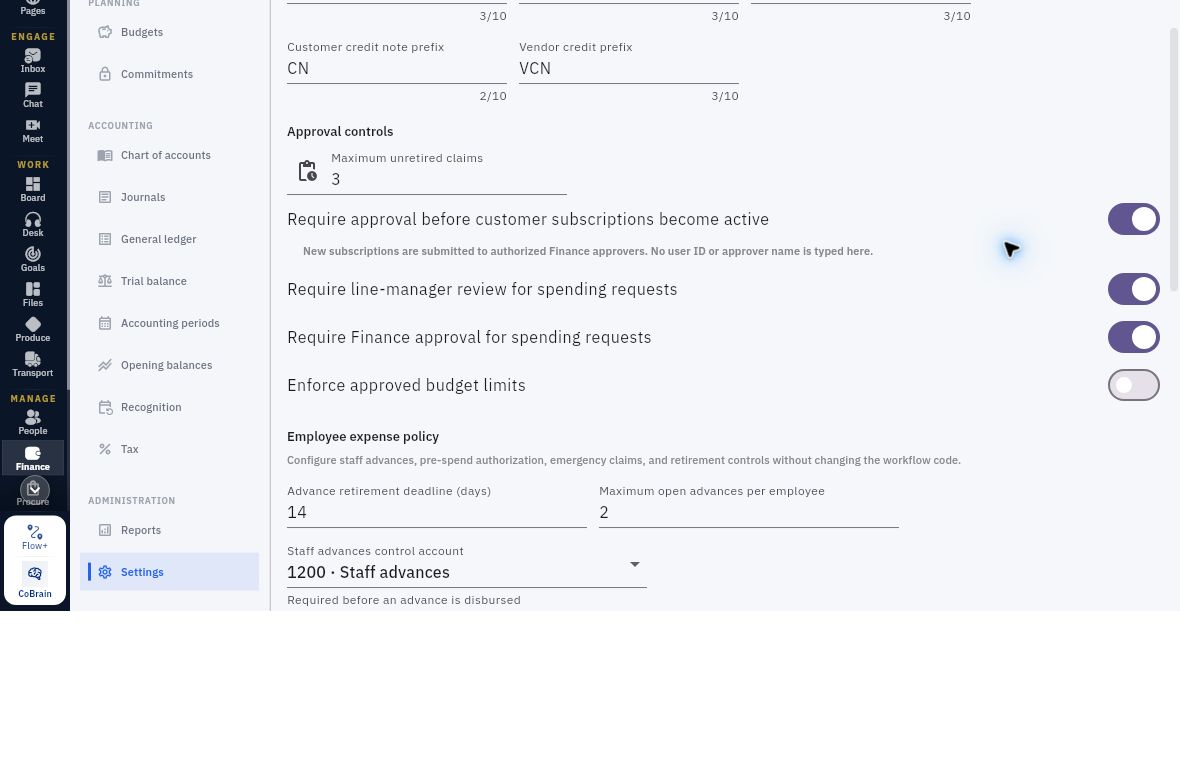
Approval switches and budget controls
Read each switch separately. Subscription approval, manager review and Finance approval are on in this example; budget-limit enforcement is off. Follow your organisation's policy and the individual request's workflow.
Read the remaining approval and employee-policy controls as separate decisions:
| Visible control | What to establish before relying on it |
|---|---|
| Require line-manager review for spending requests | Which actual manager must review the request; the Demo switch is on; check the individual request to see its assigned reviewer and progress |
| Require Finance approval for spending requests | Which Finance decision the workflow requires; the Demo switch is on; the preparer still needs the appropriate authority to approve |
| Enforce approved budget limits | Which approved budget and consumption rules govern the request; the Demo switch is off, not permission to exceed an organisational budget |
| Block new advances while an earlier advance is overdue | Which employee/source advance is overdue and what the approved resolution is; do not clear the block by changing policy |
| Send reminders and manager escalation for overdue advances | The responsible manager and supported notification outcome; an enabled switch alone is not proof that a reminder was delivered |
| Normally require an approved Pre-spend Request for claims | Whether the claim needs the actual approved request relationship |
| Allow direct or emergency claims without Pre-spend approval | Whether the source fits the organisation's permitted exception, not merely whether a form can be opened |
| Require an emergency/unplanned justification | The actual business explanation and source evidence required for that exception |
| Segregation of duties | The approved separation between preparer, reviewer and financial-action operator, with actual assignments and effective access |
The numeric controls must be read independently:
| Numeric field | Current Demo value | What to verify |
|---|---|---|
| Maximum unretired claims | 3 | How the configured claim limit applies under your approved process; do not relabel it as the separate advance limit |
| Advance retirement deadline (days) | 14 | The deadline measured in days and the supported retirement process; check the advance's actual due date when applying the policy |
| Maximum open advances per employee | 2 | The configured per-employee limit, distinct from the claims field |
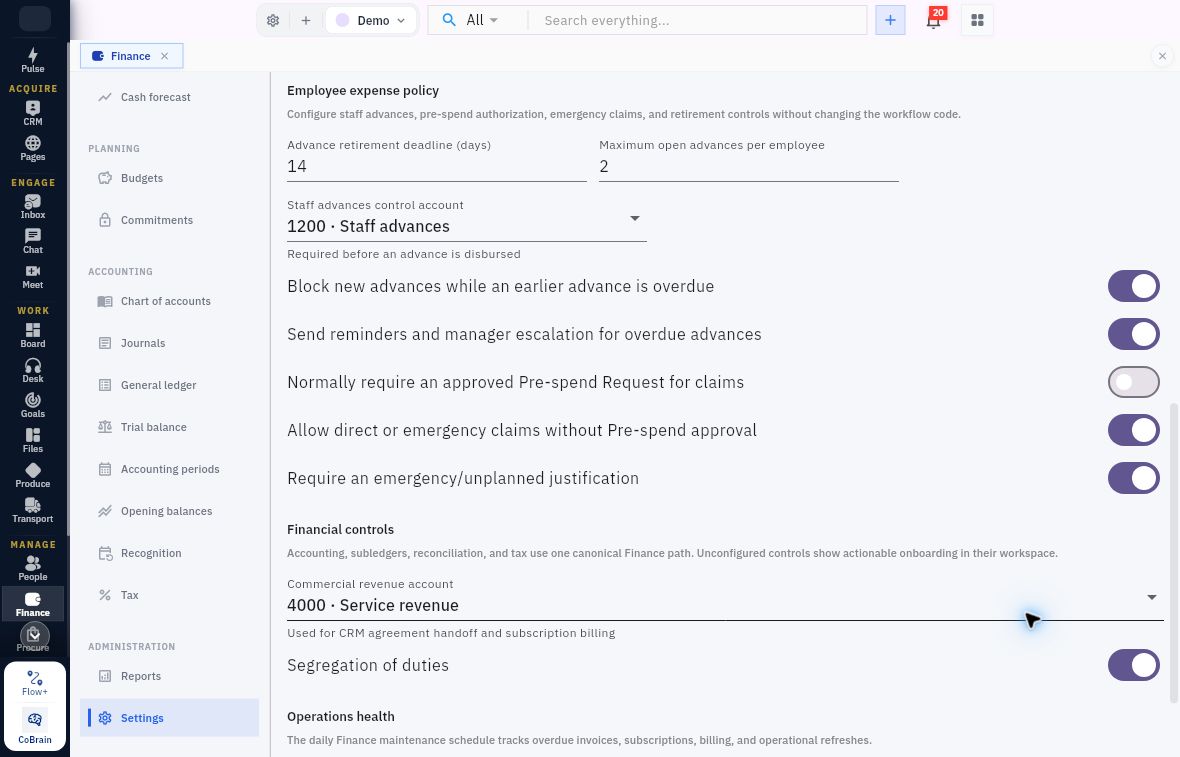
Employee spending policy checks
Compare these settings with your spending policy. Demo has advance blocking and reminders on, normal Pre-spend approval off, direct/emergency claims allowed, and emergency justification required. Segregation of duties is on. Check the individual request or advance for its reviewer, due date and progress; the Settings page tells you the policy, not how far that record has moved.
Check the mappings used by the intended workflow
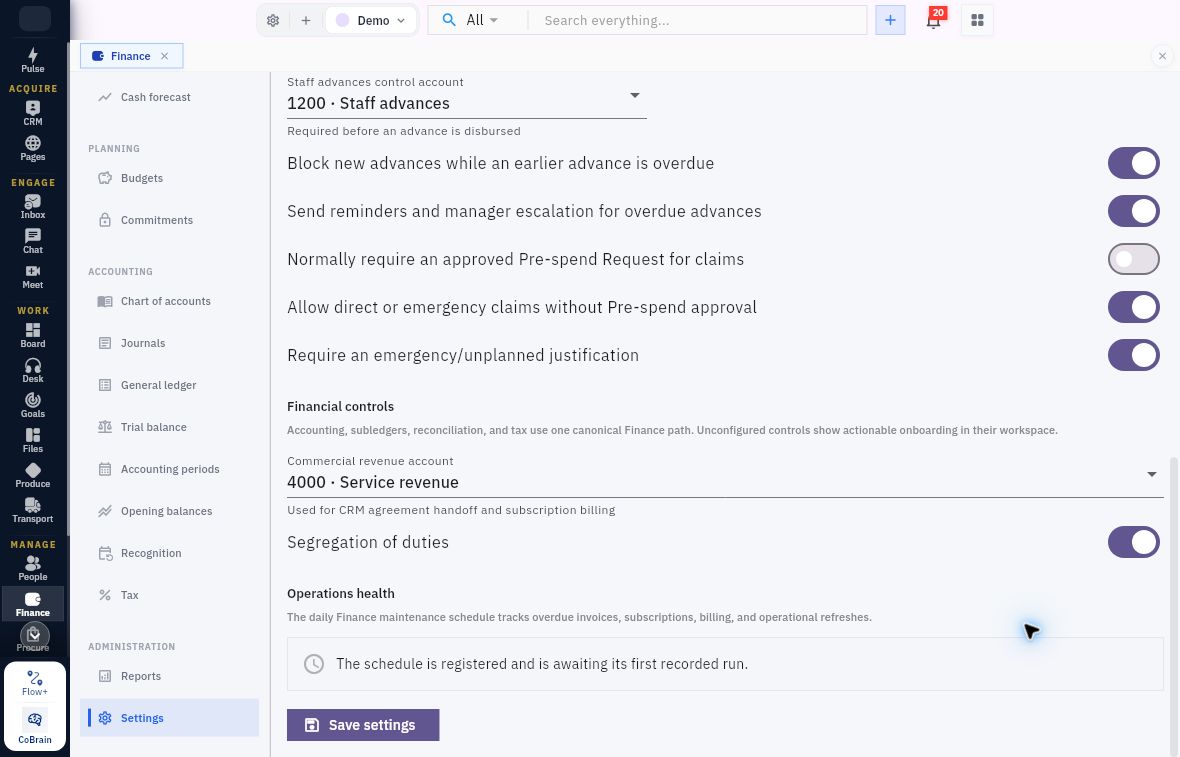
Control accounts and operational health
A selected account is a relationship, not a label. Staff advances control account has the helper Required before an advance is disbursed. The current Demo selection is 1200 · Staff advances. Confirm the approved account identity before the advance workflow; merely having an account with that name in the chart does not populate the setting.
Commercial revenue account has the helper Used for CRM agreement handoff and subscription billing. The current Demo selection is 4000 · Service revenue. Do not assume that this setting replaces every revenue-account selection on every invoice line. Inspect the dependency of the particular workflow you are using.
The screenshot also shows Operations health describing a maintenance schedule for overdue invoices, subscriptions, billing and operational refreshes. Its displayed message says the schedule is registered and awaiting its first recorded run. When it says awaiting the first recorded run, do not treat the scheduled work as completed; check the relevant billing or operational records.
Save settings is at the bottom of the form. Reading the form does not require saving it. For a separately authorised change, specify the exact old/new values, save once, then reopen and compare saved values. Then check the affected workflow under your approved change process.
Check the actual fiscal year and period
Select Finance → Accounting periods, under Accounting. Fiscal years and Periods are separate tabs.
In Fiscal years, use Search fiscal years and the displayed status filter to find the intended year. Open it and compare its actual dates. A matching name is not enough. New opens New fiscal year, with Fiscal year starts, a date for the start of the year. The helper says to choose the first day of the first month; Workroomly creates the year name, end date and twelve monthly accounting periods. There is no separate name or end-date input in this form.
Check the proposed start date before creating a year. The example proposes January 1, 2027 after the existing FY 2026; your approved calendar decides the correct value. After an authorised creation, inspect the saved year and the Periods list before deciding whether another period is needed.
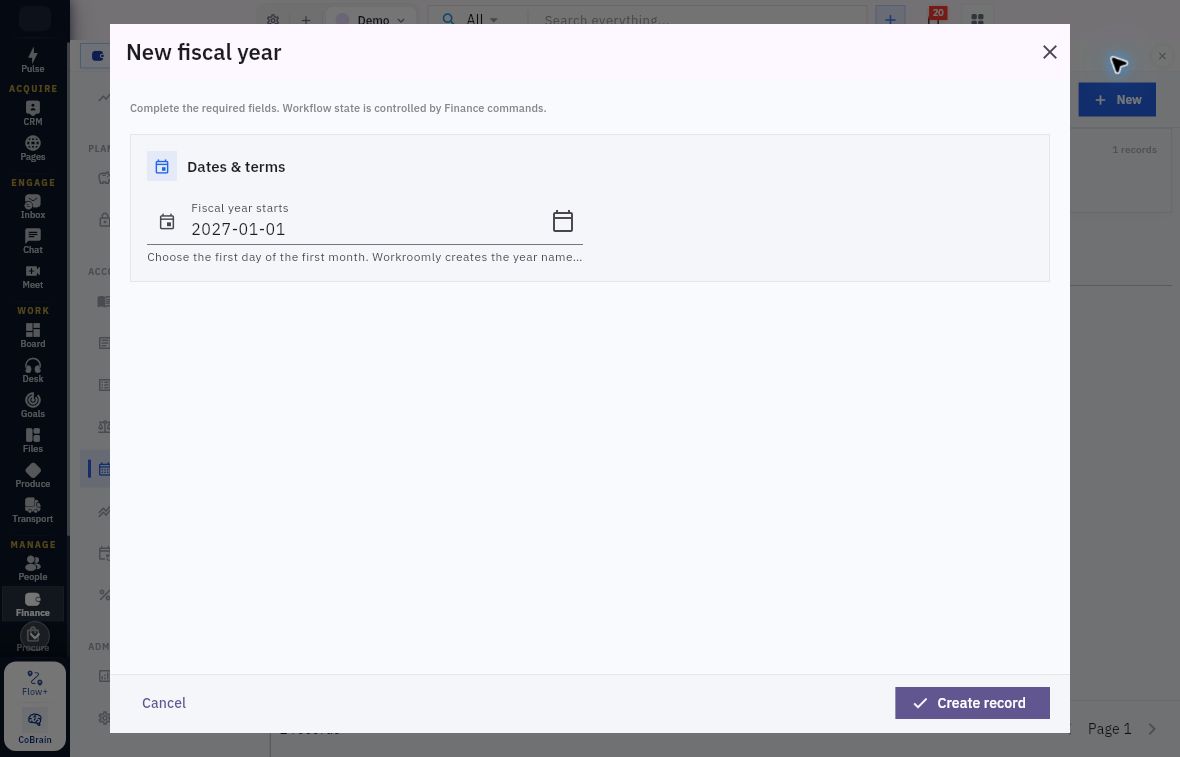
Fiscal-year start and generated calendar
Choose the approved start date. The proposed 2027 date follows the example's existing FY 2026. Cancel leaves the calendar unchanged; an authorised creation should be followed by checking the saved year and generated periods.
In Periods, the list has Search periods, All statuses and New, with columns including Period, Status, Sequence, Starts and Ends. The status filter offers Future, Open, Soft closed and Hard closed. Selecting a filter changes the list, not the state of a period.
Interpret the accounting-period form
The Demo calendar has an open FY 2026 running January 1–December 31. Its Periods list contains 12 monthly records: January–October are Open, while November and December are Future. Read your own list's dates and states rather than treating the year name as permission to post in every month.
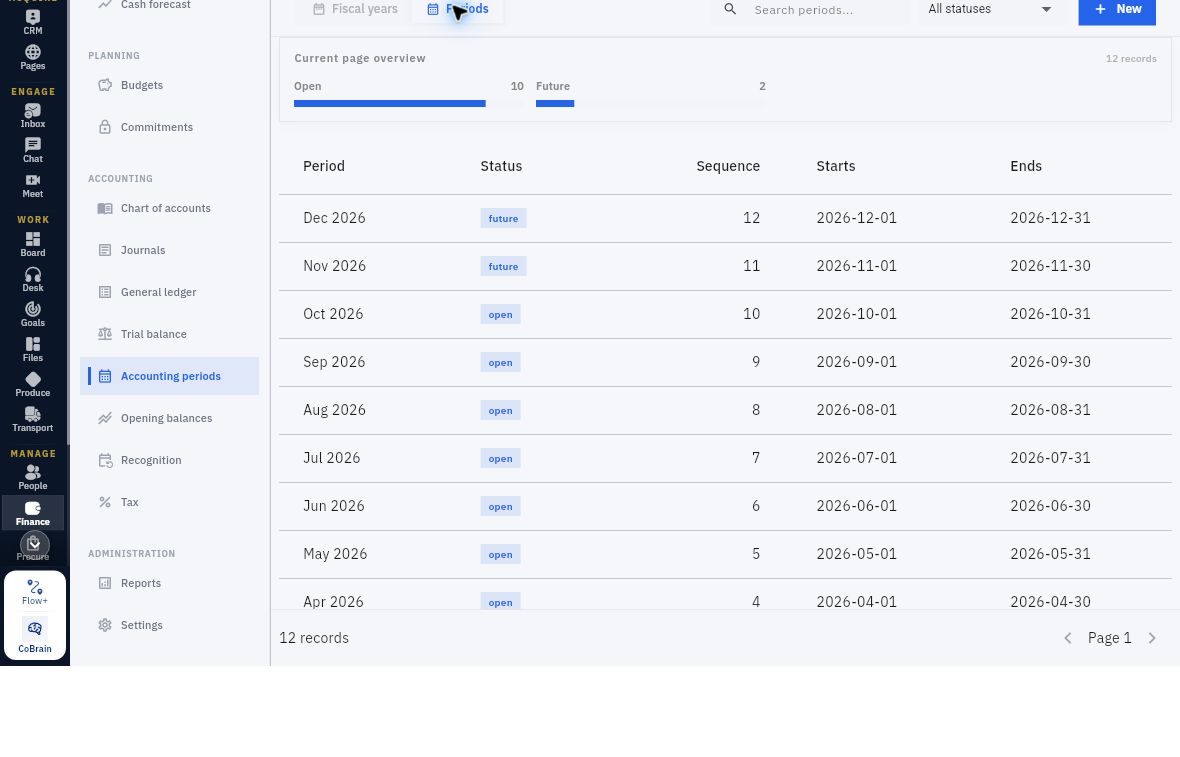
Period dates, sequence and status
Read dates and status together. October has sequence 10 and October 1–31 boundaries; November and December are Future. A status filter narrows this list without changing a period.
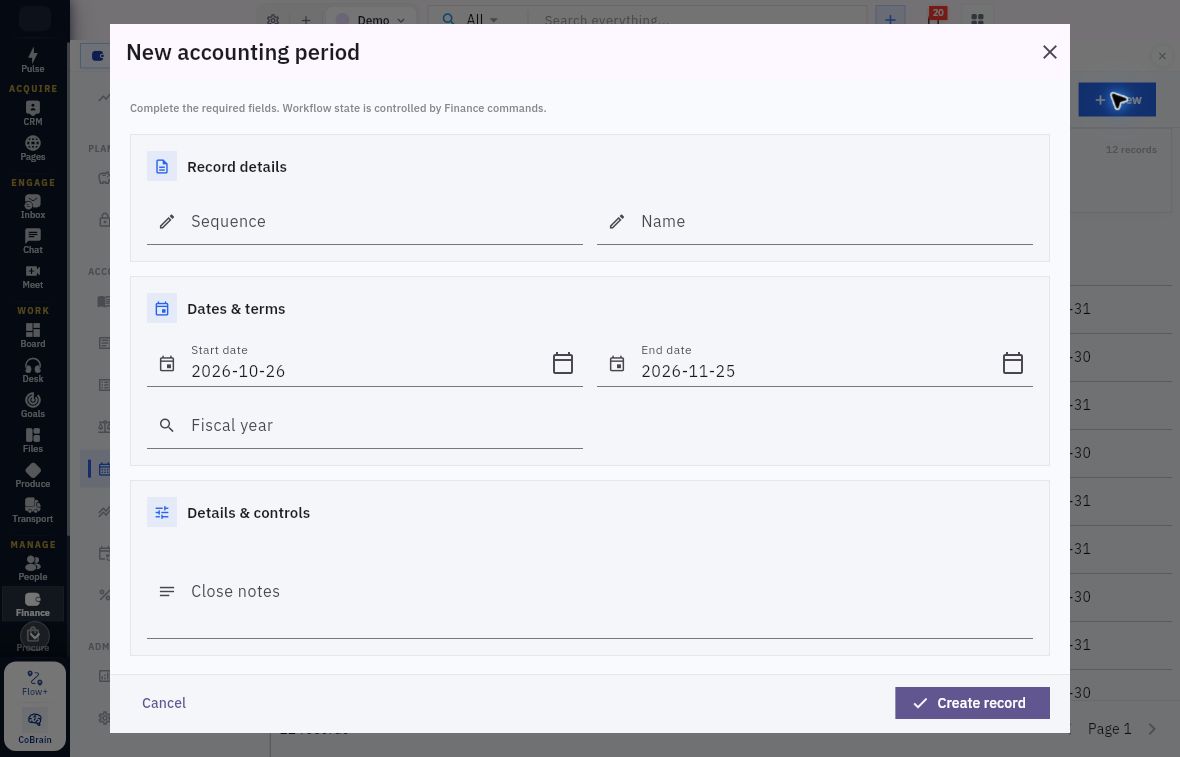
Calendar checks and read-only practice
Replace assumptions with the approved calendar. The example form is prefilled from October 26 to November 25. Those are not the standard boundaries of an October calendar month. The form does not have a status selector.
| Field | What the period specification must establish |
|---|---|
| Sequence | Its intended order within the accounting calendar |
| Name | An unambiguous human-readable period identity |
| Start date and End date | The actual approved boundaries, consistent with neighbouring periods |
| Fiscal year | The selected existing year whose dates contain this period; typed search text alone is not a selected reference |
| Close notes | An appropriate explanatory note when called for, not a claim that a new period is reconciled or closed |
For Riverside's service-invoice example dated October 15, an existing Oct 2026 period with October 1–31 boundaries contains the date. A period named October in another year does not. An open October period cannot make a November 6 source belong to October.
In the example, the saved Oct 2026 period has Sequence 10, Fiscal Year FY 2026, Start Date 2026-10-01, End Date 2026-10-31 and Status open. Read the period's current state in your own workroom before preparing a transaction.
The panel's Close dismisses the panel. Soft Close in Workflow actions is a separate period action. A Future period can display Open. Period transitions belong to the authorised period-management process; this chapter covers reading the calendar and its state, not carrying out a close or reopen.
Read-only readiness check
Use Riverside's proposed USD300 service invoice and the intended accounting date supplied by your Finance owner. Do not create it yet.
- Confirm the workroom and read the default and functional currencies.
- Identify the settings or mappings relevant to that workflow and distinguish them from optional unrelated controls.
- Find the actual fiscal year and period containing the proposed date. Record its boundaries and current state.
- Identify who may prepare, review and perform the later financial action. These are responsibilities, not invented Workroomly role names.
- Write one short conclusion: ready for the specifically allowed stage, or held for an exact configuration, period or access decision.
Expected result: You can explain the intended workflow's configuration and period prerequisites using saved values. If the required period is closed or a mapping is unresolved, preserve the source date and report the gap. Do not move the date, switch off approval or create another period to force progress.
Next, read the account definitions and opening-balance records that those settings reference.
Turn what you learned into the way the team works.
Mark this lesson complete once the workflow exists in your workspace—not simply when you reach the bottom.