Finance course 01 — Finding your way around Workroomly Finance
Workroomly separates the source document, the amount outstanding, the payment and the accounting entry. This chapter shows you where those records live and how to move between them without changing the books.
Part of Mastering Workroomly Finance
In this lesson
Finance navigation and safe starting point
Workroomly separates the source document, the amount outstanding, the payment and the accounting entry. This chapter shows you where those records live and how to move between them without changing the books.
You should already be comfortable with invoices, payables and journals. You do not need to configure Finance or create a transaction to complete this chapter. Use a workroom you are permitted to inspect. If you cannot see a workspace or record, ask the Finance owner to confirm your access and the correct workroom; do not create a replacement to make the exercise work.
In this chapter
- Start with the workroom and the two navigation levels
- Read the Overview without overinterpreting its totals
- Move from a workspace to its tabs
- Choose the record that answers your question
- Find the exact record before following its links
- Read state and consequence separately
- Your first read-only navigation check
Start with the workroom and the two navigation levels
Open Finance in the intended workroom. Check the workroom name before interpreting a balance or searching for a transaction. The same customer name or reference can belong to a different set of books in another workroom.
The far-left application navigation selects the module. Finance then has its own sidebar. That sidebar is independently scrollable: scrolling the main record area is not the same as scrolling the Finance menu. If you cannot see Chart of accounts, Reports or Settings, move down the Finance sidebar rather than assuming the feature is absent.
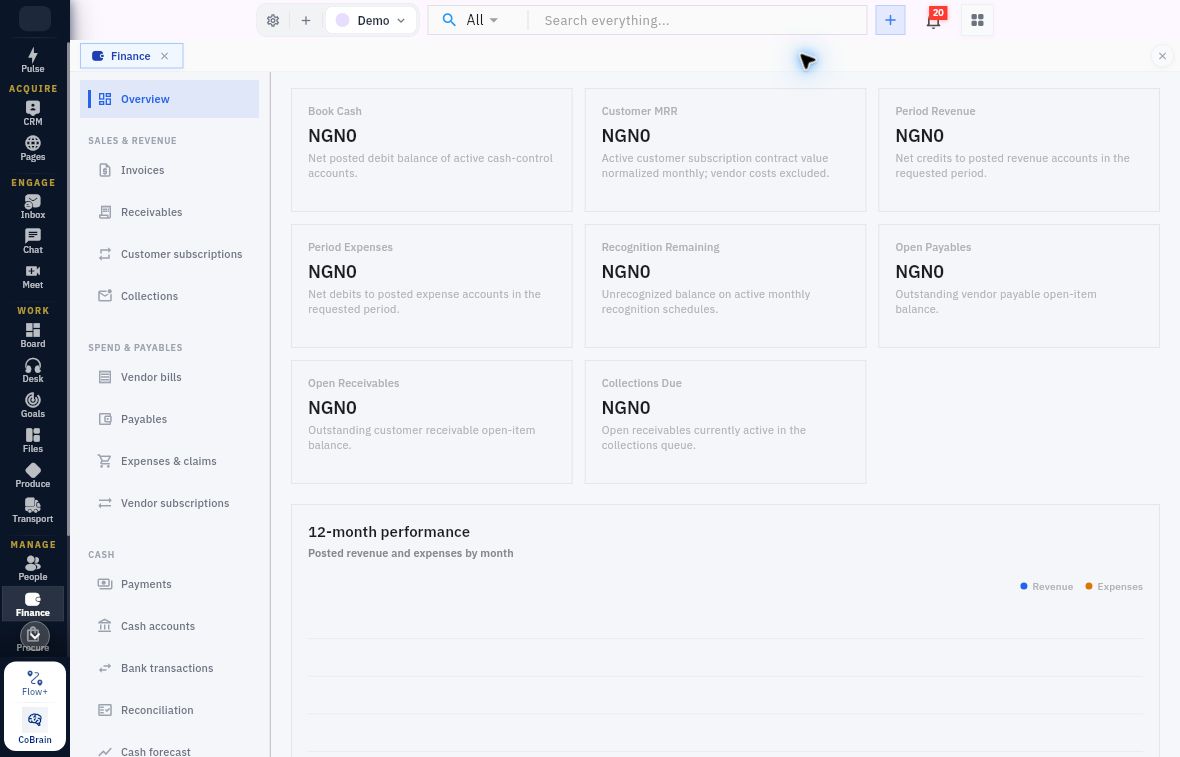
Read the workroom and Finance sidebar
Read the screen in three places. At the top, Demo identifies the workroom. At the far left, Finance is selected. In the lighter sidebar, Overview is selected above the Sales & revenue workspaces. The totals reflect the selected workroom. Demo uses NGN here; the USD amounts introduced later are a separate teaching example.
The Finance sidebar groups related work. Overview is followed by Sales & revenue, containing Invoices, Receivables, Customer subscriptions and Collections. Spend & payables includes Vendor bills, Payables, Expenses & claims and Vendor subscriptions. Cash includes Payments, Cash accounts, Bank transactions, Reconciliation and Cash forecast. Planning contains Budgets and Commitments. Accounting contains Chart of accounts, Journals, General ledger, Trial balance, Accounting periods, Opening balances, Recognition and Tax. Administration contains Reports and Settings.
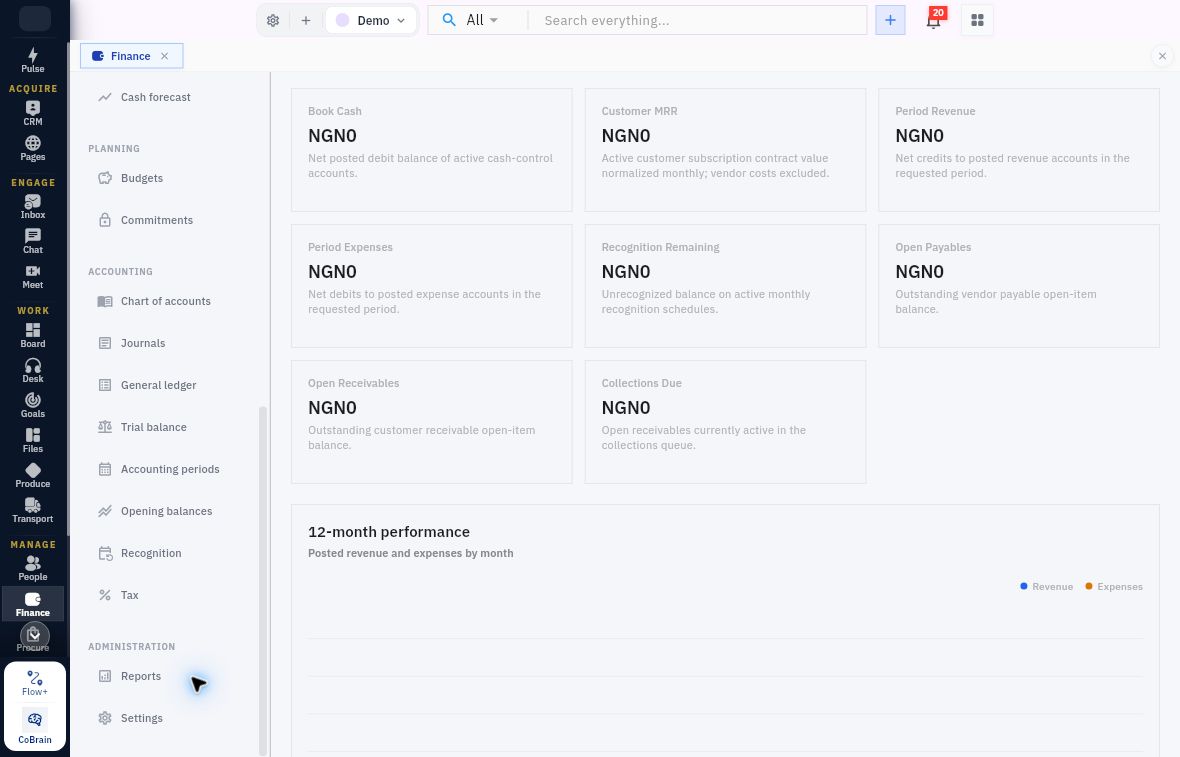
Read the Overview summary cards
Scroll the sidebar, not just the workspace. The lower destinations remain available while Overview is open. Planning, Accounting and Administration are headings, not additional pages to click. Together, these groups give you 26 destinations for finding Finance records and reports.
Read the Overview without overinterpreting its totals
The Overview presents eight summary cards. Read their helper descriptions before deciding what a number represents.
| Card | Scope described by its helper |
|---|---|
| Book Cash | Net posted debit balance of active cash-control accounts |
| Customer MRR | Active customer subscription contract value normalised monthly; vendor costs excluded |
| Period Revenue | Net credits to posted revenue accounts in the requested period |
| Period Expenses | Net debits to posted expense accounts in the requested period |
| Recognition Remaining | Unrecognised balance on active monthly recognition schedules |
| Open Payables | Outstanding vendor payable open-item balance |
| Open Receivables | Outstanding customer receivable open-item balance |
| Collections Due | Open receivables currently active in the collections queue |
Use 12-month performance to read posted revenue and expenses by month. Working capital position brings together book cash and open customer/vendor balances in the Cash, Receivables and Payables series. For a particular invoice, move to its source record and receivable rather than relying on an aggregate total. Keep the measures distinct: Customer MRR represents recurring contract value, while Collections Due covers the active collection queue rather than every open receivable.
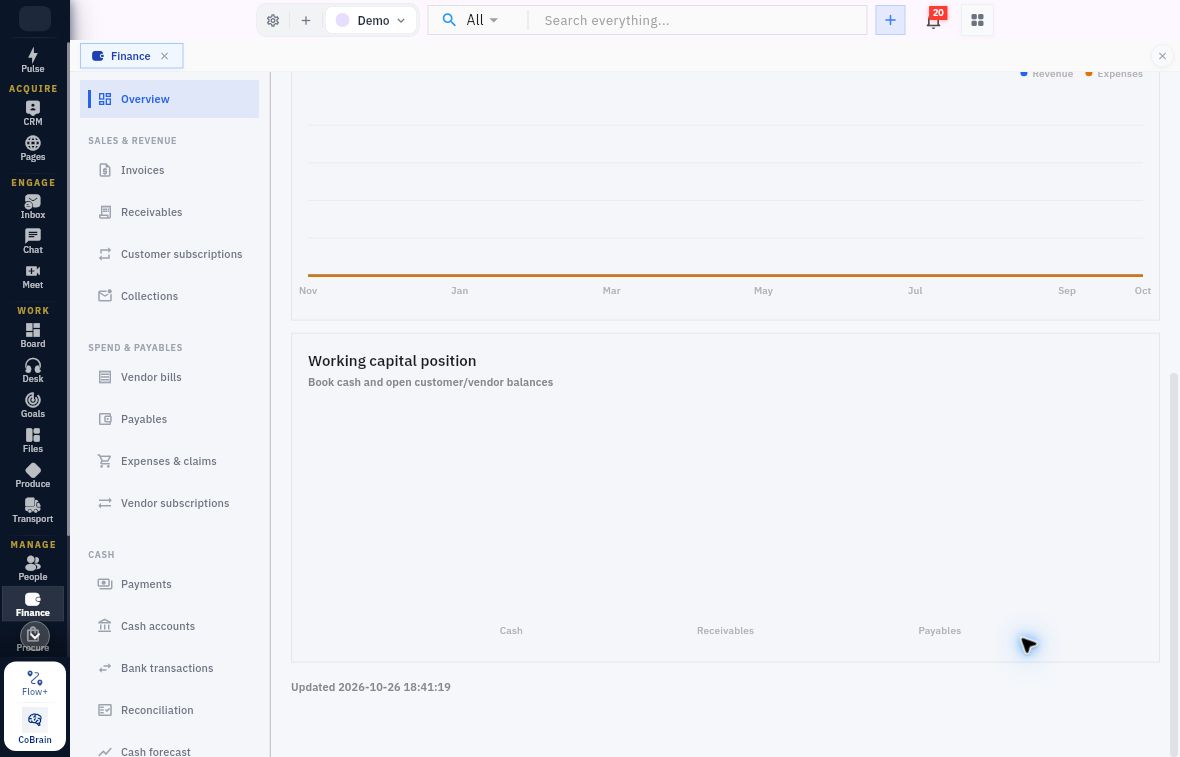
From balances to workspace tabs
Keep the three balances distinct. Read book cash alongside open customer and vendor balances. For an individual amount, return to its source record and the relevant register.
Move from a workspace to its tabs
A sidebar item may open several tabs. For example, Tax opens Tax codes, Tax rates, Registrations and Tax activity. The route Finance → Tax → Tax rates means select the module, select the sidebar workspace, then select its tab. It does not mean all three are items in one menu.
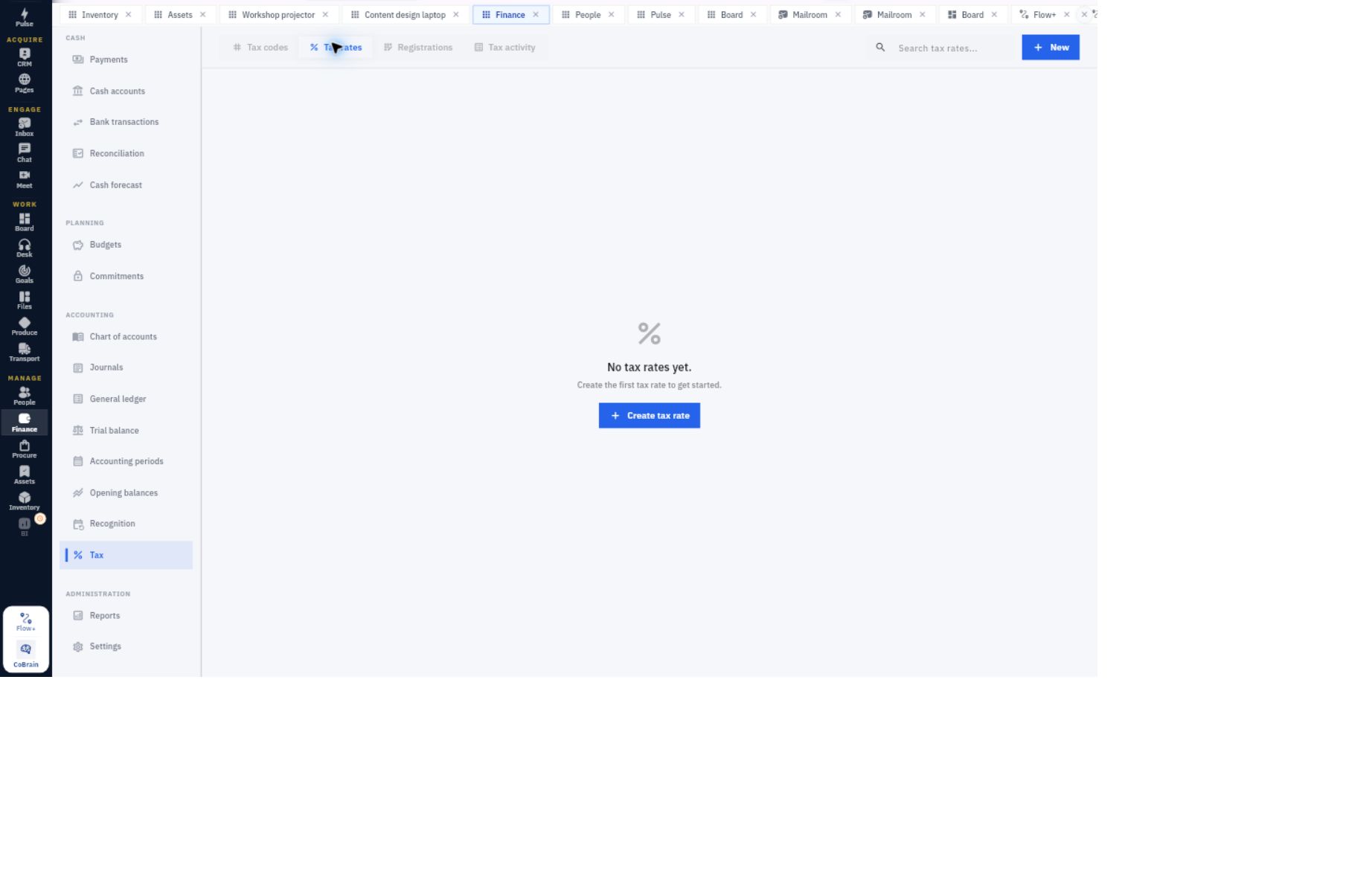
Trace records and practise safe navigation
Distinguish location from result. Tax is selected in the sidebar; Tax rates is selected across the top of the workspace. The search belongs to that list. If the list is empty, check the selected workroom and ask the configuration owner about the required rate. Do not treat an empty register as a tax decision or choose Create tax rate during this tour.
Choose the record that answers your question
Start with the question, not whichever screen you last had open.
| Your question | Start here | What to compare |
|---|---|---|
| What did we charge this customer? | Invoices → Invoices | Customer, invoice number, dates, currency, lines, total and issue evidence |
| What does the customer still owe? | Receivables → Receivables | The same invoice reference, original amount, outstanding amount and due date |
| What did the supplier charge us? | Vendor bills → Vendor bills | Supplier, bill reference, supporting source, dates and total |
| What do we still owe the supplier? | Payables | The same supplier and bill reference, original amount and outstanding amount |
| Which receipt or payment was recorded? | Payments → Customer payments or Vendor payments | Counterparty, date, amount, cash account, evidence and allocations |
| What reached the accounts? | Finance → Journals → Journals, then General ledger, under Accounting | Source reference, journal number, entry date, accounts and amounts |
| What does the period's financial result show? | Finance → Reports, under Administration | Selected report and its applied date range or as-of scope |
Throughout the course, Riverside is our small service-business example. Suppose it charges a customer USD300 and later receives USD200. The invoice answers what was charged. The receivable answers what remains outstanding. A USD100 remainder is the expected arithmetic only if that USD200 was validly applied to this invoice. The existence of a payment for the same amount is not enough; inspect its allocation and the receivable's recorded balance. These amounts are teaching examples, not records you should create during this tour.
Find the exact record before following its links
Use the list's search and available filters to narrow the records. Search with the source reference when you have one. Read the visible status filter as well: a search restricted to one state may exclude the record you need.
Open the candidate and compare identity before interpreting the amount. For an invoice, check the customer and invoice number together; for a bill, check the supplier and supplier/source reference. Add the date and currency to distinguish similar records. A matching amount or a familiar display name alone is not a reliable match.
Reference fields elsewhere in Finance connect records. A Customer, Account, Receivable or Payable field is not merely a place to type a convincing name. In an authorised preparation workflow, you must select the intended existing result and check the saved relationship. For this tour, inspect existing relationships only. If a picker is empty or its labels cannot distinguish the correct record, stop that selection rather than choosing the first available item.
Read state and consequence separately
Do not apply one universal workflow sequence to every Finance record. The invoice walkthrough uses a separate Issue action to create its source accounting. The supplier-bill example creates its payable and accounting through Approve. A manual journal has a separate Post action after approval. Later chapters examine each route and its readback in detail.
For now, ask three questions when opening a record:
- What state is this record actually in? Read the status and relevant timestamps rather than relying on its title or notes.
- What happened after preparation? Look for a source-linked posted journal when checking accounting, then check payment and allocation separately when checking settlement.
- What remains unresolved? An invoice may be accounted for while still unpaid. For a payment, check its completed workflow stage and the exact allocation before treating the invoice as settled.
Use the source journal already generated by an invoice or bill when tracing its accounting. Do not enter a manual journal just because the same business event appears in several screens. Those screens can be different views of one event, not missing entries to recreate.
Your first read-only navigation check
Choose one existing invoice or supplier bill that your Finance owner permits you to inspect.
- Confirm the workroom, open the correct source workspace and locate the exact record.
- Record its reference, counterparty, currency, amount and current state in a short note.
- Find the related receivable or payable if one exists. Compare its source reference and outstanding amount.
- Look for the corresponding source journal if the document has reached its accounting stage. Do not assume a draft should already have one.
- Open Reports and identify the displayed report and date scope. Do not compare a report total with your one document until you understand the report's full population.
Expected result: You can explain which screen answers the source, outstanding-balance and accounting questions, using the exact references. If a related record is absent, your result is an accurately identified gap—not an invented link or a new transaction. If there are no suitable records, complete the route-identification portion and ask the Finance owner for an approved read-only example.
Do not select Submit, Approve, Issue, Post, Release, activation or period-close actions in this exercise. A visible control is not permission to use it. The Close control on a detail panel dismisses the panel; a workflow action such as Soft Close concerns the accounting period and is a different operation.
Next, inspect the configuration that governs the records you have just located: currencies, numbering, review controls and accounting periods.
Turn what you learned into the way the team works.
Mark this lesson complete once the workflow exists in your workspace—not simply when you reach the bottom.