Send a useful customer update
Write a response that explains progress, the next action and what the customer should check.
In this lesson
Send a useful customer update
A good support update answers the latest question without making the customer repeat information. It should explain what you know, what happens next and when they should expect another update.
Before you start: Open the exact ticket and confirm the requester’s destination and any intended CC recipients. A name on a ticket is not enough to establish an email destination.
Prepare the response
1. Read the original request, recent messages and relevant notes. Separate the reported problem from any diagnosis that has not yet been confirmed.
2. Write a short response covering the understood need, useful progress, the next owner or action and any check you need from the customer. Do not announce a fix before the requested result works.
For example: “We have updated the checklist link on the onboarding page. Please open it from that page and confirm that you see the approved version. If it still opens the older copy, tell us which version is displayed.” Use this only after that change has actually been made.
Use the response composer
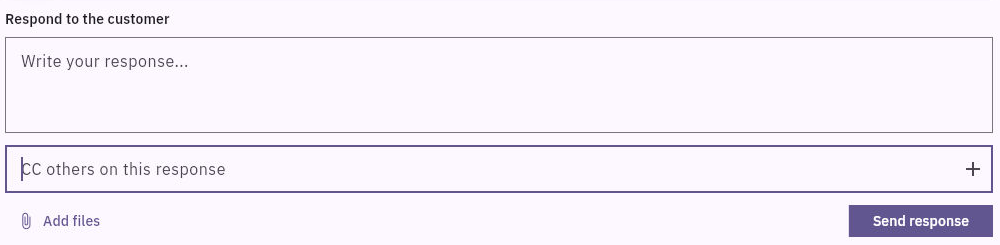
3. Find Respond to the customer and enter the complete message in Write your response. Review CC others on this response and any included files. If the destination is missing or unclear, resolve it before sending; adding a CC is not a substitute for knowing the requester’s destination.
4. Read the full message once more, then select Send response once. This is an external communication, not a note or a guaranteed saved draft.
5. Reopen the same ticket and check the retained response. If the send result was uncertain, inspect the thread before retrying so the customer does not receive duplicates. A saved thread entry and a customer’s confirmed receipt are different things.
Keep notes and responses distinct
The separate Comments composer is for context and team handoffs. Choose the control that matches your intended audience, and do not put passwords, access tokens or unnecessary personal details in either area. Confirm your organisation’s visibility rules before adding sensitive internal material.
Your result is one clear update on the right request. A customer can acknowledge receiving it while still needing more help; read their reply before deciding that the ticket is resolved.
Continue learning
In this series: Handle support requests — guide 8 of 14.
Turn what you learned into the way the team works.
Mark this lesson complete once the workflow exists in your workspace—not simply when you reach the bottom.