Hand off support work to a Board task
Give a specialist a usable brief and keep the task connected to the customer request.
In this lesson
Hand off support work to a Board task
Use a Board task when a support request needs distinct specialist work, a review point or dependencies. Keep a short correction in the ticket when a separate task would only duplicate it.
Before you start: Identify the ticket, the appropriate Board and the person who will do the work. Check existing linked tasks before creating another.
Prepare a useful task
1. Open the ticket and read the complete request and source. Agree the specialist’s scope: what must change, what must stay unchanged, the expected output and how you will check it.
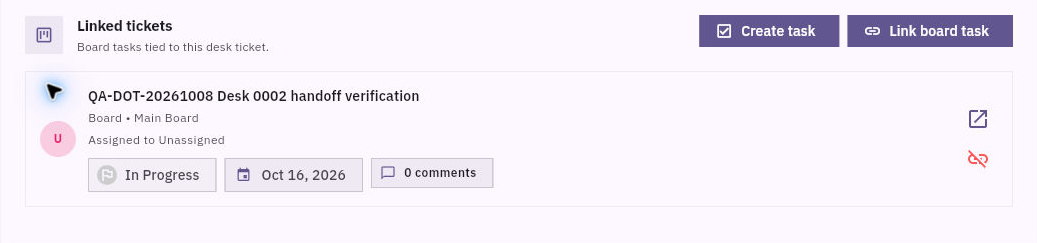
2. Find Linked tickets, described as Board tasks tied to this desk ticket. Open any relevant existing card and check its full Description. A similar title with the wrong scope is not a suitable handoff.
3. If the right task already exists, skip creation and continue with linking below. Otherwise, select Create task, choose the correct Board and complete Task Title and Description. The ticket’s title and context are not automatically supplied as the brief.
4. Put the full usable scope in Description: the ticket reference, source/version, problem, required output, acceptance checks and review agreement. Select appropriate Task Status, planning values and Assign Members. A date-only field does not express an exact meeting time; include the time and timezone in the brief when needed.
5. Select Create Task once. Find and reopen the saved task, checking its full Description, Board and intended assignment. Do not treat the ticket’s owner as the task’s assignee.
Check the connection
6. Return to the same ticket and inspect Linked tickets. If the correct relation is already present, leave it in place. Otherwise, select Link board task, choose the Board and use Search board tasks to find the exact task. Check its identity before selecting it; do not assume another confirmation will appear.
7. Reopen the ticket, find the linked card and use its Open control. Confirm that it reaches the intended task and complete brief.
Support still owns the customer’s question and final outcome unless your team explicitly transfers that responsibility. A linked task does not automatically synchronise owners, due dates or statuses. Your result is one useful specialist task connected to the original request, with a clear return and review plan.
Continue learning
In this series: Handle support requests — guide 10 of 14.
Turn what you learned into the way the team works.
Mark this lesson complete once the workflow exists in your workspace—not simply when you reach the bottom.