Create a support desk
Give your support team a clear place to receive and manage requests.
In this lesson
Create a support desk
A desk groups support tickets, routing and service settings. Give it a recognisable name so customers and teammates do not confuse it with another service.
Before you start: You need permission to manage desks. Decide which team will use the desk and check whether a suitable desk already exists.
Create or update the desk
1. Open Desk and use the desk selector to check existing desks. If the right desk exists, select it rather than creating another copy, then continue at step 4.
2. To create a desk, use the desk-level + New → Create desk. This is different from + New ticket inside the Tickets view.
3. Enter a Desk name and, if useful, a short Desk description explaining what belongs here. For example, Customer Support with “Product questions and customer-reported issues.” Select Create desk once.
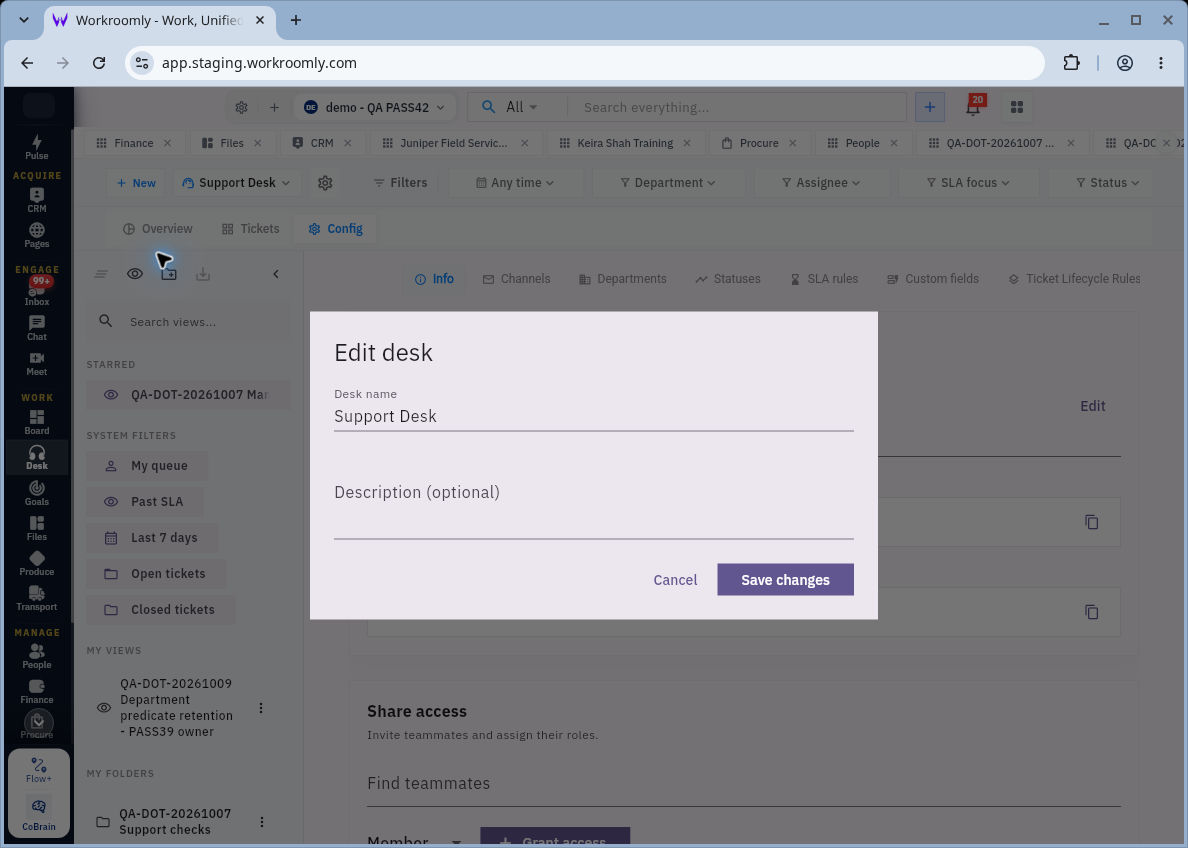
4. Select the desk, then open Config → Info. Check the name and description. To change an existing desk’s details, choose Edit, make the intended change and select Save changes.
Check who can use it
In Config → Info, review Share access and Current collaborators. If a teammate needs access, find the correct person, choose the appropriate listed role and select Grant access. Do not grant again if their existing access is already correct. A desk audience is not the same as assigning a ticket to an agent.
Decide how requests will arrive
Open Config → Channels to review Public page, Email channel and API channel. Configure only the channels your team intends to operate. Turning on a public page or forwarding live email changes how external requests reach the desk; confirm its setup before using it with customers.
Return to Tickets to begin managing requests. Your result is one clearly named desk with an understood team audience—not a duplicate desk or an untested intake channel.
Continue learning
In this series: Handle support requests — guide 2 of 14.
Turn what you learned into the way the team works.
Mark this lesson complete once the workflow exists in your workspace—not simply when you reach the bottom.