Create and preview an email broadcast draft
Build a focused email draft, choose its audience and check the rendered message before sending.
In this lesson
Create and preview an email broadcast draft
Build a focused email draft, choose its audience and check the rendered message before sending.
Before you start: You need access to Broadcasts, a clear message purpose and a recipient audience that respects current communication preferences. Have the subject, body and any links ready.
Steps
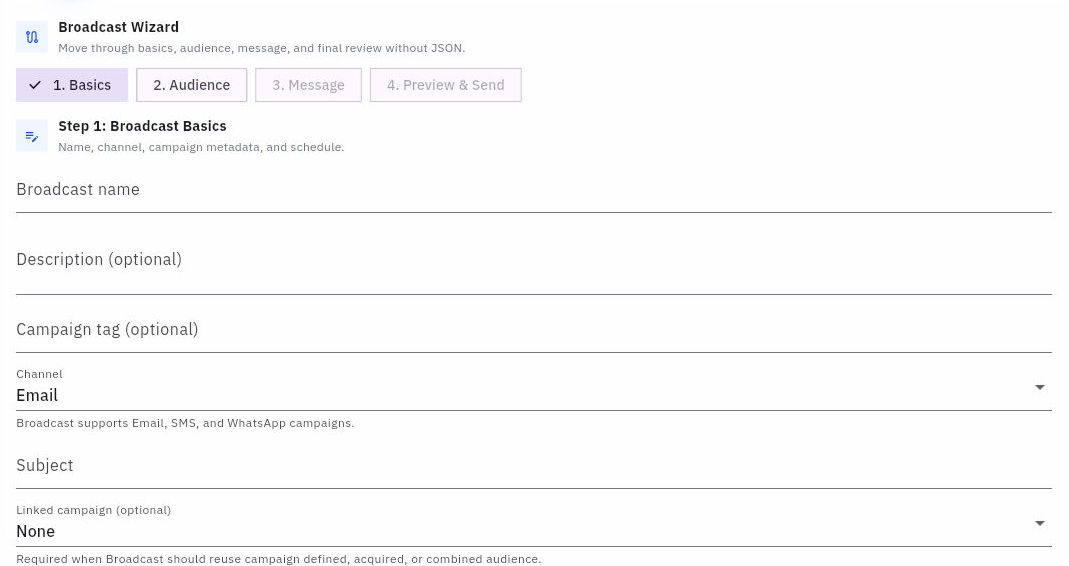
1. Open CRM → Broadcasts and select Create. The wizard has Basics, Audience, Message and Preview & Send.
2. In Basics, enter the internal Broadcast name and recipient-facing Subject. Check the channel. Select a Linked campaign only when this broadcast belongs to that campaign; a campaign tag is not the same relationship.
Check the result
3. Open Audience. For Custom audience, select the right target entities and add the required include and exclude conditions. Check AND and OR carefully. Campaign-defined, acquired or combined audiences depend on a linked campaign.
4. Open Message. In Design, use Add block → Rich Text to write a short message with one clear action. Add a button or other block only when it helps the reader. Check every destination link and review the brand footer and preference information.
5. If you insert personalization, check that the selected field exists for the intended records and that the message still makes sense when a value is missing. Avoid leaving example names, instructions or unfinished placeholders in the text.
6. Select Save draft. Open Preview & Send and run Preview personalization after saving. Inspect Desktop, Mobile and Plain Text views. Check the subject, body, links, footer and any personalization using the available preview-record controls.
7. Use Estimate recipients and inspect the resulting audience information. Reconcile it with the people you intend to reach; a rendered preview by itself does not verify the recipient population or sender setup.
8. Return to Broadcasts, locate the draft and use Actions → Edit to reopen it. Check the saved name, subject, audience and message. Keep it as a draft while you resolve any content, audience or delivery-readiness issues.
Expected result
Your email is saved as a draft and you have checked how it renders. It is ready for your team’s final audience, sender and delivery checks.
Common pitfalls
- Send now, Schedule and Queue test send are delivery actions, not preview controls. Use them only when the message and destination list are ready.
- A successful preview does not prove mailbox delivery or that a link will open for the recipient. Check those separately before a real campaign.
Continue learning
In this series: Manage customer relationships — guide 10 of 15.
Turn what you learned into the way the team works.
Mark this lesson complete once the workflow exists in your workspace—not simply when you reach the bottom.