Set task dates priority and effort
Plan when a task is needed and how much work it requires without confusing estimates with actual time.
In this lesson
Set task dates priority and effort
Start with the task’s result and the people available to do it. A high priority does not create extra capacity or remove a dependency.
Plan the task
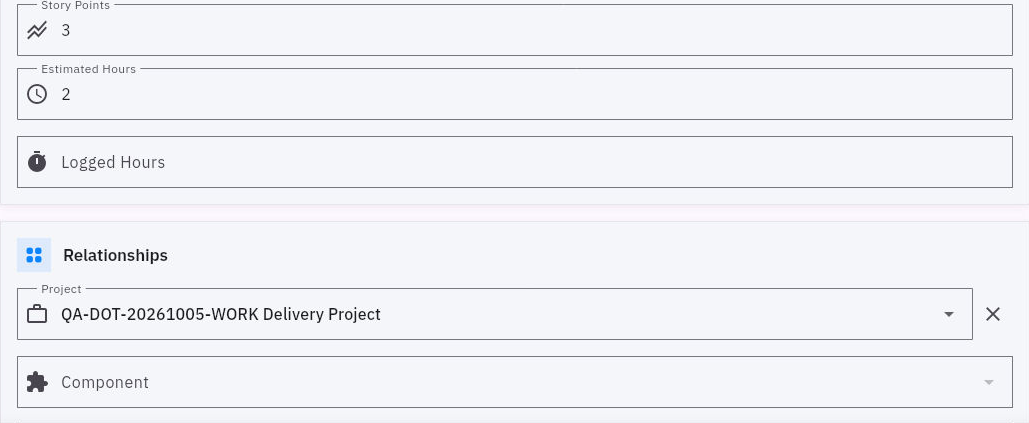
1. Open the task from Board → Kanban, Table or Board-scoped search. Check its title and project. 2. In Status & Planning, review Planned Start Date and choose the Due Date needed for this task. Confirm the calendar selection with OK where shown. 3. Choose Priority according to your team’s convention. Use the existing choices—Low, Medium, High or Critical—and explain unusual urgency in the description. 4. Enter Estimated Hours for the planned effort. For example, 0.75 hours means 45 minutes, not 75 minutes. Use Story Points only if your team has an agreed sizing convention. 5. Leave Logged Hours for work actually performed. Review the changes and select Update Task.
Check the result
Check the plan
6. Reopen the task and compare its planning fields. In Table, check the task’s Due Date; note any active filters if it is not visible. 7. Compare the work with the assignee’s available time and the readiness of required inputs. Adjust the plan with the team if it does not fit.
Expected result: the task has a realistic due date, a reasoned priority and a clear effort estimate.
Keep these separate: project dates, sprint dates and task dates are different fields. If an exact hour and timezone matters, include it in the description rather than assuming a date-only picker stores it. Estimated hours and logged hours also measure different things; story points are not automatically convertible to hours.
Continue learning
In this series: Plan and deliver work — guide 6 of 17.
Turn what you learned into the way the team works.
Mark this lesson complete once the workflow exists in your workspace—not simply when you reach the bottom.