Create a project with a clear scope
Create a project, set its planning dates and estimate, then reopen it to check the details.
In this lesson
Create a project with a clear scope
A project groups tasks that deliver one result. Before creating it, decide what the project will deliver, what is outside its scope and how you will know it is finished.
Create the project
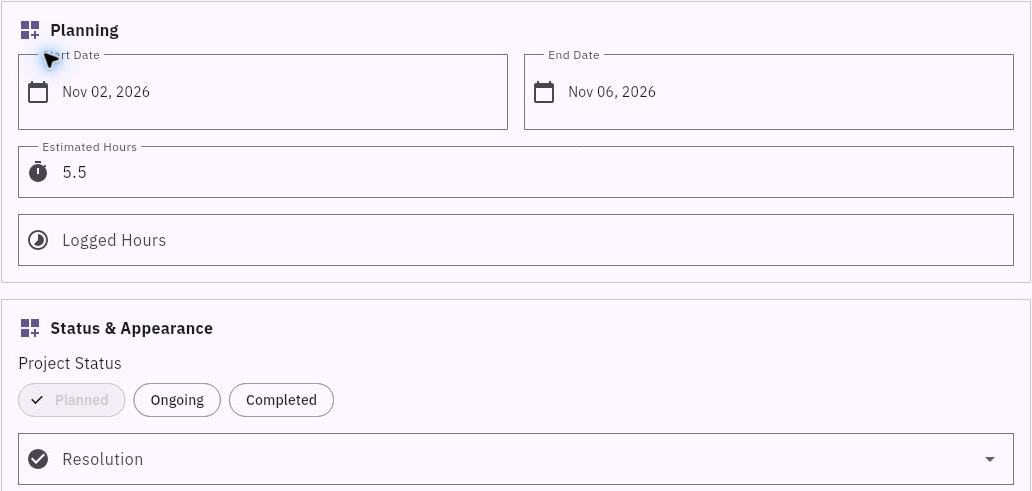
1. Open Board, choose the intended Board and select Projects. Search for the project first so you do not create a duplicate. If the intended project exists, skip to step 6 and check it without replacing its details. 2. Select New Project and confirm Select board. 3. Enter a specific Project Name, such as “Customer help centre launch”. In Description, explain the result, scope and completion criteria. Include an exact deadline time and timezone here if the date alone is not enough. 4. Under Planning, set Start Date and End Date. Enter Estimated Hours if you have an agreed estimate. Leave Logged Hours for actual effort rather than copying the estimate. 5. Keep Planned selected for work that has not started. Review the details, then select Create Project.
Check the result
Check the saved project
6. Return to Projects and locate your project. Use the row’s Open action to check the full name and description. 7. Check the Board, planning dates, estimate and status. If the save response was unclear, do this before submitting again. 8. When you add tasks, select this project under Relationships → Project. Use Create Task for a new task or Update Task for an existing task. You can then expand the project’s left chevron to see its linked tasks.
Expected result: one project with a clear purpose and the planning information your team needs.
Tips: A project can be saved before it has tasks. Its estimate is a planning value, not proof of actual time spent or an automatic task-total calculation. Choosing a project on a task creates the relationship; matching names alone do not.
Continue learning
In this series: Plan and deliver work — guide 3 of 17.
Turn what you learned into the way the team works.
Mark this lesson complete once the workflow exists in your workspace—not simply when you reach the bottom.