Create a Board for your team
Set up a Board with a clear purpose and check who can work in it.
In this lesson
Create a Board for your team
Use a Board to keep a team’s work together. Before creating one, check the Board selector for an existing Board that already serves the same purpose.
Create the Board
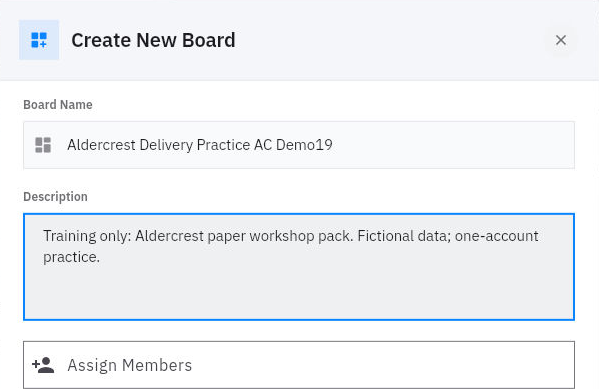
1. Open Board in the correct workroom. 2. Open the bottom-right blue + → Create New menu and choose Board. If you are starting from the empty Board screen, choose + Create Board. 3. Enter a clear Board Name, such as “Client Delivery”. Use Description to explain what belongs here—for example, customer onboarding projects and their delivery tasks. 4. Review Assign Members. Select only the people who need to work on this Board. Leaving this field empty is not a guarantee that the Board is private. 5. Check the name and description, then select Create Board once.
Check the result
Check your new Board
6. Return to the Board selector and open the Board you created. 7. Open Config → Info to check its full name and description. 8. Open Config → Access to review the listed members and roles. If a teammate needs access, have your Board administrator confirm the appropriate membership rather than changing wider workroom access.
Expected result: your Board is easy to identify and its intended members are listed. Ask teammates to confirm they can open it before relying on shared access.
If the save response is unclear: look for the Board and open Config → Info before creating another one. A timeout can occur even when the Board was saved.
Remember: Board membership and access to an attached document are separate. Check document sharing when you start adding supporting files.
Continue learning
In this series: Plan and deliver work — guide 2 of 17.
Turn what you learned into the way the team works.
Mark this lesson complete once the workflow exists in your workspace—not simply when you reach the bottom.