Review asset cover and prepare a claim
Match warranty or insurance terms to the exact asset before preparing a claim and checking compliance records.
In this lesson
Review asset cover and prepare a claim
Before you begin
Have the actual cover terms, asset identity, incident facts and supporting documents. A saved cover record does not establish that an event is covered or that a provider has accepted a claim.
Review cover
1. Open Assets → Cover & Compliance. Choose Warranties or Insurance and find the exact asset and provider reference. Check scope, exclusions, start and expiry dates against the original terms. 2. If a required warranty record is missing, use Warranties → Add Record. Enter Asset, Provider, Reference, Coverage and actual dates, then Add Warranty. For a missing policy, use Insurance → Add Record, enter the policy fields and choose Add Insurance Policy. Verify the saved record before using it; do not create duplicates. 3. For insurance values, distinguish Insured value from Premium. Confirm the currency and your organisation's field mapping before entry. An unknown premium is not zero. Preserve excesses, deadlines and complete terms in the supporting records where no dedicated field exists.
Prepare the correct claim
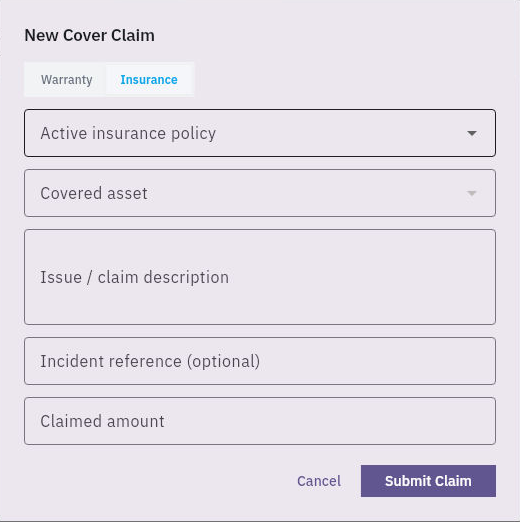
4. Open Claims and search for the intended claim first. If it already exists, use its reference and skip steps 5–6 rather than resubmitting. 5. Choose New Claim. On Warranty, select the exact Active warranty, describe the actual issue and enter a provider reference only if one has been supplied. On Insurance, choose the exact policy and covered asset, describe the issue, add the real incident reference if available, and enter the supported Claimed amount in the confirmed currency.
Check the result
6. Review the description, source facts and amount before Submit Claim. Confirm your team's submission and provider-contact process before committing. Find the resulting claim and verify the saved details. If the outcome is unclear, inspect the existing list before retrying. An application record alone is not proof of provider receipt, approval or payment.
Check compliance separately
7. Open Compliance. Match the asset, document reference, evidence and dates. Preserve a Superseded record alongside its replacement rather than treating a newer expiry as proof of compliance. 8. If a required record is missing, choose Add Record. Enter the actual document title, reference, type and dates; use Select Vault evidence for the correct supporting document, then Add Compliance Record. Verify the saved association and evidence content. Use Verify only after the responsible reviewer has checked the applicable requirement and document.
Check the result
The asset's cover and compliance records match their sources. Any claim has the correct policy, asset and factual basis, with provider communication, decision and settlement tracked separately. A reminder or Renew button does not create a new cover agreement.
Continue learning
In this series: Manage asset custody — guide 10 of 15.
Turn what you learned into the way the team works.
Mark this lesson complete once the workflow exists in your workspace—not simply when you reach the bottom.