Plan preventive care and inspections
Set an asset maintenance cadence and keep scheduled inspections and physical-verification scope distinct.
In this lesson
Plan preventive care and inspections
Before you begin
Have the exact asset, care criteria, cadence, next due date and responsible people ready. A schedule plans work; it does not record a completed inspection.
Create or check a preventive schedule
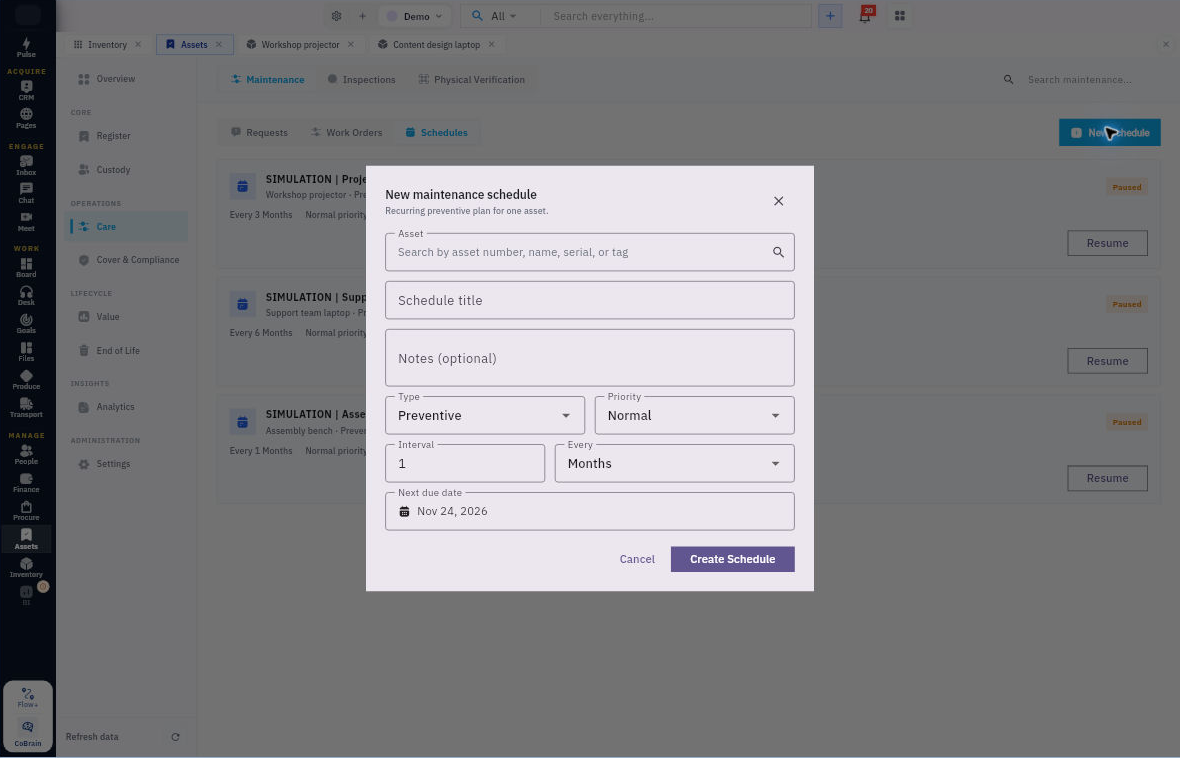
1. Open Assets → Care → Maintenance → Schedules. Look for the same asset and plan. If an appropriate schedule exists, check its cadence, due date and state; skip steps 2–4 rather than making a duplicate or pausing it just to inspect it. 2. Choose New Schedule. Match the Asset, enter the Schedule title, and use Notes for the full care criteria and responsibilities where separate fields are absent. 3. Set the appropriate Type and Priority. Review Interval and Every together: for example, 2 Weeks is not 2 Months. Choose the Next due date. Keep any required time of day in the supporting instructions; the visible picker is a date field. 4. Choose Create Schedule once. Return to Schedules and check the saved asset, title, cadence, due date and state. If the save is unclear, search for the intended plan before trying again.
Check the result
Schedule a general inspection when needed
5. Open Care → Inspections and check for the intended inspection and suitable template. This is separate from maintenance work and custody-return inspection. If the intended inspection already exists, use it rather than rescheduling it. 6. If no suitable template exists, choose New Template. Enter its name, description and complete Required checks, one per line. Choose Create Template, then verify those checks before using the template. 7. For a new inspection, choose New Inspection, select the exact Asset and Inspection template, then Schedule Inspection. Find the resulting record and check its identity and actual state. Arrange the observer and timing through your team's process where the form has no separate fields. Do not mark criteria complete until the real examination is done.
Check physical-verification scope separately
8. Open Care → Physical Verification. For an existing campaign, use Open to compare its asset membership and expected locations with the intended population. A pending record or missing expected location is not proof that an asset is physically missing. 9. If a new campaign is required, choose New Campaign. Enter its name and due date, search each exact asset and use Add asset to frozen scope. Check the complete selected list before Create Campaign. Reopen the saved scope and reconcile membership before considering Activate with the campaign owner.
Check the result
The care plan has the intended cadence, the inspection uses complete criteria, and any verification campaign has the correct population. Actual work, findings and review still need to happen. Report a care-related incident through End of Life → Incidents; the navigation location does not itself retire the asset.
Continue learning
In this series: Manage asset custody — guide 9 of 15.
Turn what you learned into the way the team works.
Mark this lesson complete once the workflow exists in your workspace—not simply when you reach the bottom.