Read asset reports and follow up exceptions
Reconcile report rows, choose a clear denominator, and turn asset exceptions into specific next actions.
In this lesson
Read asset reports and follow up exceptions
Before you begin
State the question and reporting cutoff: for example, which assets are available now, or which assignments are overdue. Asset records, assignments and work orders are different populations.
Start from the register
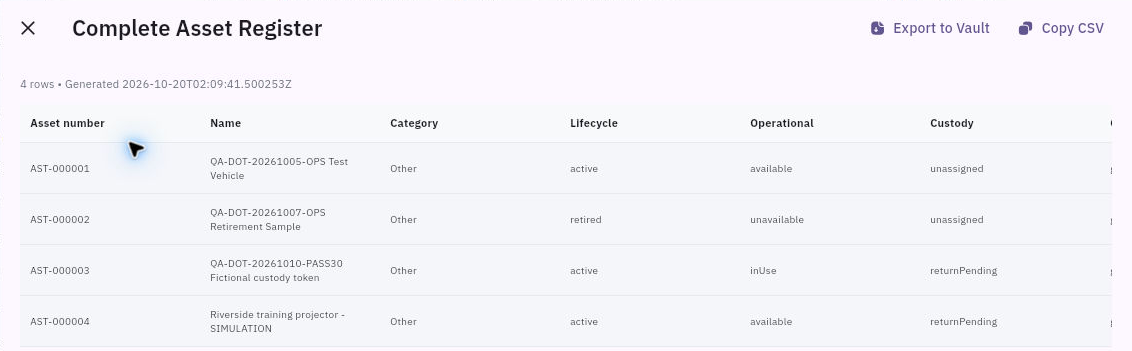
1. Open Assets → Analytics → Complete Asset Register. Note the report name, generation time and displayed row count. Use only the scope controls actually available; a generated snapshot is not automatically a report for an earlier historical date. 2. Read across the whole table, scrolling horizontally as needed. Match asset numbers and names, then Category, Lifecycle, Operational, Custody, Condition, Custodian, Department, Location, Acquisition date, Cost and Book value. Leave blanks as unknown rather than filling them from assumptions. 3. Reconcile the included identities before calculating. Read lifecycle, availability and custody separately: Unassigned does not always mean Available, and a Retired asset may still belong in an owned-asset population.
Check the result
Compare the right measures
4. For a percentage, name both groups. Available assets divided by all included assets answers a different question from Available divided by active assets. Keep the counted identities, cutoff and rounding rule. With a zero denominator, report the rate as not applicable rather than 0% or 100%. 5. Open the relevant grouped report, such as Assets by Category, and compare its counts with the matching register rows. Retain each report's generation time; a later result may reflect changed records. 6. For a specific issue, use the appropriate lifecycle or compliance report—for example, Overdue Returns, Maintenance Due, Warranty Expiry or Insurance Expiry—and check the underlying asset or assignment before assigning follow-up. 7. Use Finance Reconciliation for its stated comparison. Read the exact Assets and Finance columns, variances, pending/rejected movement counts and reconciliation status. A report marked reconciled does not by itself approve a separate capitalization review or substantiate every source cost.
Retain and use the result
8. If you need a permitted copy, use the report's Export to Vault or Copy CSV controls. Inspect the resulting file or copied content: match headers, identities, row count and values before sharing with the intended audience. 9. Give each exception a specific asset/reference, responsible owner and next action. At the next review, use a new cutoff and compare the changed identities, not only the overall percentage. Keep the earlier report and original due dates.
Check the result
Another reader can reproduce the totals and understand the population. The report points to actual custody, care or financial work still needed; producing it does not complete those tasks.
Continue learning
In this series: Manage asset custody — guide 14 of 15.
Turn what you learned into the way the team works.
Mark this lesson complete once the workflow exists in your workspace—not simply when you reach the bottom.