Prepare asset retirement and disposal
Keep removal from service separate from disposal, handover and financial closeout.
In this lesson
Prepare asset retirement and disposal
Before you begin
Confirm the exact asset, serial/tag, ownership, custody and included accessories. Resolve relevant leases, returns, care holds, incidents, claims and data-clearance requirements with their responsible owners before release.
Prepare retirement
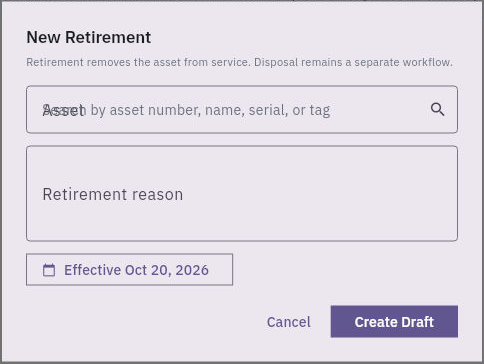
1. Open Assets → End of Life → Retirements and search for the asset. If the intended retirement already exists, inspect it and skip steps 2–3. Preserve its history and actual state. 2. Choose New Retirement. Select the exact Asset, enter the supported Retirement reason, and set the approved Effective date rather than accepting the default automatically. 3. Choose Create Draft once. Find the saved record and compare its asset, reason, date and state. A draft is not approval or completed retirement; follow your organisation's retirement review before any later transition.
Check the result
4. Reopen Register → the exact asset → Summary. Read Lifecycle, Operational, Custody, Financial and Condition separately. Use Activity to inspect the recorded sequence without treating historical event labels as current action buttons. Retirement removes an asset from service; it does not prove disposal or financial closure.
Prepare a separate disposal request
5. Open End of Life → Disposals and check for the intended request. If it exists, use it and skip step 6 rather than submitting another request. 6. Choose New Disposal. Match the exact Asset and the approved Reason, such as Sale, Scrap or Donation. Use Submit Request only when that request is authorised, then find and verify its saved reference and state. Do not substitute another reason to bypass an unresolved release condition. 7. Keep the complete approved terms in your team's supporting process: included items, recipient, proceeds and costs, timing, approvals and release conditions. The initial request form is not a complete handover or financial record. 8. Before actual handover, recheck the exact item set, current custody, required data clearance and payment conditions. A collection booking is not a completed handover, and an agreed price is not a payment receipt. 9. After the permitted outcome, compare the saved disposal record and asset master with the actual handover information. Ask Finance to reconcile the approved disposal treatment and actual receipts/costs separately. Retain the asset and linked history rather than deleting the record.
Check the result
Retirement, disposal approval, physical handover and Finance each have their own supported outcome. Leave any unfinished part visible with its responsible owner; one completed status does not finish the others.
Continue learning
In this series: Manage asset custody — guide 12 of 15.
Turn what you learned into the way the team works.
Mark this lesson complete once the workflow exists in your workspace—not simply when you reach the bottom.