Complete and verify maintenance work
Record performed maintenance, submit it for verification, and close the same work order after review.
In this lesson
Complete and verify maintenance work
Before you begin
Use the existing work order for the correct asset and maintenance request. Confirm its scope, technician and current stage. Do not create a second order or restart work that has already progressed.
Record the work
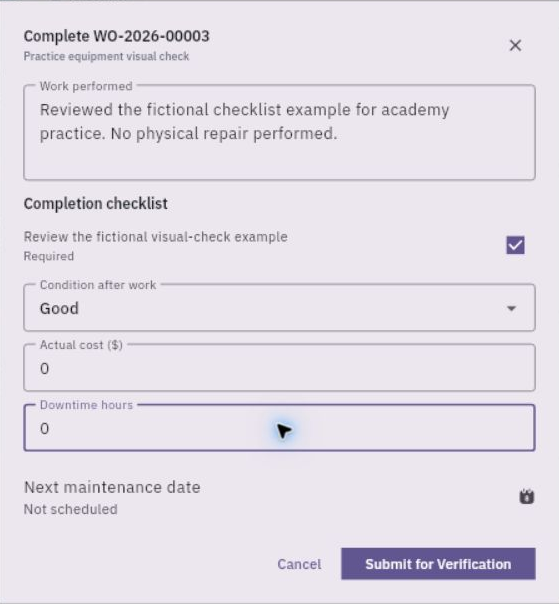
1. Open Assets → Care → Maintenance → Work Orders and find the exact order. If it is already In Progress, skip planning and continue at step 3. For Completed, Verification or Closed orders, continue only with the matching later check below. 2. When a Draft order is ready to begin, choose Start / Resume Work. In Plan and start work, add the Completion checklist and any Parts required using Add checklist item and Add part. Start Work saves the plan and moves the order to In Progress; it is not a Save Draft button. 3. Perform the agreed work and required checks. Then choose Complete Work on the In Progress order. Describe the actual Work performed and tick only completed checklist items. 4. Select the assessed Condition after work. Enter the actual cost, downtime hours and next maintenance date where applicable. Do not accept a default Good condition for equipment that has not been assessed. If the available options cannot truthfully describe the result, resolve that before submitting.
Check the result
5. Choose Submit for Verification once and confirm the order becomes Completed. 6. When the responsible reviewer has checked the work and supporting information, use Verify Completion on the Completed order. Confirm Verification; this action can change stage immediately rather than opening a review-note form. 7. After the closure requirements are satisfied, choose Close Work Order on the Verification-stage order. Confirm Closed. For an already Closed order, inspect it without repeating these actions. 8. Check Requests for the linked request, then reopen Register → the exact asset → Maintenance to confirm the maintenance record. If you need a detailed work narrative that is not exposed there, retain the supporting work information through your team's agreed records process.
Check the result
The correct order is closed after the work and review are complete. Closing maintenance does not by itself finish a custody return, financial review or an unperformed readiness check.
Continue learning
In this series: Manage asset custody — guide 8 of 15.
Turn what you learned into the way the team works.
Mark this lesson complete once the workflow exists in your workspace—not simply when you reach the bottom.