Set up an item and trace its first supply
Connect the item definition, manufacturing product, storage locations and legitimate incoming supply.
Part of Set up an item and trace incoming stock
In this lesson
Set up an item and trace its first supply
Before you begin
Have the exact SKU, item name, stock unit, tracking requirements and intended warehouse/location. Know whether the supply comes from a purchase, production, subcontracting, transfer or return.
Create or reuse the item
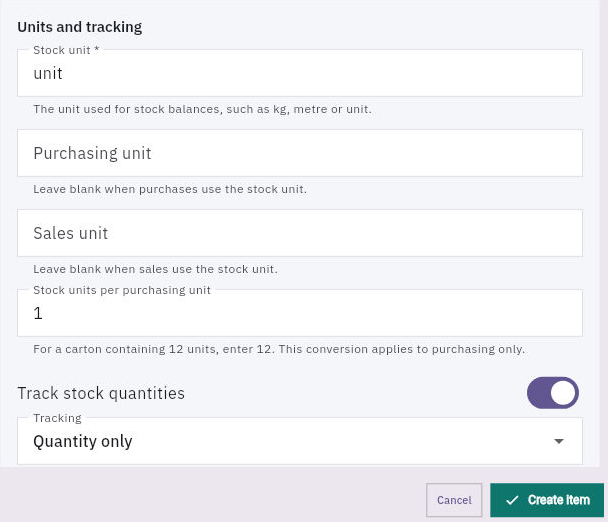
1. Open Inventory → Items and search the exact SKU. If it already exists, compare its definition and skip steps 2–3. Use step 4 only if it still needs activation; otherwise continue at step 5. Preserve an existing Active state rather than resetting it to Draft. 2. For a missing item, choose New Item. Enter SKU, Item name and Description, then the correct Item type, Stock unit, tracking, planning, cost and currency values. Keep optional classifications separate; an Equipment item does not automatically create an Assets custody record. 3. Keep the new definition Draft while preparing it. Choose Create Item once, then search and reopen the saved SKU. Check the definition against your source. If the save is unclear, resolve whether the item exists before retrying. 4. When the definition is ready, open Edit, choose Active — available for operations, then Save changes. Reopen the item. Active is a definition state, not stock quantity. 5. If the item is manufactured, check Produce → Products for its existing product. Only if missing, choose New Product, select that same active Inventory item, review inherited identity and the product fields, then Create Product. Reopen it and verify the Inventory link.
Continue the workflow
Prepare storage and follow the source
6. In Inventory → Warehouses, use the intended existing warehouse. If an approved warehouse is missing, choose New Warehouse, enter its full identity/location/capacity and default decision, then Create and reopen it. 7. Under Warehouses → Locations, check the intended hierarchy before adding anything. For a missing location, use New Location, choose the correct warehouse and parent, set its kind, capacity and picking/putaway/quarantine controls, then Create. Reopen its full path. Create parents before their child bins; a location's kind alone does not prove its quarantine flag. 8. Follow the actual incoming source. For purchasing, inspect the exact issued Procure order and Record receipt or service delivery route. Match item mapping, unit, outstanding quantity and destination before any receipt. A free-text line or Accepted badge in another module does not establish stock for your SKU. 9. In Inventory → Receiving, find the source-linked receipt and compare Expected, Received, Accepted and Remaining. Keep received-but-held goods separate from a delivery shortage. 10. Open its Putaway tasks and match the source, destination, quantity and completion. Finally reopen Items → the exact SKU → Stock and the intended location to confirm eligible stored quantity and any separately held positions.
Check the result
The same item identity connects the definition, product if needed, source receipt and storage. Do not use a stock adjustment or fictitious opening balance to replace a missing legitimate receipt.
Continue learning
In this series: Operations and fulfilment — guide 1 of 5.
Turn what you learned into the way the team works.
Mark this lesson complete once the workflow exists in your workspace—not simply when you reach the bottom.