Coordinate a new starter’s first week
Connect the employee’s onboarding checklist and first learning assignment, while keeping access and equipment readiness visible.
Part of Coordinate a starter’s first week
In this lesson
Coordinate a new starter’s first week
Connect the employee’s onboarding checklist and first learning assignment, while keeping access and equipment readiness visible.
Before you start: Have the employee record, first-week plan, suitable onboarding template, published course and responsible owners. Confirm the starter has a usable account before relying on self-service learning.
Steps
1. Open People → Directory → Employees and identify the starter by full name and work email. Check their department, role, joined date and Workspace access. An Active employee is not automatically a linked member account.
2. Open Lifecycle → Templates and inspect the intended onboarding definition. Check its full steps and any Board or learning-path delivery settings, then cancel the inspection unchanged.
3. Open Lifecycle → Journey and check for the starter’s existing onboarding event. If it exists, skip step 4 and inspect its checklist. Do not create a second event to replace an uncertain recruitment-generated one.
4. If the event is genuinely missing, select Create Event. Select the actual employee, choose Onboarding, set the agreed effective date, select the checked template and complete assignment and notes. Review the whole wizard and select Create Event once.
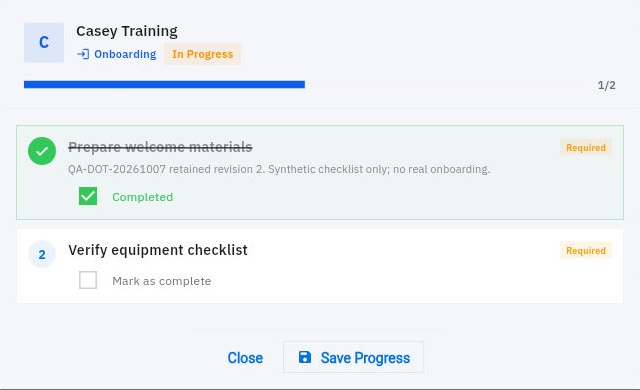
5. Open the same event through Lifecycle → Onboarding → View Steps. Compare each item with the actual first-week plan. Keep welcome-material preparation, equipment readiness and learner participation distinct.
6. Open People → Learning → Courses and find the intended published course. Check for an existing assignment to this starter. For a missing assignment, select Assign, choose the exact employee, set Required and the due date as intended, then assign once and check the saved learner/course row.
7. The starter uses Pulse → Learning → My learning → Continue to read the course and perform its task. Review the actual practice output when it matters; a course completion percentage does not prove equipment, access or working readiness.
8. When an onboarding item’s work is genuinely complete, select its Mark as complete control and Save Progress. Leave already-correct items and unfinished requirements unchanged. Reopen View Steps and confirm the individual retained states.
Check the result
9. Agree the remaining work with the appropriate owners. For equipment, check the exact items, accessories and recipient receipt; for access, check the intended person can use the required resources. Do not mark those items complete from a planned handover alone.
Expected result
The first week has one identifiable onboarding event and the correct learning assignment, with progress tied to completed work rather than a broad readiness claim.
Common pitfalls
- A template’s responsibility label or learning-path setting does not by itself prove task delivery or assignment.
- Do not use another signed-in learner’s completion as the new starter’s result.
- An uncertain create or assignment response calls for finding the original record, not repeating the action.
Continue learning
In this series: People operations — guide 2 of 6.
Turn what you learned into the way the team works.
Mark this lesson complete once the workflow exists in your workspace—not simply when you reach the bottom.