Complete a trip and check resource release
Close the trip only after delivery outcomes are recorded, then check the vehicle and driver independently.
Part of Dispatch a delivery and close its trip
In this lesson
Complete a trip and check resource release
Trip closure, delivery success and resource availability are separate results. Resolve or record the cargo outcomes before completing the trip.
Complete the trip
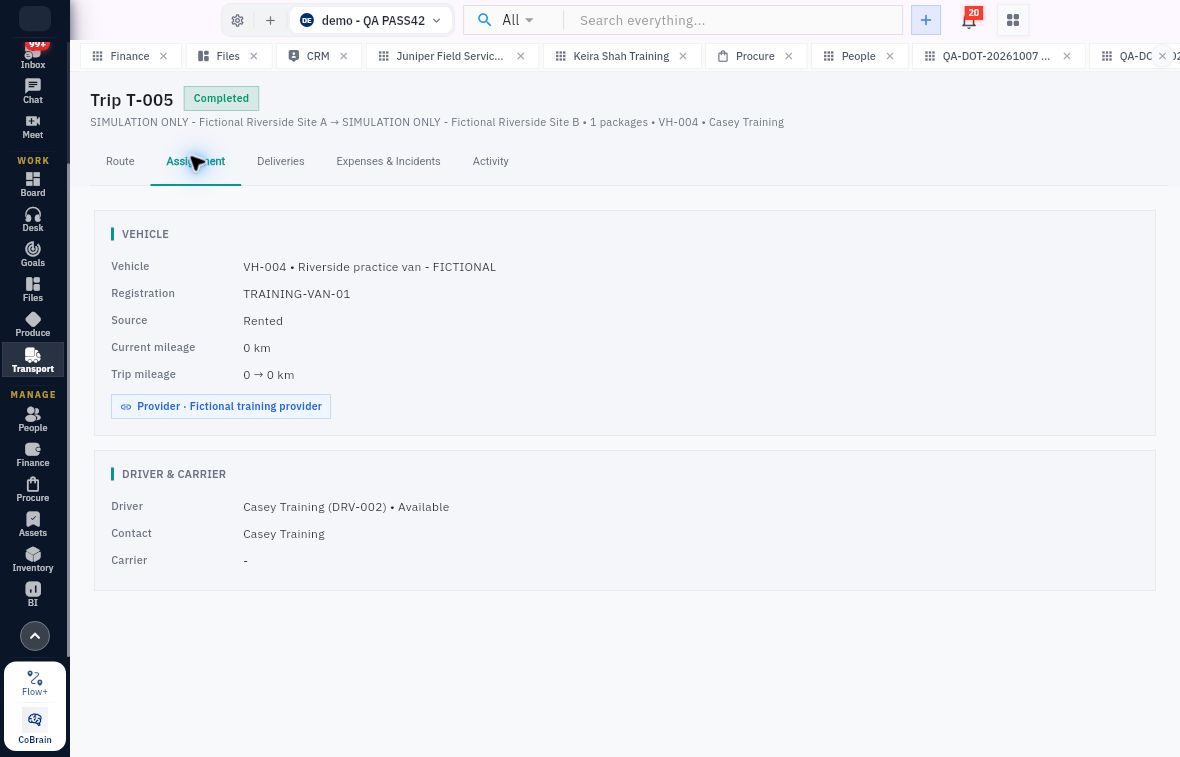
1. Open Transport → Trips → All and find the exact trip. Check endpoints, package scope, vehicle and driver. If it is already Completed, skip the completion actions and continue at step 5. 2. Open Deliveries and check every relevant outcome and required proof. Retain failed or returned outcomes truthfully; do not relabel them Delivered to close the trip. 3. When the trip is at the supported arrival/completion stage, select Complete. Review the instruction to record delivery outcomes and proof first. 4. Enter the actual Ending odometer (km). This is the cumulative reading, not the distance travelled. If start is 8,120 and end is 8,187, enter 8,187. Use Ending mileage is unavailable only when that is true. Review and select Complete Trip once. 5. Leave and reopen the trip. Check Completed, Assignment, trip mileage, Route, Deliveries and Activity. Read activity in chronological order.
Check the result
Check resources and remaining work
6. Open Fleet and find the same vehicle by reference/registration. Read its current status, driver and trip. 7. Open Drivers and find the same person. Check current availability, vehicle and trip separately from licence information. 8. If either resource still has a conflicting assignment, ask the transport coordinator to reconcile it. Do not manually set Available or repeat completion merely to make the screens agree. 9. Keep any incident, expense, stock return or contract obligation with its own reference and owner. Trip completion does not settle those records.
Expected result: the trip is closed with its actual delivery outcomes preserved, and current resource assignments have been checked.
Remember: the completed trip’s Assignment page should still identify its historical vehicle and driver. That does not mean they are currently assigned to it. If completion feedback is unclear, reopen the trip and history before trying again.
Continue learning
In this series: Manage trips and deliveries — guide 7 of 7.
Turn what you learned into the way the team works.
Mark this lesson complete once the workflow exists in your workspace—not simply when you reach the bottom.