Find and track your request in Pulse
Locate the exact request and read its current stage without confusing it with a similar one.
In this lesson
Find and track your request in Pulse
Before you start: Know which request you want to check. Its reference is more reliable than a similar title or amount.
Find your request
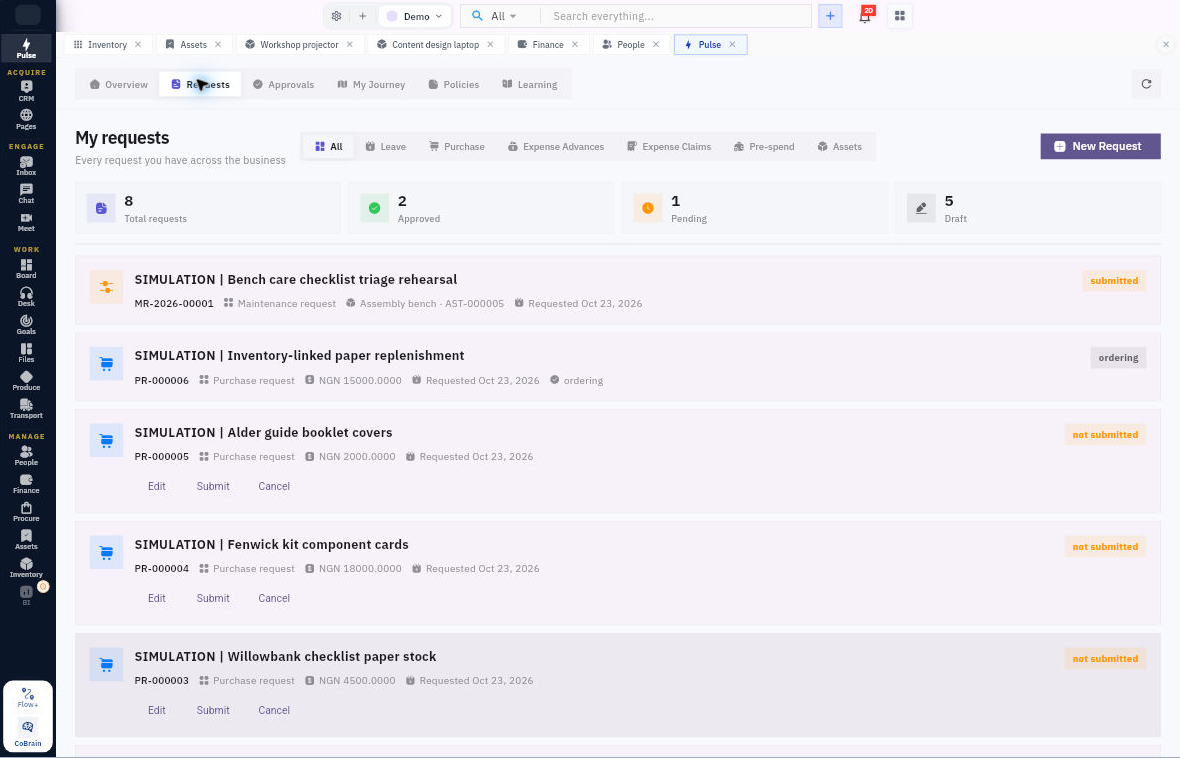
1. Open Pulse → Requests in the correct workroom. The My requests view brings together your requests across the business.
2. Choose the relevant category: All, Leave, Purchase, Expense Advances, Expense Claims, Pre-spend or Assets.
3. Match the request’s reference exactly, including its prefix and leading zeros. Then check its title and type. Two claims for the same amount can still be different requests.
4. Read the stage, requested date and any amount and currency shown. The requested date is not automatically the date of the service, approval or payment.
Understand the stage
A stage such as manager review tells you where the request is in its process. It does not mean that all reviews are complete or that a later purchase or reimbursement has happened.
Use that information to decide your next question. For example, “Who is reviewing this claim?” is more useful than assuming a displayed amount is ready to be paid.
If the request is missing
Check the category, workroom and any filters first. Then look in the originating module where the request was created. Do not submit another request simply to make a card appear.
You should be able to identify the exact request and explain its current displayed stage. Available actions such as Cancel can change the request; do not select them just to inspect the card.
Continue learning
In this series: Track requests and decisions — guide 2 of 6.
Turn what you learned into the way the team works.
Mark this lesson complete once the workflow exists in your workspace—not simply when you reach the bottom.