Produce course 01 — Products bills of materials routings and work centres
Produce connects an Inventory item to a manufacturing definition, material recipe, operation sequence and production order. Those records must agree by exact identity and version before work is planned. A product labelled Ready is not proof that its effective BOM has the intended routing.
Part of Produce module course
In this lesson
Manufacturing definitions and source relationships
Produce connects an Inventory item to a manufacturing definition, material recipe, operation sequence and production order. Those records must agree by exact identity and version before work is planned. A product labelled Ready is not proof that its effective BOM has the intended routing.
In this chapter
- Build on the correct Inventory item
- Read the BOM batch before scaling components
- Define the ordered operations
- Verify the association on the actual version
Build on the correct Inventory item
Open Produce → Products and find the exact product/SKU. New Product selects an existing Inventory item and adds category and standard cost before Create Product. Inventory supplies the item identity and stock unit. Verify the finished item's definition and tracking first; a component and a finished kit are not interchangeable even when their names are similar.
Standard cost needs the owner's basis. A zero training value is not permission to set a real product to zero. After an authorised save, leave and reopen the exact SKU to verify the linked Inventory identity. If the result is uncertain, search before creating another product.
Read the BOM batch before scaling components
In a product's BOM → Create BOM, the demonstrated preparation supplies version, batch output and effective date, saves Draft, adds components and checks the definition before Activate. In the BOMs register, compare exact identifier, version, status and effectivity. A newer Draft with an effective-date text is not automatically the Effective version.
Add Component exposes the Inventory component selector, base-unit quantity, scrap percentage, issue method and Notes. The one-unit BOM's helper describes quantity for one finished unit; do not generalise that into an untested rule for another batch basis. Compare substitute information and every line's SKU/unit as well as its count.
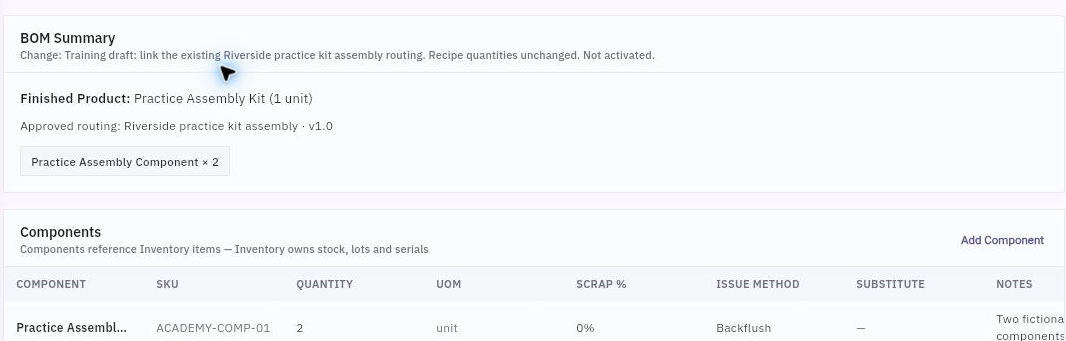
Recipe routing and work-centre controls
BOM summary showing an explicit approved-routing association and a separate component line with unit, scrap and issue method.
For a fictional BOM producing two sets from six cards and two sleeves, one set requires three cards and one sleeve. Eight sets need twenty-four cards and eight sleeves. Multiplying eight by six without dividing by the two-set output doubles the requirement incorrectly. Two component lines are not two material units. Reusable benches and trays are resources, not consumed BOM inputs unless the approved specification says otherwise.
Define the ordered operations
Work Centres → New Work Centre provides Name, Type and Capacity hours/day. The inspected Edit form exposes the same basic fields. A centre can also display planning efficiency, operating-calendar context, linked assets and assigned operators; a blank calendar or no operator remains a readiness gap, not a booking created by capacity alone.
Routings → New Routing selects the exact product and name and saves a Draft version. Add Operation captures sequence, operation name, work centre, setup time, run time per unit, Labour/Machine flags, instructions and checks. Review the complete instructions and acceptance checks, not just a row count. Activate Version is separate from saving the draft.
A five-minute setup plus two minutes per finished unit gives fifteen planned minutes for five kits. Setup is counted according to the approved setup basis, not automatically once per BOM batch. Two operations processing the same eight sets do not create sixteen finished outputs. A check written in a route is an instruction, not a performed inspection.
Verify the association on the actual version
A route and BOM sharing a product does not establish their link. The supported draft route is New Version, then the Draft menu's Edit details → Attach approved routing, selecting the exact route/version and saving. Reopen the BOM summary to verify the association.
If effective BOM 1.0 has no route but Draft 1.1 names an approved route, say exactly that. Do not activate 1.1 just to make a lesson work or claim the link also applies to 1.0. An order-level explicit route choice is another fact; it does not rewrite the BOM association or prove old-order inheritance after a later version change.
For a complete definition readback, identify Inventory item, product, BOM/version/batch/components, routing/version/ordered operations and centres. State unresolved tracking, association or resource requirements before planning. Preserve original versions and use controlled revisions rather than editing history to match a new recipe.
Turn what you learned into the way the team works.
Mark this lesson complete once the workflow exists in your workspace—not simply when you reach the bottom.