Create and issue a direct purchase order
Prepare an order from its approved request, obtain internal review and release the correct version.
In this lesson
Create and issue a direct purchase order
Prepare an order from its approved request, obtain internal review and release the correct version.
Before you start
Have the approved request, agreed direct-purchase rationale, eligible supplier and current commercial terms. Check quantity, unit, complete cost, currency, delivery date and location against the selected offer and budget. Search for an order already linked to this request; if it exists, skip steps 1–3 and check it at step 4 without creating another.
The Create a purchase order chooser points to source workflows: Approved Purchase Request, Sourcing award, Active contract, or Direct or sole-source purchase. The steps below use the supported direct-purchase route; do not select it to bypass a sourcing or contract requirement.
Prepare the draft from the request
1. Open the exact approved request in Procure → Requests. Check its items and decision scope. In procurement intake, use Assign owner → Assign if an owner still needs to be set, choosing the agreed responsible person.
2. Use Select route → Direct purchase and provide the rationale for that route. From the same request, select Create order.
3. Choose the intended supplier and required delivery date, review the source details, then select Create draft order once.
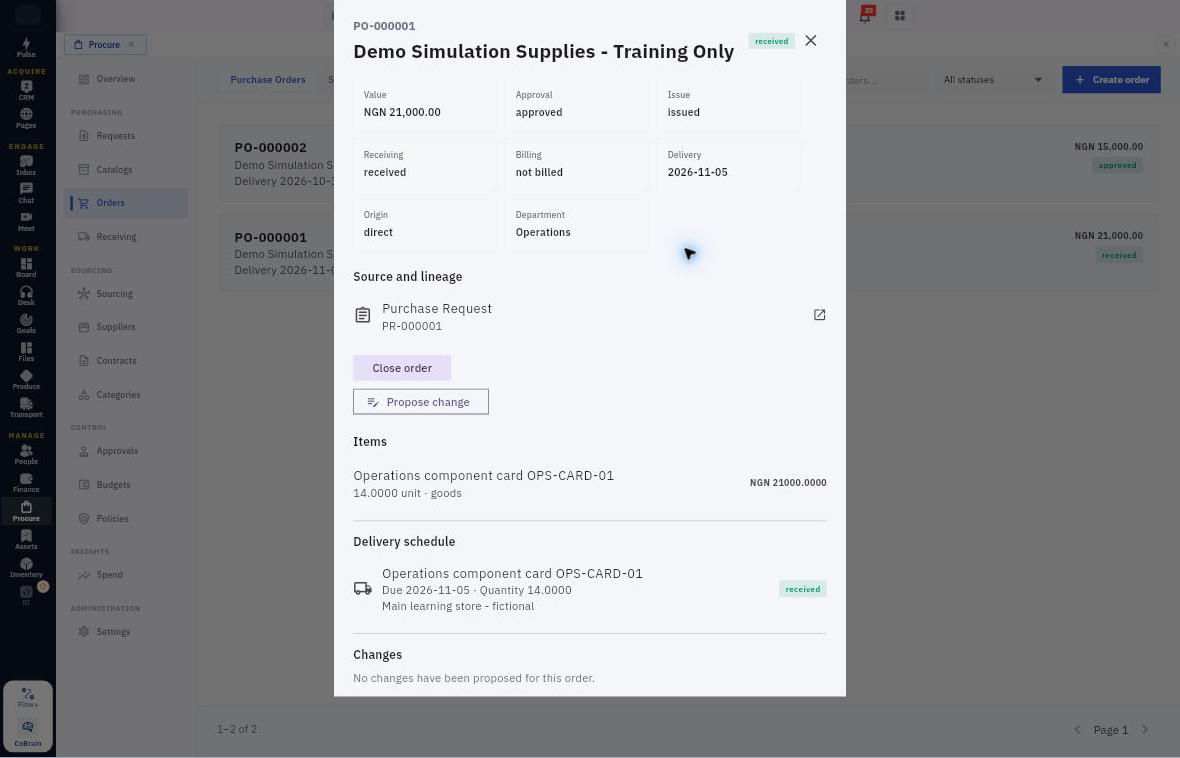
4. Return through Procure → Orders → Purchase Orders and reopen the saved order. Read the actual current state—a newly created order should be Draft—then check Origin, supplier, value and Source and lineage. Compare every item’s description, quantity, unit and price with the approved requirement. Confirm the complete delivered cost rather than treating missing charges as zero.
Review and issue the order
5. For an unsubmitted draft that is ready, select Submit for approval. If it has already been submitted or decided, inspect the existing review instead of submitting again. The assigned reviewer opens Approvals → My Queue and the matching purchase order, checks its source, terms and budget, then, only while it is awaiting approval, uses Approve, enters Decision comments and confirms Approve when justified.
6. Reopen the order and read Approval and Issue separately. An approved order can still be not issued.
7. Before release, confirm the correct supplier contact and exact version to be sent. If it is already issued, skip this action and continue to step 8. For an approved, not-yet-issued order, select Issue order once only when ready to release it; this action can take effect without a further confirmation.
8. Leave and reopen the same order. Check its issue state, unchanged source and lines, and Delivery schedule. Follow up the supplier’s actual acknowledgement separately.
Expected result
The order has a verified source, a retained approval and a checked issue state, with the receiver able to identify what is due.
Remember: Record acknowledgement is not proof that a supplier has already responded. If terms change, use Propose change with the reason and proposed version instead of silently replacing approved terms. Close order, cancellation and a goods return are different actions.
Continue learning
In this series: Manage purchasing — guide 11 of 17.
Turn what you learned into the way the team works.
Mark this lesson complete once the workflow exists in your workspace—not simply when you reach the bottom.