Create a catalog with quantity prices
Save a catalog and item with a clear currency, unit, validity period and volume-price basis.
In this lesson
Create a catalog with quantity prices
Save a catalog and item with a clear currency, unit, validity period and volume-price basis.
Before you start
Have the supplier’s current commercial source: exact item, unit or pack size, currency, price, minimum quantity, lead time, validity and any quantity tiers. Use an eligible supplier and check for an existing catalog and SKU first. If the correct catalog exists, inspect its saved header and skip steps 1–4. If the matching SKU also exists, do not repeat steps 5–8 to create it: open that saved item and check its values and actual state instead.
A minimum quantity is the smallest order permitted by the source. A tier threshold is where a different price applies. They are not the same thing.
Create the catalog header
1. Open Procure → Catalogs → Catalogs → New Catalog.
2. Enter Catalog name, choose Curated catalog in Catalog type, and select the exact supplier. Choose the applicable Contract or leave No linked contract when none governs the arrangement.
3. Select Currency deliberately. Set Valid from and Valid to. Use No fixed end date only when the arrangement genuinely remains valid until withdrawn.
4. Select Save catalog, then find and reopen the saved header. Check its supplier, currency, dates and actual state before adding items.
Add and check the item
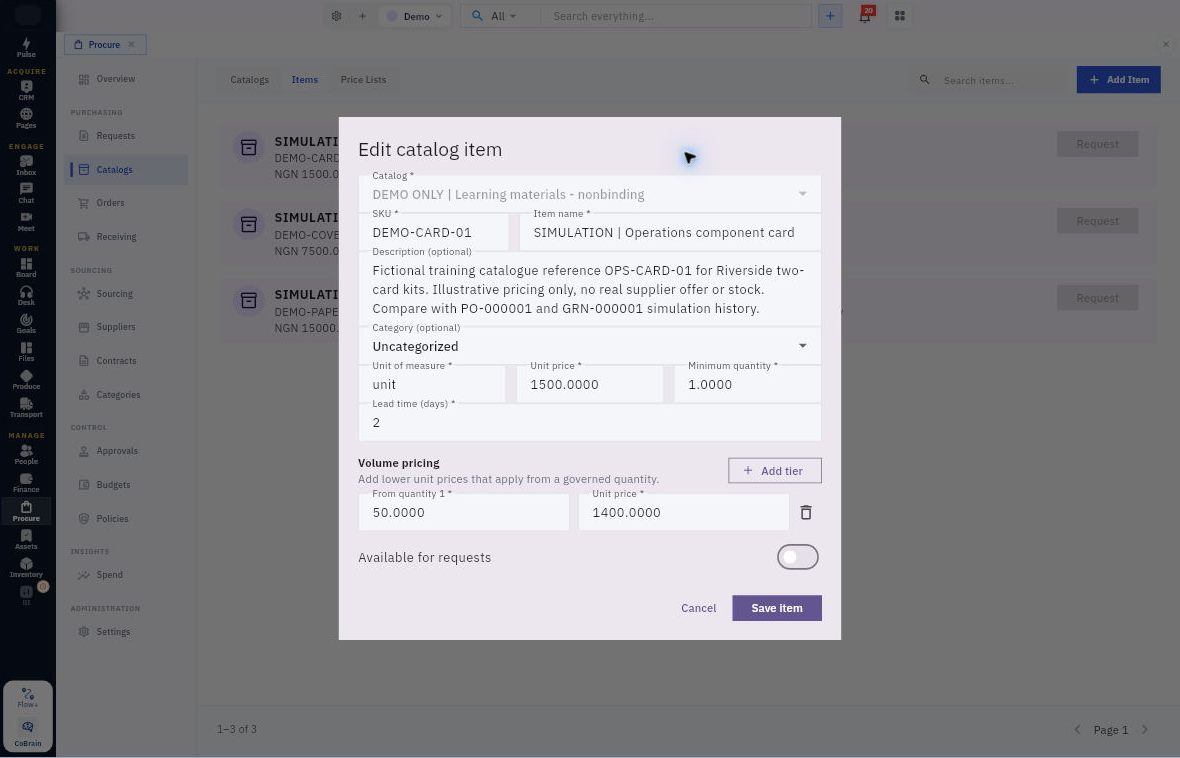
5. Use Add first item, or return through Catalogs → Items → Add Item. Confirm the Catalog field points to the correct parent.
6. Enter SKU, Item name, description and relevant Category. Set Unit of measure, Unit price, Minimum quantity and Lead time (days) from the source. A pack price must be paired with a pack quantity, not an individual-item quantity.
7. Under Volume pricing, select Add tier for each agreed tier. Enter its From quantity and Unit price. Check the base price and every tier; do not leave a prefilled zero or overlapping thresholds accidentally.
8. Review Available for requests, then select Save item. Return to the catalog and confirm the item count. Open the exact SKU from Items and compare its complete saved details, including tiers and availability.
Expected result
The catalog and item can be reopened with the intended buying basis, rather than a price detached from its supplier, unit or validity.
Remember: Item availability and parent state are separate. If Request is disabled, check parent status, dates, supplier eligibility and item availability before changing anything. Supplier price list is another catalog type with similar header fields, but do not assume its item-entry route is identical. A Procure SKU also does not automatically create Inventory stock.
Continue learning
In this series: Manage purchasing — guide 7 of 17.
Turn what you learned into the way the team works.
Mark this lesson complete once the workflow exists in your workspace—not simply when you reach the bottom.