People course 02 — Recruitment from vacancy to employee handoff
Recruitment separates a vacancy, a person in the talent pool, an application to a particular vacancy, assessment evidence and an offer. This chapter follows those connections so that a candidate's stage is not mistaken for a completed hire.
Part of People module course
In this lesson
Recruitment records and vacancy preparation
Recruitment separates a vacancy, a person in the talent pool, an application to a particular vacancy, assessment evidence and an offer. This chapter follows those connections so that a candidate's stage is not mistaken for a completed hire.
In this chapter
- Navigate Recruit
- Prepare a vacancy that matches the approved need
- Distinguish candidate intake from an application
- Schedule and evaluate against the job
- Prepare the offer and verify the handoff
Navigate Recruit
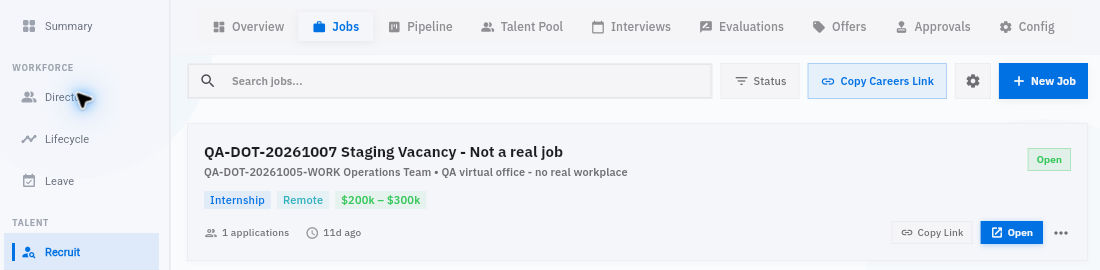
Open People → Recruit. Its tabs are Overview, Jobs, Pipeline, Talent Pool, Interviews, Evaluations, Offers, Approvals and Config. Jobs has Search jobs, a Status filter, Copy Careers Link, settings and New Job. Opening a job leads to its Overview, Pipeline, Candidates, Interviews and Activity. Copying a careers link is a sharing action, not an inspection shortcut.
Candidate assessment and employee handoff
Recruit Jobs navigation and a declared staging vacancy; Open is separate from public careers sharing.
The screenshot is a declared staging vacancy, not a real opportunity or recommended salary. Read the selected Jobs tab, the status filter, the vacancy identity and the separate Open control. A job's Open status does not mean an applicant has accepted an offer.
Prepare a vacancy that matches the approved need
The job form connects Job Title, Department, Team, Role / Position, Hiring Manager and Onboarding template. Team depends on the selected department. A business job title is not automatically an existing workforce role. Hiring Manager needs the intended eligible employee, not an arbitrary name from the picker.
Review Invite employee when hired deliberately; its default can be On. That setting concerns a later access effect and must not be accepted accidentally. An onboarding template is also a separate decision: selecting one is not proof that a later checklist has been delivered.
Job Type, Work Mode and Location describe the proposed work. A Remote default is wrong for an approved on-site role. Description should explain the work and outcomes. Requirements, entered one per line, should separate essential criteria from desirable experience. Salary Min and Salary Max need an agreed currency and pay period before entry; an employer-cost budget is not the advertised base-pay range.
Careers configuration includes company name, tagline, About Us, logo URL, primary brand colour, social and website links, use of the workspace logo and public salary visibility. Preview helps check presentation, but it does not establish public publication or access. Verify destinations and public-content authority before saving or sharing.
Distinguish candidate intake from an application
Talent Pool → Add Candidate opens Add Candidate to Talent Pool. Compare first name, last name, email, optional phone and source with the approved candidate information. Search before creating so an existing identity is not duplicated. A talent-pool entry establishes the person record; it does not alone establish an application to the right job.
Use Pipeline to follow the application. Check the person, full vacancy and column before opening a card. If Offer is off screen, scroll horizontally. Open is navigation; Advance, Reject, Request Approval and Create Offer Letter are consequential actions. A timeline can list Applied, Screening, Phone Screen, Interview, Assessment and Offer even when only some entries have dates. Distinguish the displayed stage from completed assessment evidence.
Schedule and evaluate against the job
In Interviews, Schedule exposes the scheduling form. Match the application, interview type, date/time and duration with confirmed logistics, including timezone. Do not interpret a blank-form default as an agreed appointment or assume saving merely creates a private note. After an authorised scheduling action, find the exact event again and separately verify any notification.
Use consistent work-related criteria for evaluation. For a coordinator, a short sample might require spotting a schedule conflict and a missing document revision. Record what the submitted work supports, what remains unclear and the same follow-up question for equivalent gaps. A stage movement, aggregate score or missing statement is not a substitute for the underlying evidence. Keep factual notes distinct from the authorised selection decision.
Schedule uses Candidate application, Interview Type, Date & Time, Duration minutes, Meeting Link and Notes. Types include Phone, Video, On-site, Panel, Technical and Cultural Fit. Meeting Link remains visible for On-site; no dedicated venue field is shown. Notes can preserve venue and panel intentions, but do not establish assignments or bookings. The date/time control has no visible timezone label, so confirm the display/storage zone before translating a plan. Cancel and Schedule have different effects.
In Recruit → Evaluations → Submit Evaluation, select the exact Candidate application. Completed interview is optional; leave an application-level evaluation separate from a genuinely completed interview. The form has Overall Rating, Decision, optional Scorecard criteria, Strengths, Concerns and Notes. Four stars and Hire can appear as untouched defaults: they are not conclusions. Decision choices are Strong Hire, Hire, No Decision, No Hire and Strong No Hire.
A scorecard's Add control creates a criterion name, initially 3/5 score and optional comment. Match an approved scale rather than silently converting a three-point exercise into five stars. Strengths should cite demonstrated work, Concerns should state precise gaps and Notes should identify sources and limitations. Before an authorised Submit, compare every default and selected identity. Reopen the saved evaluation and full comments afterward; do not use another module to bypass a missing application link.
Prepare the offer and verify the handoff
Open the exact application's offer route, compare approved terms and inspect the preparation form before saving or sending. Preserve salary basis, start date and conditions as separate facts. A prepared offer is not a sent offer; a sent offer is not acceptance; acceptance is not proof that an employee, onboarding event or workspace account exists.
The application's full Create Offer composer has Template, Job Title, Department, Employment Type, Salary Amount, Currency, Period, Start Date, Offer Expiry Date and Offer Letter Content. Period offers Annual, Monthly and Hourly. Match the amount to that basis, not to total employer cost. Template can be No template (blank); unresolved placeholders remain visible for review. The Candidate Name, Job Title, Salary, Start Date and Company Name buttons do not remove the need to inspect the finished letter.
Letterhead Image URL needs approved branding. Review Send Options and Internal Notes; essential candidate-facing terms must not exist only in internal notes. Save Draft and Open Mailroom Compose are separate controls. Opening a prefilled composer is not proof of delivery. Check exact recipient and final content before any authorised communication.
In the Offers register, Create Offer opens the shorter Create Offer Letter dialog with Candidate (Offer Stage), Currency, Annual Salary, Proposed Start Date, Offer Expiry Date and optional Notes, ending in Create Offer. Do not assume it behaves like the full application composer or use both routes for the same intended offer. A Draft badge on an unsaved form is not a retained draft.
If a save gives unclear feedback, return to Offers, search the exact identity and inspect the appropriate status filter before retrying. An empty list after checking does not justify inventing missing terms or using an unrelated communication route. Resolve the uncertain result with the recruitment owner.
For a fictional coordinator vacancy, Alex is already in Talent Pool and has an application in Assessment. The approved decision is to prepare an offer, not send it. The correct next result is a matched application and complete draft terms. Do not advance Alex to an assumed hiring stage, create an employee manually to bypass an unresolved hire route, or enable an invitation without authority. After an authorised hire, verify the exact employee identity, intended role/department, actual onboarding event and account state independently.
Turn what you learned into the way the team works.
Mark this lesson complete once the workflow exists in your workspace—not simply when you reach the bottom.