People course 01 — Finding people and defining the organisation
People connects an employee's identity, organisational position and employment journey. Start with the record that answers your question: a department explains an organisational unit; an employee explains one person's assignment; a workspace account explains access. None is a substitute for the others.
Part of People module course
In this lesson
People navigation and organisation setup
People connects an employee's identity, organisational position and employment journey. Start with the record that answers your question: a department explains an organisational unit; an employee explains one person's assignment; a workspace account explains access. None is a substitute for the others.
In this chapter
- Find the right workspace
- Build the supporting definitions
- Read the employee form deliberately
- Use the organisation view and Summary accurately
- Work through a small example
Find the right workspace
Open People from the application rail in the intended workroom. Summary is the overview. The sidebar groups Directory, Lifecycle and Leave under Workforce; Recruit, Learning, Performance and Compensation under Talent; and Stakeholders, Policies and Approvals under Governance. The group headings organise the menu; they are not extra pages.
In Directory, use Org Structure, Employees, Departments, Teams, Roles and Levels. Employees has name/email search and role, department, status and type filters, plus Add Employee, Columns and Reset. Before concluding that someone is missing, clear a stale search and check all active filters. A filtered list is not the whole workforce.
Build the supporting definitions
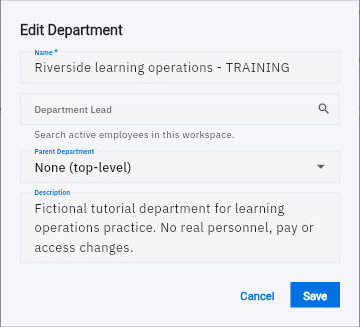
A department has Name, Department Lead, Parent Department and Description. Name identifies the unit. Parent Department places it beneath another unit; None (top-level) means no parent. Department Lead searches active employees in the workroom. Description should explain the unit's work, rather than repeat its name.
Employee records and organisation readback
Department editor showing the separate lead, parent department and description fields.
The lead and parent answer different questions. The parent connects units; the lead names the person responsible for a unit. Neither assigns an individual employee's manager. If the approved lead is unavailable, resolve that prerequisite rather than selecting a convenient substitute.
A level has Name, Rank and Description. Rank is a numeric classification whose meaning comes from your organisation's scheme. A larger number does not universally mean greater seniority or pay. Explain the expected independence and decision scope in the description. A workforce role has Name, Department and required Level. Prepare the level before selecting it on a role, and verify the complete role/department/level combination before reuse. A workforce role is a position, not a security permission.
Read the employee form deliberately
Directory → Employees → Add Employee opens the identity form. First Name and Work Email are marked required. Last Name, Phone and Location add identifying context. Use an approved work address; a matching display name alone is insufficient to distinguish people.
Probation Period offers 1, 3, 6 and 12 months. Employment Type offers Employee, Contractor, Intern and Part-time. Status offers Active, Probation, On Leave, Suspended and Offboarded. These are application labels, not instructions to classify someone without an authorised decision. Check defaults: the blank form can start at Probation. Hire date must match the approved start date, not today's date merely because it is prefilled.
Set Department, Role / Position, Manager and Team separately. Manager searches active employees in the workroom. Do not assume choosing a role also updates Department, or that a department lead automatically becomes Manager. The Add and Edit forms need not expose identical fields: Team and Hire date may be absent from the employee editor even though they were present at creation.
After an authorised save, search the exact identity again and reopen the employee. Compare saved relationships with their supporting definitions. An Active employee can still show Workspace access: Unlinked; Active does not prove a login exists. Use the access owner's separate process rather than creating duplicate employees to solve access problems.
Use the organisation view and Summary accurately
Org Structure searches name, role or department. A match may highlight a node while other nodes remain faded; that is not a one-person filtered dataset. Compare the displayed node with the employee's own saved department and position before interpreting a reporting relationship.
Summary includes workforce measures and operational queues. A count of open roles, pending leave decisions or offboarding events has a different unit from employee headcount. Follow the relevant source register and compare scope, status and period. An employee count on a department cannot identify which employee is missing.
Work through a small example
For this fictional example, Operations is a top-level department led by Jo. Coordinator is a role in Operations at Guided level. Sam belongs to Operations, holds Coordinator and reports to Pat. Jo and Pat can legitimately be different people. Check the department's parent and lead, the role's department and level, then Sam's own department, role and manager. Finally check account linkage separately.
If Sam's department change is not retained after reopening, the assignment remains incomplete even if the role looks correct. Preserve the intended and saved values and ask for correction of that exact relationship. Do not edit a shared role to force an employee move: other employees may use the same definition.
Turn what you learned into the way the team works.
Mark this lesson complete once the workflow exists in your workspace—not simply when you reach the bottom.