People course 03 — Lifecycle templates onboarding changes and departures
Lifecycle records organise work around an employee event. They do not by themselves prove that equipment arrived, access works, a promotion took effect or a departure is fully closed. Learn the event form and then check the real outcome of each required step.
Part of People module course
In this lesson
Lifecycle events and template preparation
Lifecycle records organise work around an employee event. They do not by themselves prove that equipment arrived, access works, a promotion took effect or a departure is fully closed. Learn the event form and then check the real outcome of each required step.
In this chapter
- Choose the right event and template
- Read the onboarding event before continuing
- Confirmation and promotion are distinct decisions
- Offboarding needs a complete closeout
- Read an example and recover from mismatches
Choose the right event and template
Open People → Lifecycle. The tabs are Journey, Onboarding, Confirmation, Promotion, Offboarding and Templates. Search Journey and the relevant tracker for the exact employee, event type and effective date before creating another event.
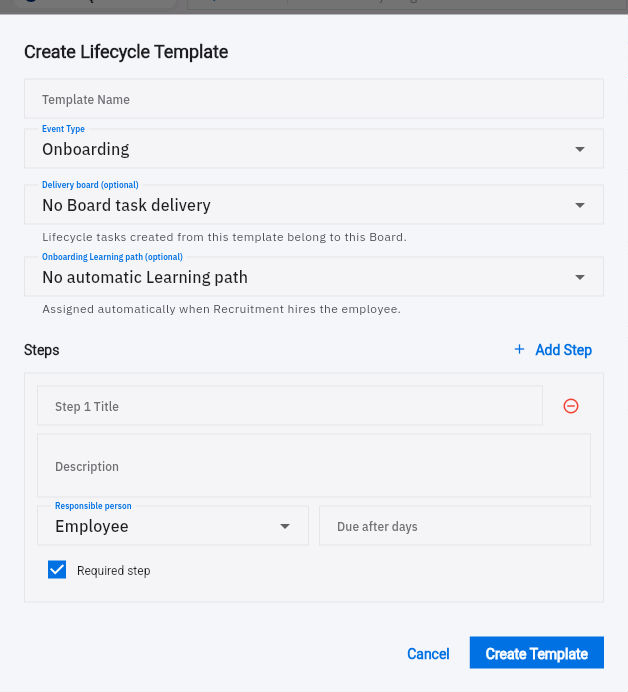
In Templates → Create Template, the reusable definition has Template Name, Event Type, optional Delivery board, optional Onboarding Learning path and Steps. Each step has Title, Description, Responsible person, Due after days and Required step. Add Step adds another checklist item.
Event progression and verified closeout
Lifecycle template with optional Board and learning path links and a required checklist step.
A title such as “Confirm workstation access” is more useful when its description states the permitted system, responsible owner and actual success check. Required means the checklist expects this step; it does not mean an access account has been created. The delivery-board and learning-path helpers describe related workflow behaviour, so select only the intended records and verify their resulting tasks or assignments separately.
Read the onboarding event before continuing
Journey → Create Event opens a staged event form. The first stage, Employee & Event Details, includes Event Type, active-employee search and Effective Date. Check the actual type even when you started from a named tracker. A route labelled for Promotion or Offboarding can initially open a form showing Onboarding; the route name is not enough.
Compare the template or custom steps, assignment and notes, then the review stage with the approved plan. An event date is not necessarily the date every step was completed. Keep sensitive personal details out of broad checklist notes.
After an authorised save, return to Journey and match employee, type, date and a distinctive note. In Onboarding, use the row menu's View Steps where available. The tracker percentage is checklist progress: one of two completed steps can show 50%, while a required external outcome remains unresolved. Use Mark as complete only when that specific step's stated result exists.
Confirmation and promotion are distinct decisions
Confirmation concerns the organisation's authorised outcome at the end of a probation or review period. Promotion concerns approved changes in role scope or level and may include separate pay decisions. Neither is justified simply because a date has arrived or a form accepts a value.
A retained Promotion editor has five stages. Assignment & Notes includes optional Assigned To, Notes, Promotion Reason, Attach Document and Requires approval. An assignee, a checklist owner and an approver are different relationships. The approval helper does not prove that anyone received or decided the request.
Promotion Details has New Role, New Level, New Department and New Base Salary ($), all optional. Role selects an existing position and can offer Keep current role. Preserve unchanged relationships intentionally. No manager or access control is shown in this stage. A dollar symbol alone does not establish currency or pay frequency. New Base Salary is the proposed new total, not the increase amount.
After a promotion, compare the saved event with the employee's actual role, level, department and relevant compensation record. Do not infer automatic downstream changes. Tracker menus differ: Promotion may offer Start, Complete, Cancel and Edit without Onboarding's View Steps. Use the supported view rather than promising an identical checklist everywhere.
Offboarding needs a complete closeout
Use Lifecycle → Offboarding to find the event before Start Offboarding. Verify Event Type and all stages. Exit Details → Exit Reason offers Resignation, Termination, Retirement, End of Contract, Redundancy, Relocation and Other. Choose the authorised reason; available labels are not legal findings or permission to disclose private circumstances.
Separate work handover, property return, access changes, document ownership and financial obligations. Completing the event does not prove every external system is closed. Check the employee's saved status, relevant asset assignments and account state through their own records. Unlinked does not establish that every previously granted external access was removed.
Read an example and recover from mismatches
In a fictional onboarding plan, the two required steps are “Verify access to the training library” and “Confirm equipment receipt.” Access is working; the equipment courier has only dispatched the package. Marking both complete would overstate readiness. The correct result is one completed step, one pending receipt with an owner and next check.
For a fictional promotion from Coordinator to Senior Coordinator, the approved new monthly base is 3,960, up from 3,600. Do not enter 360 as the new base, change the manager without a separate decision, or assume the promotion event is proof of pay application. If the form's currency/frequency cannot be established, keep the pay action pending with the compensation owner. If an event's saved type is wrong, stop and seek correction of that event rather than completing the wrong workflow.
Turn what you learned into the way the team works.
Mark this lesson complete once the workflow exists in your workspace—not simply when you reach the bottom.