Create and publish an article-based course
Build a short course with one complete Article lesson, check its audience and publish the saved content.
In this lesson
Create and publish an article-based course
Build a short course with one complete Article lesson, check its audience and publish the saved content.
Before you start: Have a clear learning outcome, complete lesson text, a useful practice task, an instructor and intended learners. Decide the completion requirements before opening the editor.
Steps
1. Open People → Learning → Courses and search for the intended title. If the course already exists, inspect that definition instead of creating another. For the existing intended draft, skip steps 2–6 and continue with the saved-content review in step 7.
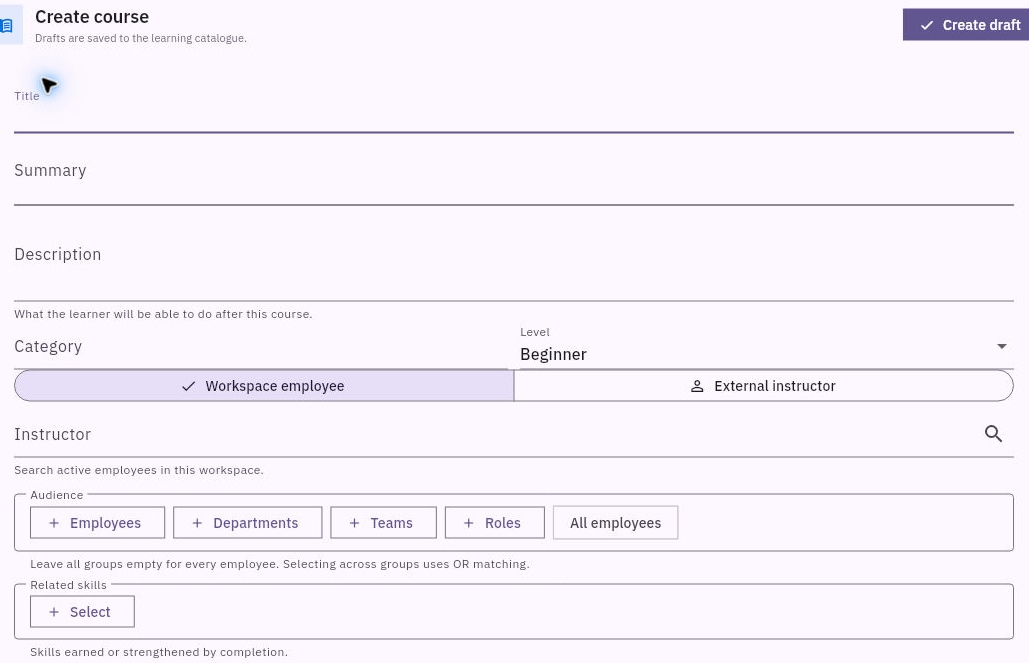
2. Select Create course. Enter Title, Summary, Description, Category and Level. Explain what learners should be able to do, not just the topics they will see.
3. Choose Workspace employee for the instructor and select the exact search result. Set the audience through Employees, Departments, Teams or Roles, checking the actual selections. Empty groups include every employee; selections across groups use OR matching.
Check the result
4. Select Add lesson. Enter Lesson title, choose Article, set a realistic Duration (minutes) and choose whether it is Required for course completion.
5. Enter the complete Content, including the instructions and inputs needed for the practice task. Read the first and last paragraphs and any scrolled content. Select Save lesson and check that the intended Article appears under Lessons.
6. Review the course’s instructor, audience, lesson and completion settings. Add prerequisites or related skills only when they are relevant and accessible. Select Create draft once.
7. Find the saved course and choose Edit. Check its metadata and audience, then open the lesson’s pencil to read the full retained Article. Cancel the inspection when correct. If the course is already Published, skip step 8 and check that published result instead.
8. On the intended Draft card, choose Publish. Read the course name in the confirmation and confirm once when the content and audience are ready. Return to the catalogue and check its Published state.
Expected result
The course and complete Article are saved and published for the intended audience. Learner assignment and completion remain separate steps.
Common pitfalls
- Save lesson saves the lesson within the editor; the parent course still needs Create draft.
- Selecting one employee plus a department can include either group, not just their intersection. Check the audience rather than relying on a count alone.
- Publication does not create a learner login or prove assignment, receipt or completion.
Continue learning
In this series: Manage the employee journey — guide 13 of 25.
Turn what you learned into the way the team works.
Mark this lesson complete once the workflow exists in your workspace—not simply when you reach the bottom.