Check compensation against an existing payslip
Compare one employee’s compensation, payroll register and payslip without confusing a recorded amount with a completed payment.
In this lesson
Check compensation against an existing payslip
Compare one employee’s compensation, payroll register and payslip without confusing a recorded amount with a completed payment.
Before you start: Have access to the employee’s compensation information and know the period you need to review. Keep pay details within the appropriate People and payroll audience.
Steps
1. Open People → Compensation → Payroll Register. Find the exact employee and confirm their full identity before comparing any amounts.
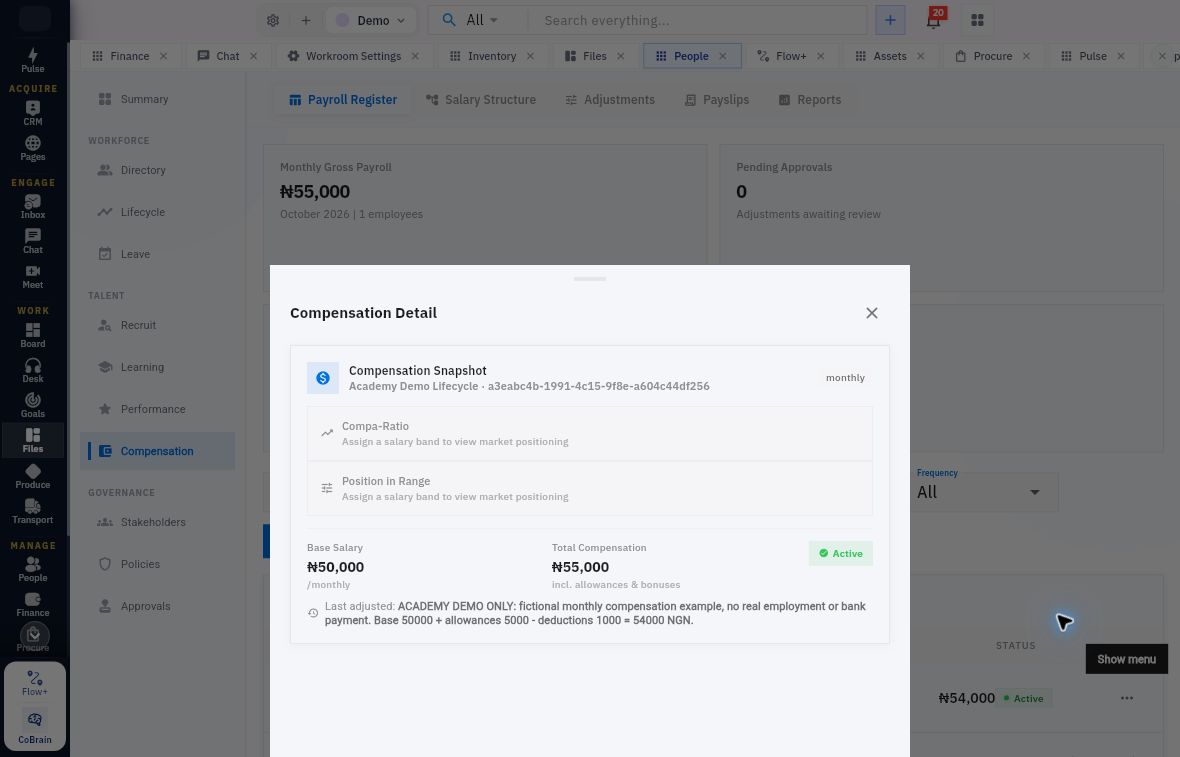
2. Open the row’s ellipsis menu and select View details. In the Compensation Snapshot, read Base Salary with its frequency, Total Compensation and current state. The total can include allowances and bonuses; it is not necessarily the base salary.
Read the comparable payroll register
3. Check the applicable salary-band relationship if you need a range comparison. Open Compensation → Salary Structure, find the exact level and role, and use its pencil to read precise minimum, midpoint, maximum and currency. Cancel after inspection. Confirm a comparable pay basis before interpreting a ratio.
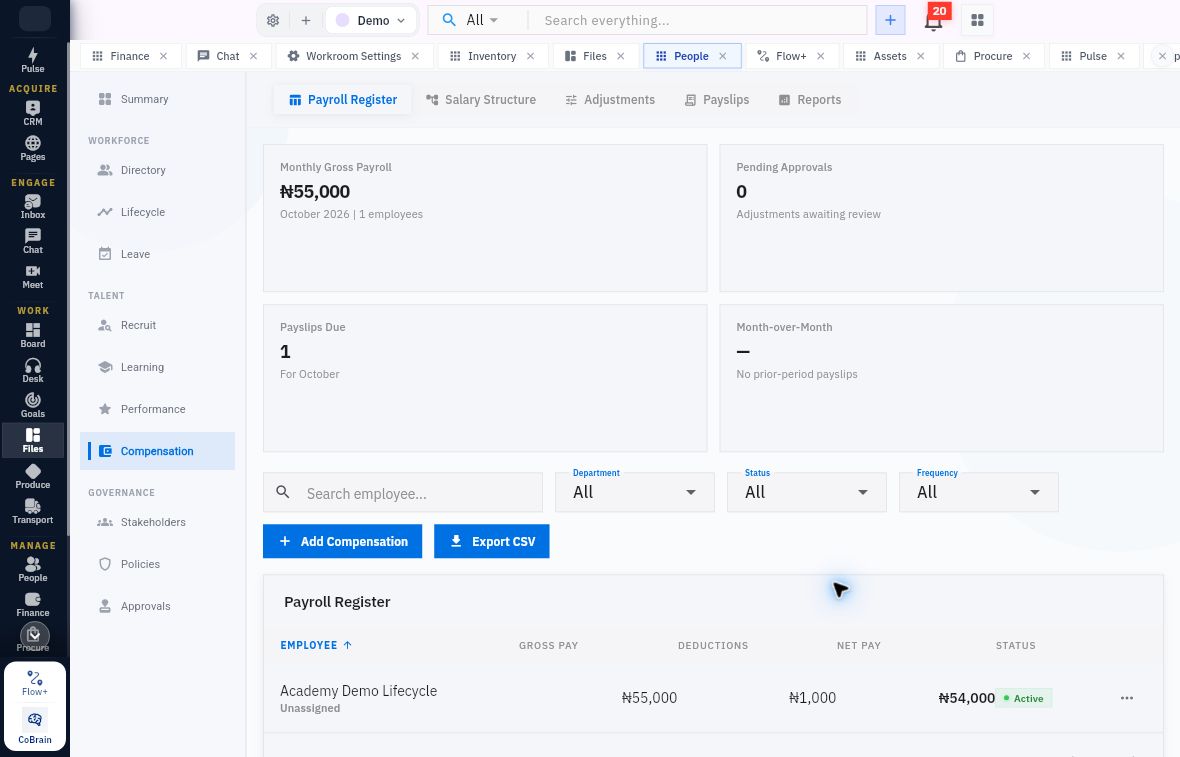
4. Return to the employee’s Payroll Register row. Read gross pay, deductions and net pay for the relevant scope. Check where the period is displayed rather than assuming a summary month applies to every row.
The linked Demo example uses Academy Demo Lifecycle, a fictional, unlinked employee. The retained Compensation Snapshot shows monthly base pay NGN 50,000 and total compensation NGN 55,000. The Payroll Register is displayed for October 2026 and shows the same employee: gross NGN 55,000 − deductions NGN 1,000 = net NGN 54,000. Use the identity, currency, frequency and period together, not arithmetic alone.
Open the matching payslip
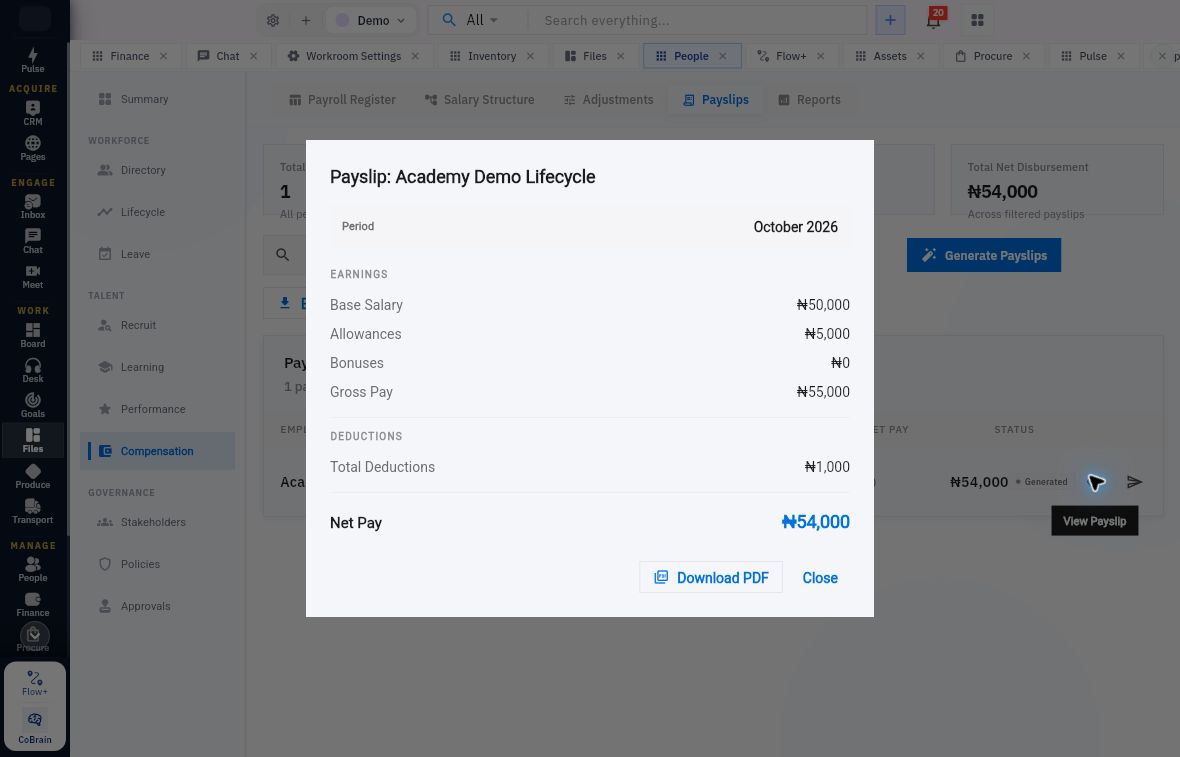
Confirm the currency and pay basis in your own record. The matching Demo payslip below shows Academy Demo Lifecycle and October 2026, so its identity and period can be compared with the register and monthly snapshot.
5. Use the row menu → View payslip history. This opens Payslips; locate the correct employee and period again rather than assuming the destination is already filtered. Select the row’s eye control.
6. Confirm the payslip’s full employee identity and period. Compare Base Salary, Allowances, Bonuses, Gross Pay, Total Deductions and Net Pay. Check that the displayed components explain gross, and gross less deductions explains net.
Check the result
7. Compare those amounts with the register and the relevant approved compensation terms. If they differ, give the payroll owner the exact employee, period and mismatch for resolution. Close the payslip when finished.
In this Demo, the compensation effective date was 27 October 2026, yet October generation used the full monthly amounts shown. That observation does not verify a pro-rata calculation or establish what should be paid for a partial month. Resolve the applicable basis before relying on the amount. The payslip remained Generated with Sent 0; no message or payment was made.
Expected result
You can explain the recorded pay components for the correct employee and period and identify any difference needing payroll review.
Common pitfalls
- A Generated payslip is not evidence of delivery or payment. Check the relevant sending and payment records separately.
- Do not use Add Compensation as an assumed editor for an existing active compensation record; it is a separate initial-entry route.
- Compare actual pay with a band only after confirming currency, frequency and working-time basis. A plausible percentage can still use incompatible amounts.
Continue learning
In this series: Manage the employee journey — guide 11 of 25.
- Previous: Create a salary band
- Next: Revise and publish a policy draft
- Browse tutorials
Turn what you learned into the way the team works.
Mark this lesson complete once the workflow exists in your workspace—not simply when you reach the bottom.