Inventory course 05 — Transfers from request through transit and receipt
Transfers move an existing quantity between warehouses. The transfer reference ties together the request, reservation/picking, dispatch, transit and destination receipt. A source decrease without destination receipt is not automatically a loss, and a draft request is not movement.
Part of Inventory module course
In this lesson
Transfer identity and movement stages
Transfers move an existing quantity between warehouses. The transfer reference ties together the request, reservation/picking, dispatch, transit and destination receipt. A source decrease without destination receipt is not automatically a loss, and a draft request is not movement.
In this chapter
- Prepare the exact route
- Approval is not picking
- Reconcile transit explicitly
- Verify destination before closing
- Keep a useful exception open
Prepare the exact route
Open Inventory → Transfers. Tabs include All, Draft, Picking, In Transit, Received and Completed. Search the exact reference and open the detail because long warehouse names can be clipped in the list. Compare full source, destination, item and quantity before interpreting the state.
New Transfer selects source warehouse, destination warehouse and an item line with Qty. The demonstrated form does not expose source/destination bin, lot, serial, date, title, reference or notes inputs. Do not claim those values were manually selected when the form did not offer them. Resolve any required tracking or location constraint before submitting.
Dispatch transit and receiving readback
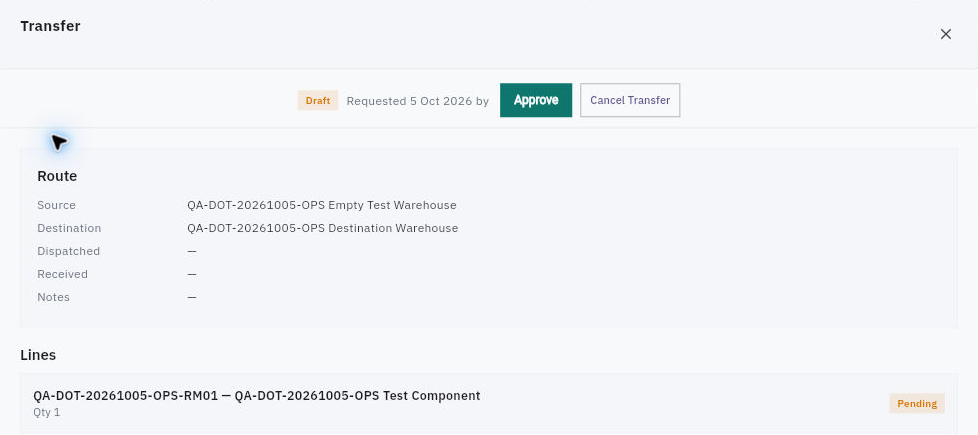
Draft transfer detail separates source, destination, dispatched and received dates from the pending line.
After an authorised create, reopen the returned transfer and compare Draft, full route and the Pending line. Check the item's source/destination Stock independently. A saved Draft can leave quantities unchanged. Approve and Cancel Transfer are actions, not ways to inspect the record.
The screenshot above is an older Draft transfer of Test Component (RM01) from Empty Test Warehouse to Destination Warehouse. The full one-unit sequence below follows a different record, TRF-0004, for Test Widget (FG01) from Destination Warehouse to Riverside isolated training warehouse. Use the screenshot to read the form structure, not as an image of TRF-0004 or proof that the component transfer completed.
Approval is not picking
The demonstrated full-quantity route progresses from Draft → Approve → Approved → Start Picking → Picking → Dispatch → In Transit → Receive → Received → Complete → Completed. Each transition requires its own authority and matching real-world outcome; the sequence is not a request to execute it during this course.
In the one-unit training example, approval retained the pending line and did not change the displayed stock totals. Start Picking then changed the line to Picking and produced an Active Transfer reservation referencing the exact transfer and source bin. Source stock showed On hand 1, Reserved 1 and Available 0. That is an allocation for movement, not evidence the unit has left.
Before dispatch, independently verify the selected source location through Warehouses → Locations and the exact item there. A raw or clipped location identifier in another view should not be guessed from row order. Check picking eligibility, quarantine state and available quantity.
Reconcile transit explicitly
After the authorised Dispatch in the example, the header became In Transit, line Dispatched, Qty 1 and Picked 1. Source stock became zero and the destination-side stock card showed In transit 1, with On hand and Available still zero. An item Overview On hand of zero therefore did not mean the unit disappeared: transit carried the quantity.
Keep dispatch and received dates separate. If displayed Requested, Dispatched or Received dates seem inconsistent, preserve them alongside the actual observation context and investigate. Do not assign a timezone explanation or edit dates without evidence.
For a fictional two-unit dispatch, source falls by two and transit becomes two. If only one arrives, one is still unresolved in transit or custody. Recording a full receipt would invent the second arrival. The demonstrated one-unit Receive action did not show a partial-quantity entry form, so do not reuse that button sequence for a short-receipt case until a truthful supported partial process is established.
Verify destination before closing
In the full one-unit example, Receive changed the line to Received with Qty 1, Picked 1 and Received 1. No manual destination-bin selector appeared; the application assigned a destination bin. That bin was separately checked through the warehouse hierarchy. The stock readback showed source zero, destination On hand 1 and Available 1, and In transit zero. A separate quarantined unit remained unchanged.
Only after that reconciliation did Complete move the transfer to Completed. Completion did not add another unit relative to the received snapshot. A software receipt still needs the actual recipient's physical count and condition evidence in real operations; the saved state alone does not establish custody outside the application.
Keep a useful exception open
For practice, explain a transfer of one accepted unit into a store with ten packs, three already reserved. Store becomes eleven and unreserved eligible quantity becomes eight, assuming no other restrictions. A separate new demand for ten still has a gap of two. The transfer can be complete while the business demand remains incomplete.
If dispatch or receipt feedback is unclear, reopen the exact transfer and both location balances before retrying. If the route is wrong or a unit is missing, preserve the reference, state, line quantities and custody evidence and obtain the responsible owner's correction plan. Do not cancel, complete, write off or create a second transfer simply to remove the exception from the list.
Turn what you learned into the way the team works.
Mark this lesson complete once the workflow exists in your workspace—not simply when you reach the bottom.