Create and check a calendar appointment
Save a one-off appointment with the right time, destination and audience, then check the saved details.
In this lesson
Create and check a calendar appointment
Save a one-off appointment with the right time, destination and audience, then check the saved details.
Before you start
Know the purpose, date, time zone, start and end, meeting destination and intended guests. Confirm the agreed plan before adding people: creating an appointment may communicate it to them.
Create the appointment
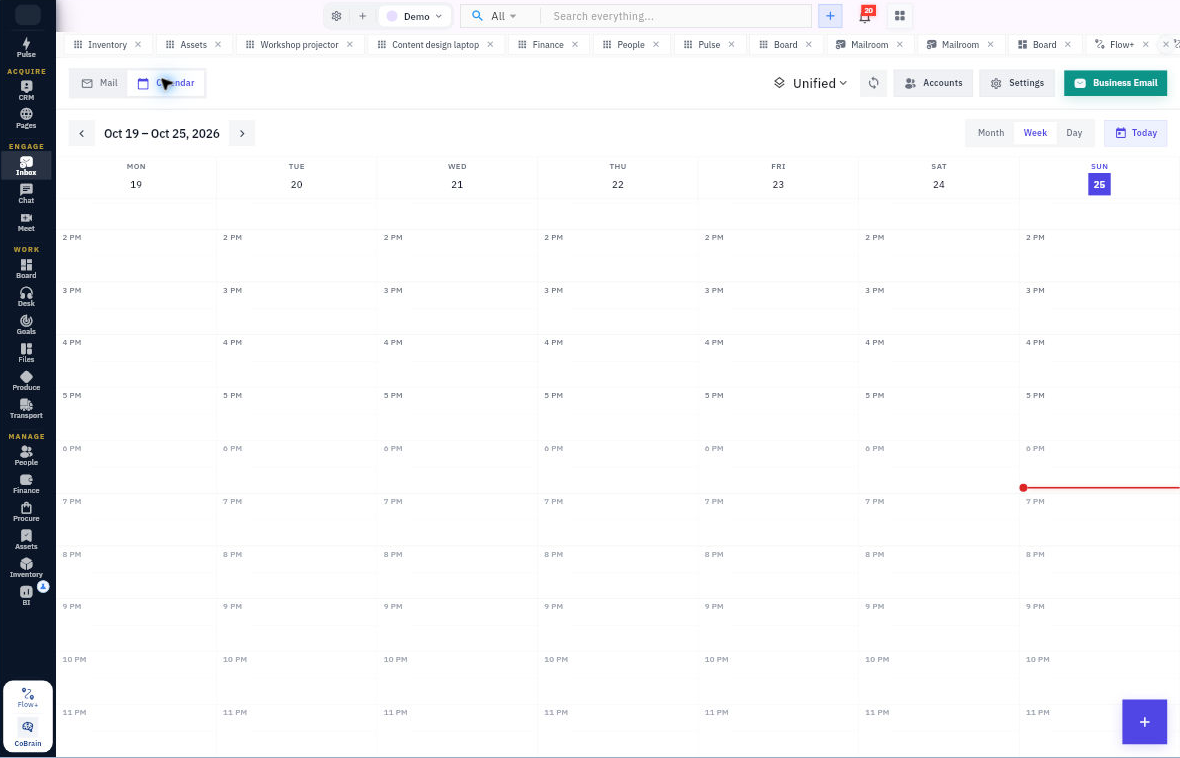
- Open Inbox → Calendar. Use Month, Week, Day or Today to reach the intended date. In Week view, use the bottom-right + to open New Event.
- Check the selected calendar and organiser, then enter a clear Event title.
- Set Start and End for the correct date and time zone. Check both endpoints even if you use a duration shortcut. For a one-off appointment, set Repeat to Does not repeat.
- Choose Meeting type. For Workroomly, select the intended available room. For External Link, enter the actual meeting address; check Location and the notes where needed. Do not substitute a different room or provider just because it is easier to find.
- Add the intended Guests and review every recipient. Include the purpose and any preparation in the description or notes.
- Review the calendar, title, time, recurrence, destination and guests. Save once using the available create action; the External Link form uses Create Event.
- Find the appointment again by date and title, open it and compare its complete saved details. For a Workroomly room, also compare the room’s Schedule with the appointment.
Expected result
One saved appointment contains the intended plan. Guest acceptance and actual attendance are separate from saving it.
If plans change: find and update the existing appointment rather than creating a duplicate. Reopen it afterward to check both changed and unchanged details. If two views disagree, confirm the correct event before editing again. Use Cancel Event only when you intend to cancel; do not join a cancelled appointment because another view still shows it.
Continue learning
In this series: Manage email in Inbox — guide 6 of 7.
Turn what you learned into the way the team works.
Mark this lesson complete once the workflow exists in your workspace—not simply when you reach the bottom.