Understand the parts of a workflow
Read a workflow graph and distinguish its trigger, inputs, conditions, actions and outputs.
Part of Prepare an inactive workflow for review
In this lesson
Understand the parts of a workflow
Open Flow+ → Workflows and choose a workflow you can inspect. Read the whole graph before deciding what it does.
Read the building blocks
- A trigger starts the workflow. A Manual trigger is a deliberate start, not a recurring schedule.
- An input supplies information a step needs.
- A condition evaluates a rule and chooses a branch.
- An action changes something or communicates with a service.
- An output is a value produced by a step that another step may use.
A node is a step on the canvas. A connection joins its output port to another node’s input. Two nearby nodes are not necessarily connected.
Inspect a simple comparison
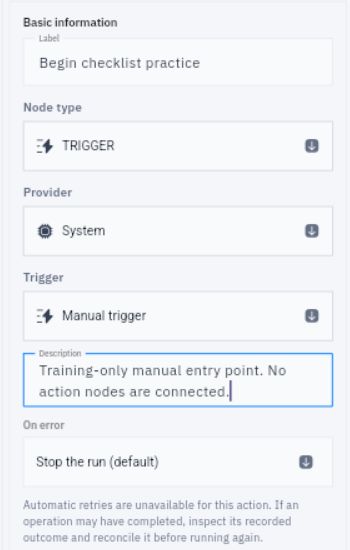
1. Select the trigger and read Node type, Provider and Trigger. For a manual entry, the supported combination is TRIGGER → System → Manual trigger.
2. Select the condition. Read CONDITION → Control Flow → If / Else, then its operator and value sources.
3. Check whether each input uses Set a value or Use an output. A number typed into Set a value is a constant; a descriptive label does not make it read live business data.
4. Read Active connections and inspect both condition branches. Check where each route leads, including any action node.
Interpret the result correctly
The condition Number 4 equals Number 5 should return false. That is a correct comparison, not an error. It also says nothing about whether a message was sent or a task was completed.
You should be able to explain how the workflow starts, what information it uses and what each branch can do. If you cannot explain a node or its destination, clarify it before running the workflow.
Continue learning
In this series: Design and check workflows — guide 2 of 8.
Turn what you learned into the way the team works.
Mark this lesson complete once the workflow exists in your workspace—not simply when you reach the bottom.