Finance course 03 — Understanding accounts and the opening position
Before choosing an account on an invoice, bill or adjustment, know how Workroomly identifies that account and which controls belong to its definition. Then distinguish that definition from an opening-balance batch and from a posted ledger entry.
Part of Mastering Workroomly Finance
In this lesson
Account definitions versus opening balances
Before choosing an account on an invoice, bill or adjustment, know how Workroomly identifies that account and which controls belong to its definition. Then distinguish that definition from an opening-balance batch and from a posted ledger entry.
This chapter is a read-only walkthrough. You need Finance access, your organisation's approved account design and, if you are reviewing a migration, its agreed opening schedule and cutover date. Do not create accounts or load balances merely to follow the screenshots. The illustrations use training accounts and a separate simulation cash ledger. Use your approved chart and opening schedule for real work.
In this chapter
- Open the chart and find the account by identity
- Read the ledger-account form field by field
- Inspect the saved definition rather than trusting its name
- Distinguish a ledger account from a cash account
- Open the opening-balance workspace
- Read the saved batch and its stage
- Common mistakes and the safer check
- Read-only practice and expected result
Open the chart and find the account by identity
Select Finance → Chart of accounts, under Accounting. The list has Search accounts. Search the intended code and press Enter, then open the matching result. Read the full name as well as the code. A similar name, or a code beginning with familiar digits, does not establish the intended classification or control mapping.
For Riverside's customer-billing work, the question is not simply whether an account called “revenue” exists. The preparer needs the exact account approved for the service and the workflow that will use it. An account definition, a tax-code mapping and the Commercial revenue account in Settings are related configuration decisions, not interchangeable text labels.
If the code is already occupied, inspect the existing account. Do not overwrite it or create a nearly identical account to bypass uncertainty. If an approved code is missing, the Finance owner decides whether a new definition is needed. Account creation is a separate authorised configuration task.
Read the ledger-account form field by field
New opens New ledger account. The table below explains its fields so you can interpret an existing definition or review a proposed specification. It is not an instruction to save a new account during this chapter.
| Field | What it identifies or controls | What to check |
|---|---|---|
| Code | The account's identifying code | Exact approved code and whether it already exists |
| Name | Its human-readable purpose | A name that distinguishes this account from similar choices |
| Account type | The accounting classification | The choices are Asset, Liability, Equity, Revenue and Expense; Revenue is the form's income-category label |
| Normal balance | The usual debit or credit side of the definition | Approved account design, not the side needed to make a particular journal balance |
| Subtype | A further free-text classification | Your agreed convention; do not assume it is a controlled category list |
| Parent | A reference to an existing account in a hierarchy | Exact parent code and name, if the approved design uses one; check the relevant report separately when reviewing rollups |
| Control purpose | A special accounting role assigned to the definition | Whether this account needs that role and whether the intended workflow uses it |
| Currency | The currency recorded on the account | Intended use and compatibility with approved Finance configuration; inspect lower fields if not visible initially |
| Is system | The account's system flag | Preserve the approved configuration; do not change it to get around a workflow problem |
| Is active | The account's active flag | The actual switch and saved value; an account name containing “inactive” does not set it |
| Description | Purpose and constraints in explanatory text | Enough context to distinguish permitted use, including any training-only restriction |
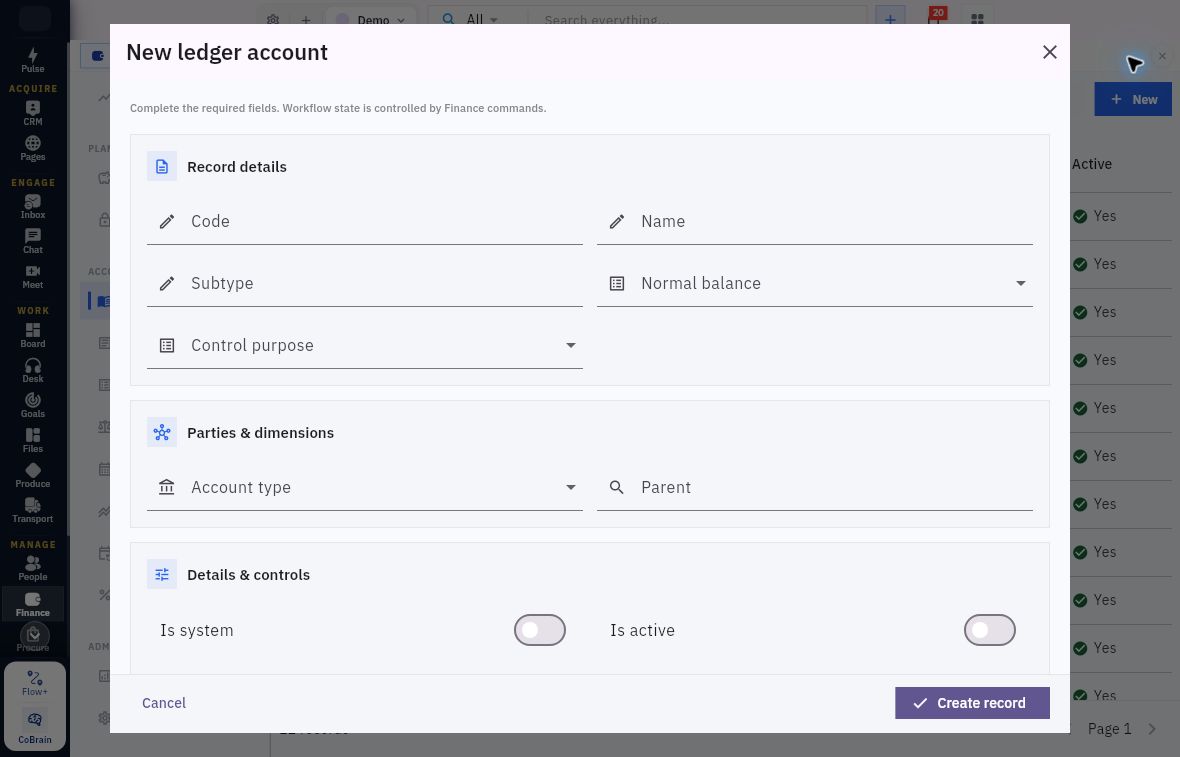
Classification, purpose and parent accounts
Separate classification from relationships. Choose the account's type and normal balance, then check Control purpose and Parent against the approved chart. Is system and Is active are separate switches; scroll further for Currency and Description.
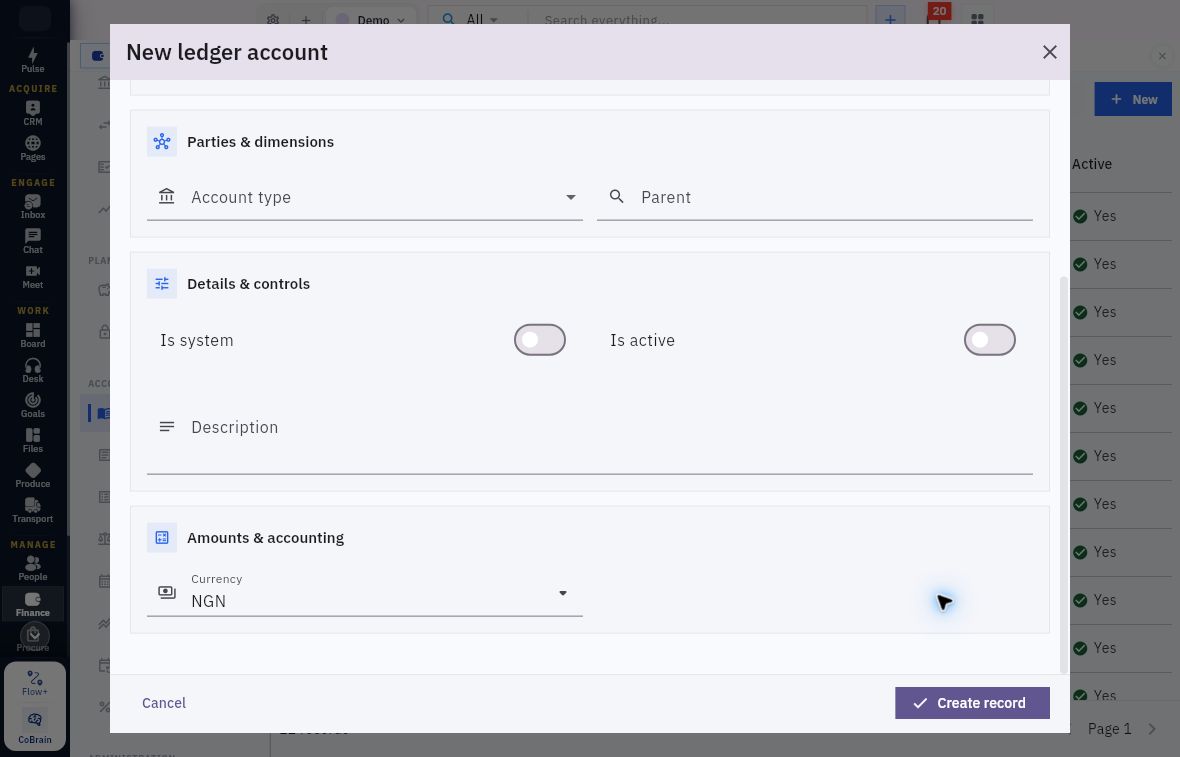
Currency, descriptions and account flags
Finish the lower fields. This example prefills NGN and leaves Is system and Is active off. Use the approved currency and flags, and add a description that explains the account's intended use.
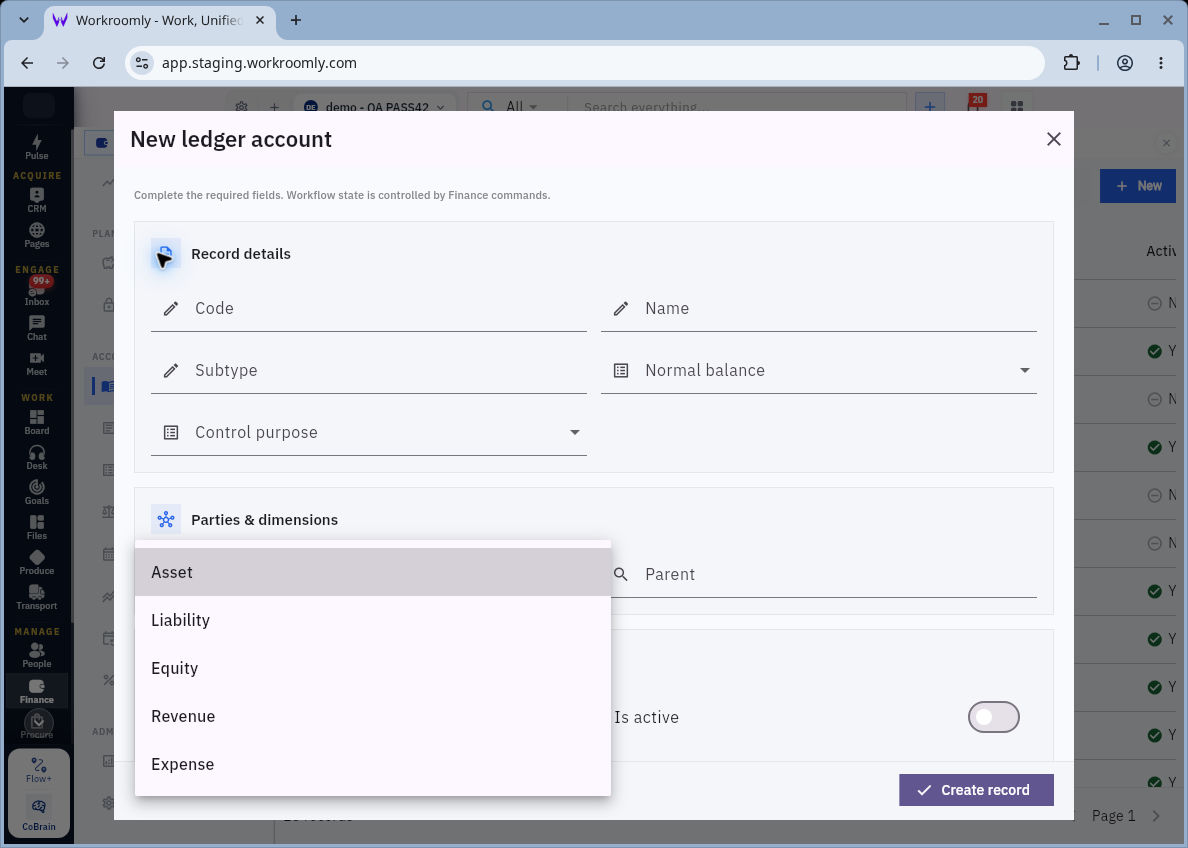
Account-type choices and normal balances
Read the choices, not the highlight. The menu uses Revenue, not Income. Choose Account type and Normal balance deliberately; a highlighted menu choice is not a saved selection. Follow the approved account design rather than treating blank fields or a generic required-fields message as setup instructions.
The Control purpose choices are None, Accounts receivable, Accounts payable, Employee payables, Staff advances, Cash and bank, Output tax, Input tax and Retained earnings. Check the workflow mapping separately after identifying the account's purpose. Use the approved purpose, not whichever option makes a familiar account look complete.
Parent opens a searchable account list with codes and names. In an authorised setup, selecting the exact result establishes the relationship; typing a search term does not. A standalone account can have no parent where that is the approved design. Do not invent hierarchy simply because the field exists.
Inspect the saved definition rather than trusting its name
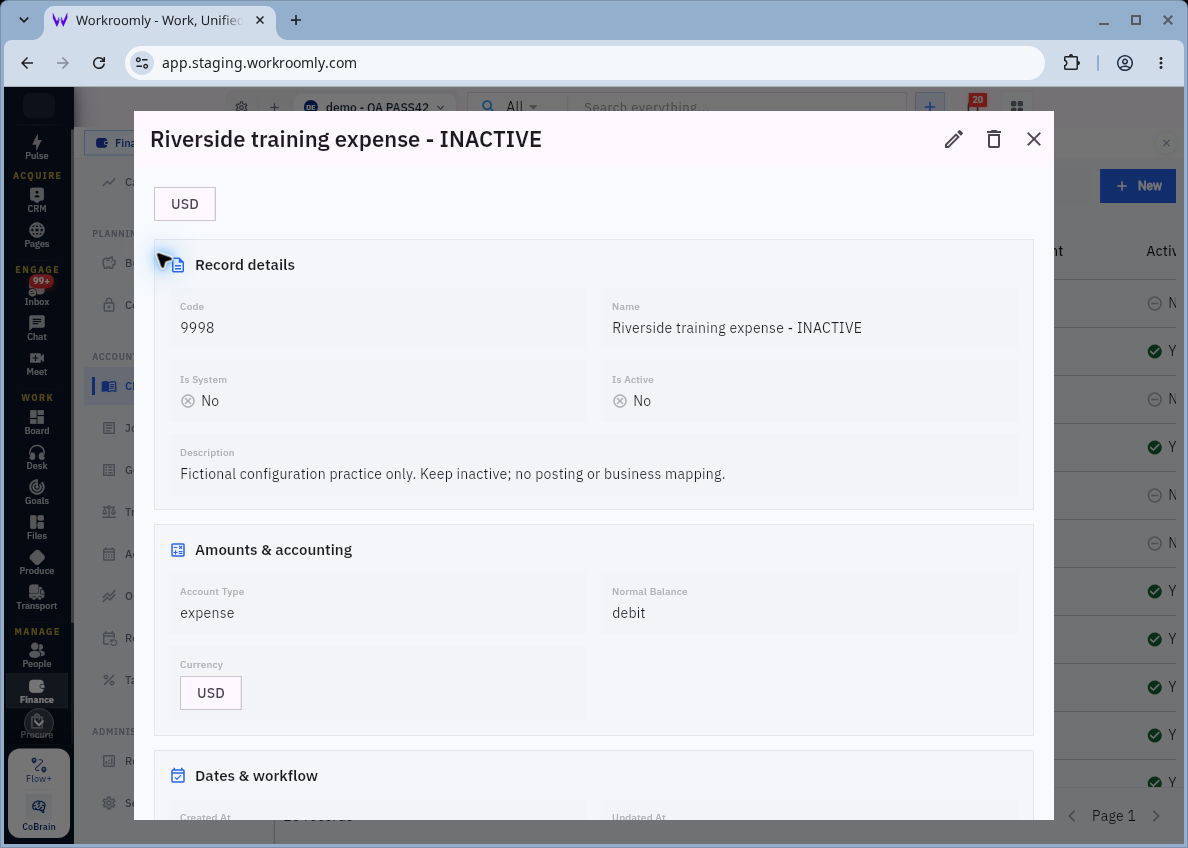
Saved account identity and eligibility
Read across the saved record. The example account is code 9998, named Riverside training expense - INACTIVE. Its saved values show Is System No, Is Active No, Account Type expense, Normal Balance debit and Currency USD. The description explicitly restricts it to fictional configuration practice. The name and the flag agree here; both must still be checked. To check Parent and Control purpose, read those fields in the account form; they are outside this detail view.
An existing account's edit pencil is a configuration control, not a prerequisite for reading every record. If a necessary value is absent from the detail, inspect a permitted editor without changing it, or record the value as unverified. Use Cancel for an inspection-only editor. Never treat an unseen field as blank.
For a separately authorised new definition or correction, the result to verify is the saved account found again by its exact code, with the intended name, type, normal balance, currency, flags and relationships. A closed dialog is not sufficient readback. If a save is uncertain, search the code before another attempt. Activation and downstream posting eligibility need their own checks.
Creating this definition does not enter an opening amount. The New ledger account form has no opening-balance field. It also does not configure every source workflow merely because the account now exists.
Distinguish a ledger account from a cash account
Select Finance → Cash accounts, under Cash. This is separate from Chart of accounts. Customer and vendor payment forms select a Cash account relationship; the chart's Cash and bank control-purpose choice belongs to a ledger-account definition. Do not assume that creating one automatically creates or correctly links the other.
The current Cash accounts register contains the existing Demo | Workshop simulation cash ledger. Open the exact permitted record and read its identity, currency, type and ledger relationship before considering it for a payment. An account name that sounds plausible is not enough.
New opens New cash account, with Cancel and Create record. For this tour, inspect the form and cancel. The form contains:
| Field | Meaning and inspection question |
|---|---|
| Name | The cash record's identifying display name; distinguish it from the separate Account name field |
| Institution name | The institution named in the approved account specification, where applicable |
| Routing number | Routing information from the verified account source where needed; do not invent a value for a cashbox |
| Opening balance | A recorded starting amount whose source and accounting effect must be established; its presence is not proof of a posted opening journal |
| Account type | The choices are Bank, Mobile money, Card clearing, Payment provider and Petty cash |
| Account name | The name recorded for the underlying account, separate from the display Name |
| Account number | The underlying account identifier where applicable; protect real account information in screenshots and learning notes |
| External account id | The external identifier specified for this account, where applicable; entering one does not connect a bank |
| Ledger account | The reference to the accounting ledger account; check the exact code/name selected, not just typed search text |
| Currency | The cash account's currency; NGN was prefilled in this Demo form |
| Opening balance date | The date associated with the opening amount; compare it with the approved cutover/source |
| Is active | The active switch; it was off in the untouched form |
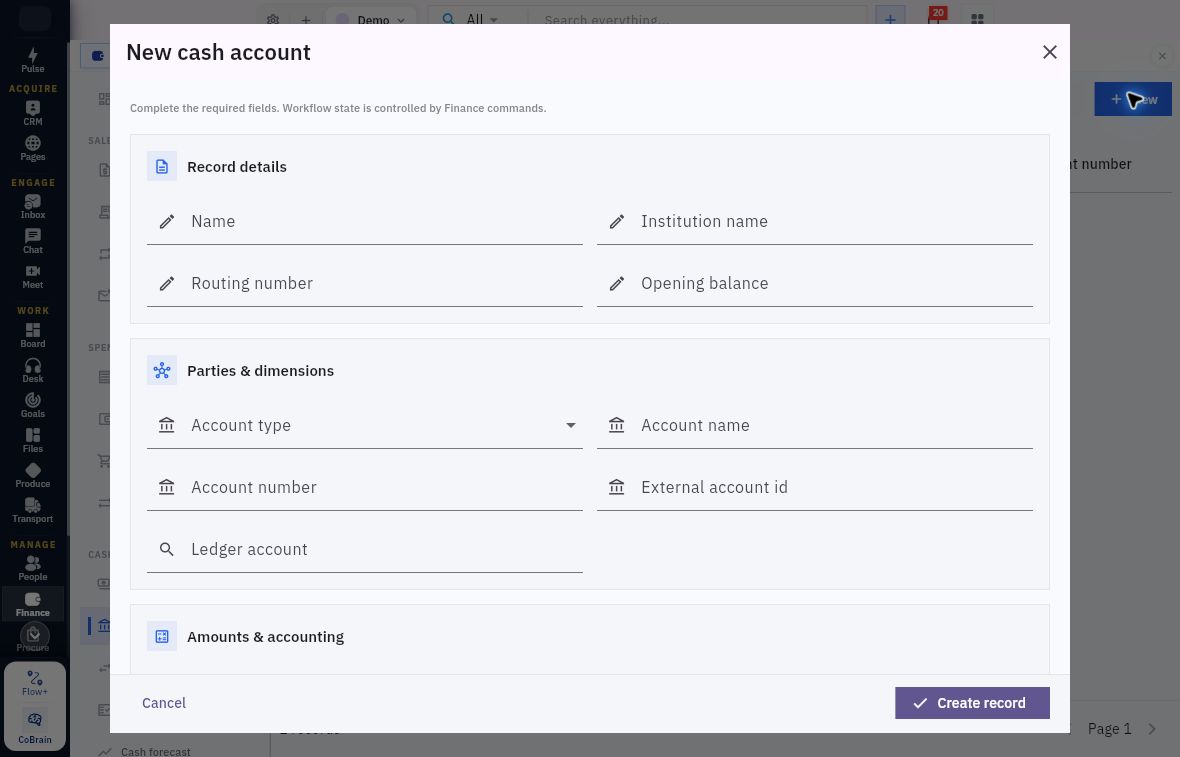
Cash-account identity and ledger mapping
Account identity and ledger identity are different. Name, Account name and Ledger account are separate fields. Use the approved details for the selected account type. Do not press Create record simply to discover missing requirements during this read-only walkthrough.
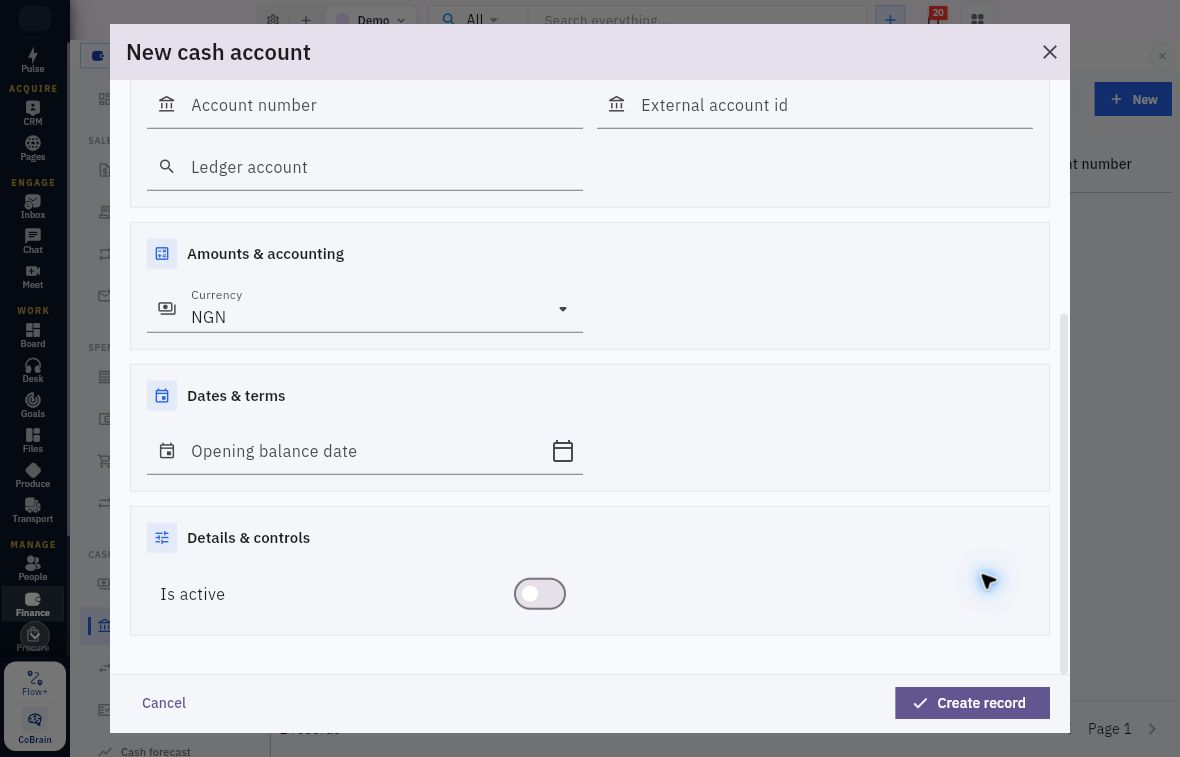
Currency, activation and opening date
Check the lower fields. Demo prefills NGN and leaves Is active off. Opening balance date is blank. Check all three against the intended account setup. Do not assume a zero opening amount simply because the input is blank.
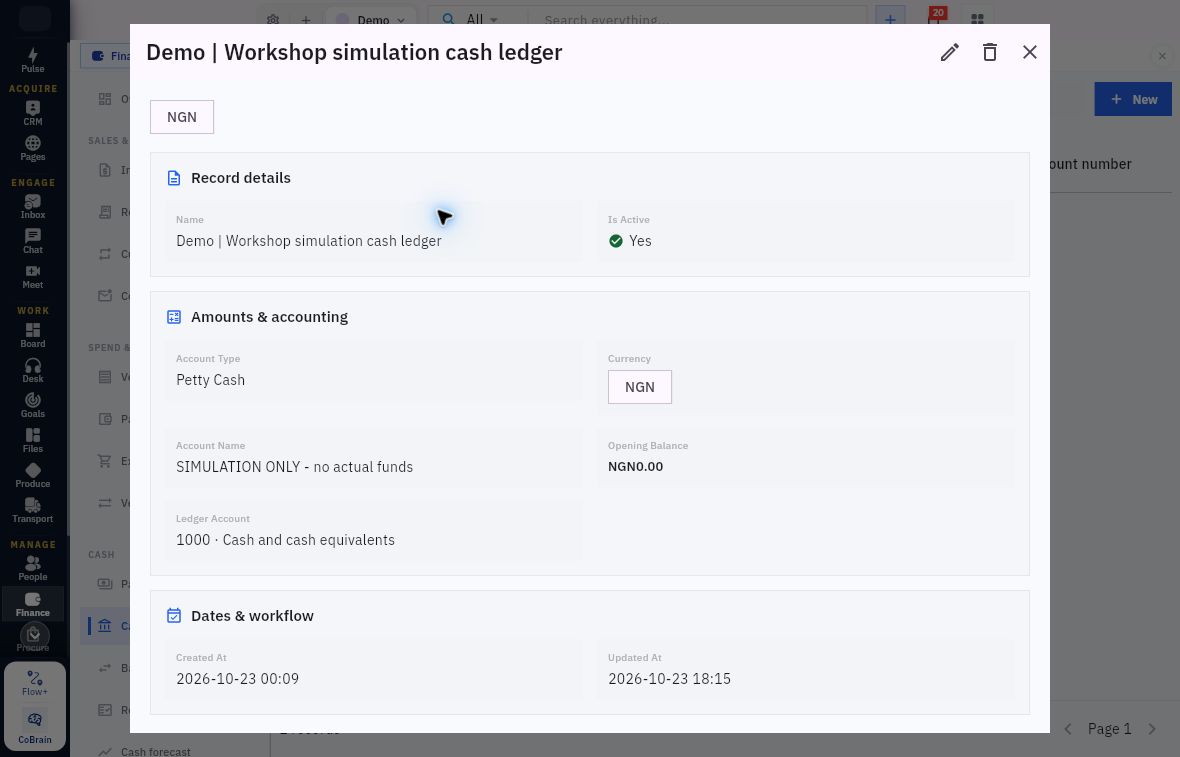
Reading the simulation cash account
Check the cash account's ledger relationship. The existing simulation record shows Is Active Yes, Account Type Petty Cash, Currency NGN, Account Name SIMULATION ONLY - no actual funds, Opening Balance NGN0.00 and Ledger Account 1000 · Cash and cash equivalents. It is a bookkeeping simulation, not a real bank connection or evidence of funds. Leave Edit and Delete draft alone during this walkthrough.
Before real use, the Finance owner must verify the actual account source, intended ledger relationship and permitted workflow. The cash form's Opening balance and a separate opening-balance batch are not instructions to load the same amount twice. Agree the supported cutover method with the Finance owner before entering either.
Open the opening-balance workspace
Select Finance → Opening balances, under Accounting. The list has Search balances, an All statuses filter and New. An empty list offers Create opening balance batch. Before loading an opening position, check the existing ledger as well as this list to avoid duplicating balances.
An opening batch represents an agreed position at a cutover. It is separate from Riverside's later service invoice, customer collection or supplier payment. A migration needs its own reconciled source schedule, including the customer and supplier detail required for future settlement. Do not load a single unexplained net amount or assume a genuinely operating company starts at zero.
The New opening balance batch form contains:
| Field or control | Meaning and inspection point |
|---|---|
| Lines and Add line | The account-level opening amounts; opening the line dialog does not save the parent batch |
| Notes | Context that distinguishes the batch and its source; retain cutover/source and any training restriction |
| Cutover date | The date the opening position describes, not necessarily the day someone enters it |
| Currency | The batch currency; compare it with the approved schedule and account setup |
Check Cutover date against the approved migration schedule; do not accept a date prefill automatically.
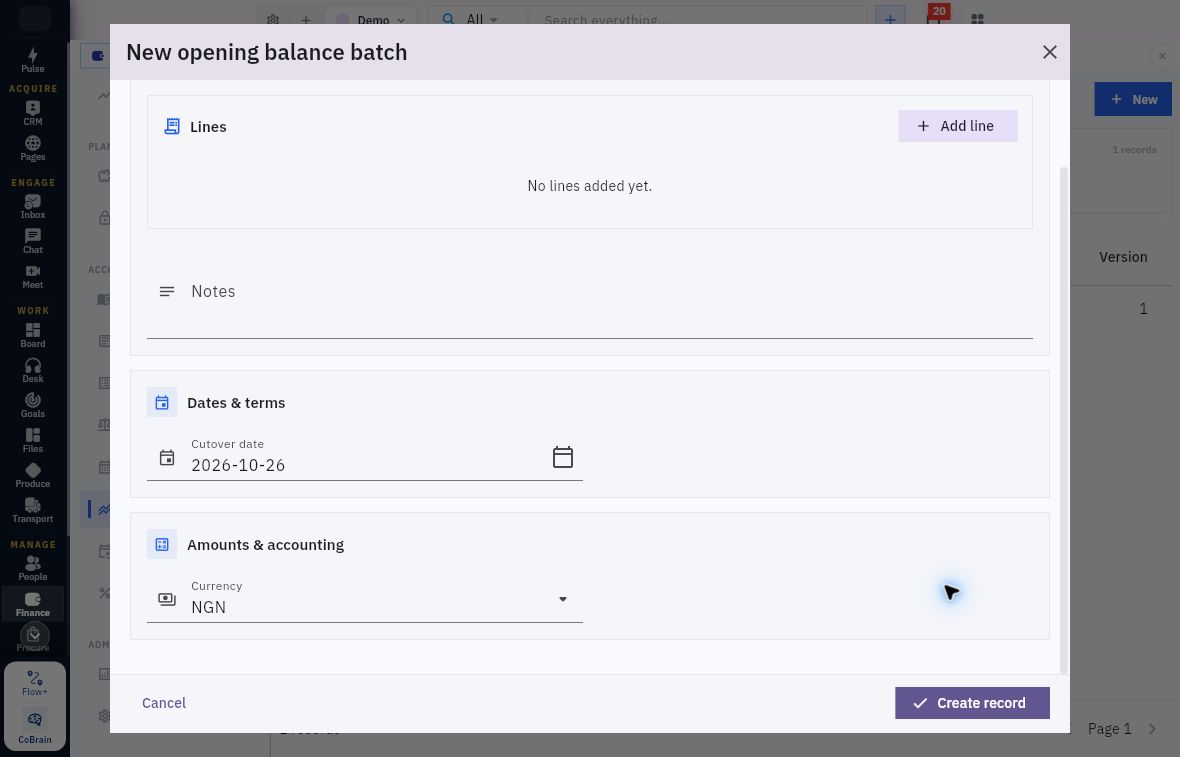
Opening schedule and cutover context
Start with the cutover and source schedule. Add the approved account-level lines to this batch. Use Notes to identify the schedule, and check Currency against the approved opening position before any authorised save.
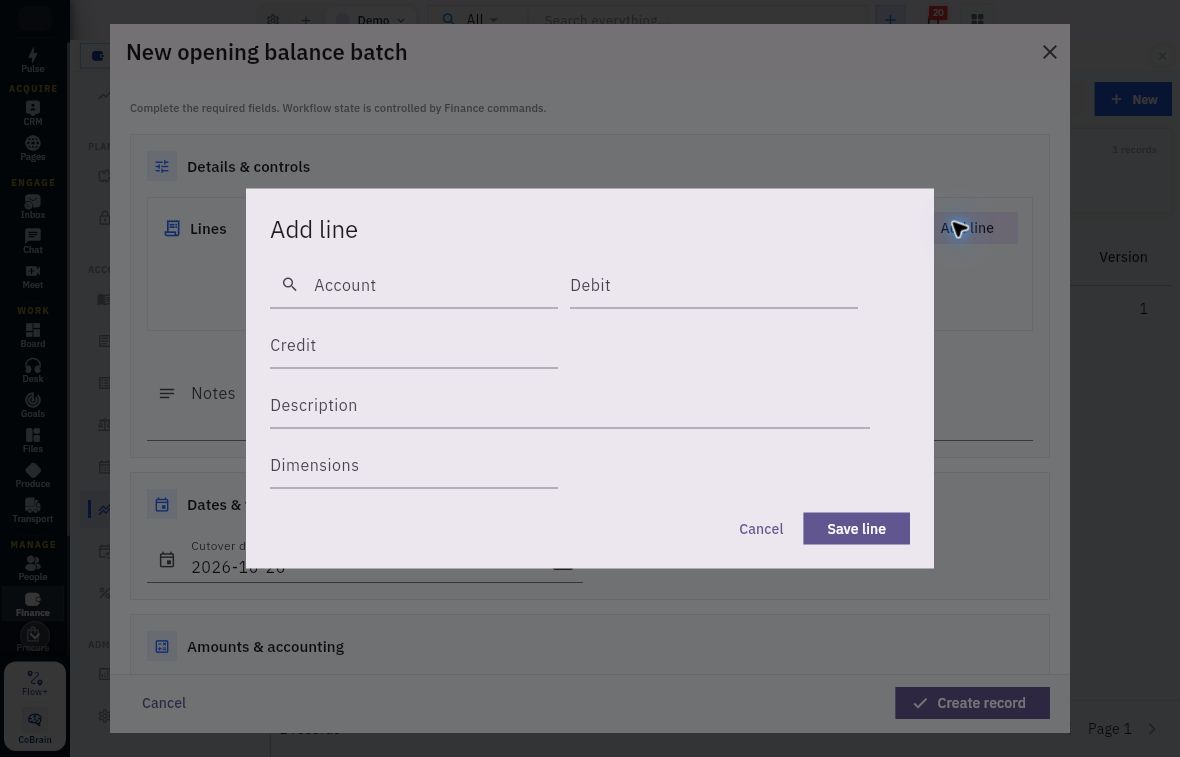
Add line opens Account, Debit, Credit, Description and Dimensions, followed by Cancel and Save line. Account is a searchable reference. Debit and Credit express the line's side and amount. Description records the source explanation. If you need Dimensions, obtain the supported format from the configuration owner before entering them; do not substitute an informal department name.
Opening-line accounts and amounts
Choose the exact account before entering the amount. Keep the debit or credit tied to its source explanation. Cancel leaves the line unchanged; Save line returns it to the parent batch.
Save line returns a line to the parent form. Create record saves the parent batch. These are distinct checkpoints. An apparently complete line dialog is not a persisted opening batch.
Read the saved batch and its stage
Review status, posting boundary and practice
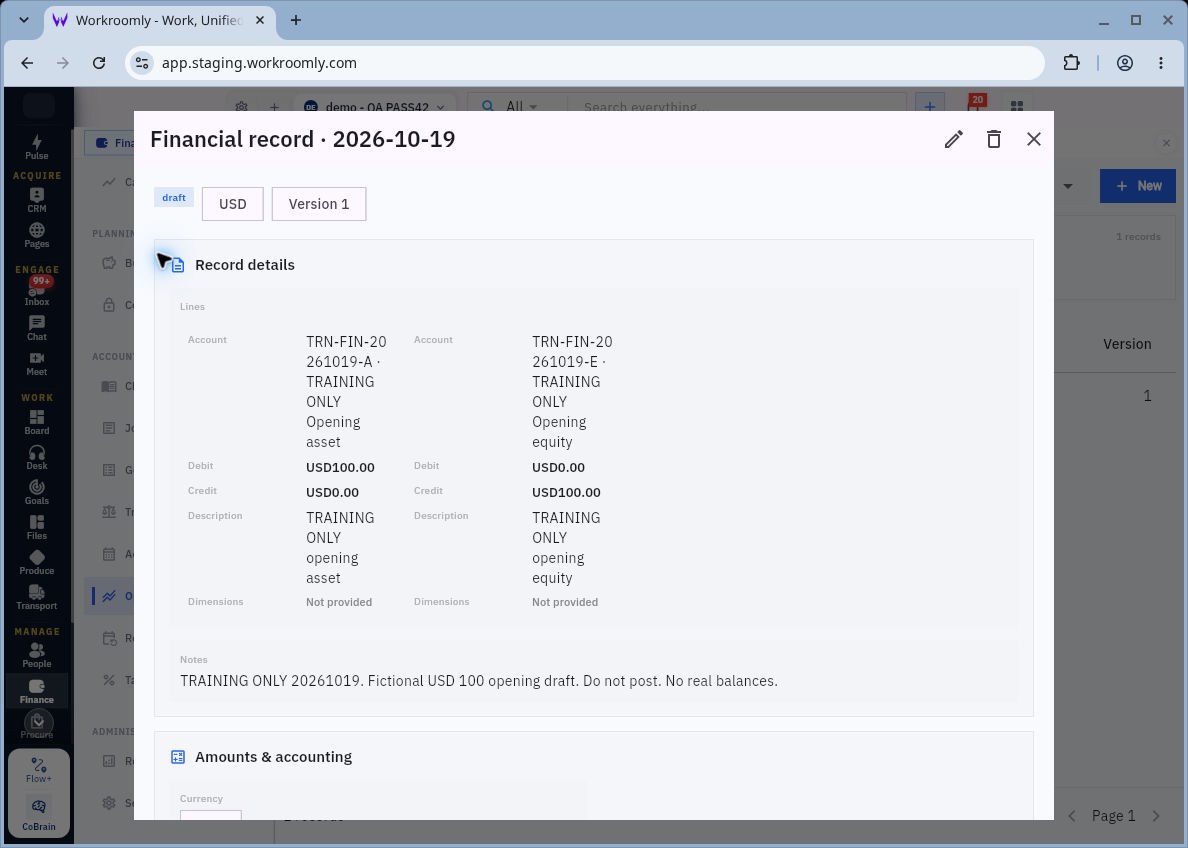
Check identities before equal totals. This isolated training batch contains a USD100 debit to TRN-FIN-20261019-A, the training opening asset, and a USD100 credit to TRN-FIN-20261019-E, the training opening equity. Its title is the generic Financial record · 2026-10-19. The account codes, notes, cutover and creation information distinguish it more reliably than that title alone. This is not Riverside's trading example and must not be entered again.
The example starts at Draft, Version 1. Its cutover was 2026-10-01, currency USD, and the saved descriptions matched the two lines. Review and Cancel were visible workflow actions. Review keeps the same amounts in this example and moves the record to Reviewed, Version 2.
A reviewed batch is not a posted opening position. Read reviewed, the cutover date and Reviewed At together. Post is the next visible action; the example ends at review. Before treating a real opening position as posted, check its resulting journal and ledger. Follow your organisation's independent-review requirements; preparation and review may require different authorised people.
Both training accounts were inactive and non-system. Do not use their presence in a draft as permission to post with inactive accounts. Balanced totals also need to agree with complete opening schedules. A real migration's next gate includes eligible accounts, approved source balances and detail, appropriate period, required review, posting authority and a verified result reconciled back to those schedules.
Common mistakes and the safer check
- “The name says inactive.” Read Is active in the saved definition; do not infer configuration from a name.
- “The account exists, so the invoice mapping is complete.” Check the specific source field, tax/control mapping or Settings dependency used by that workflow.
- “The opening batch is Reviewed, so the ledger has changed.” Require the actual posting result and generated journal/ledger evidence; do not repeat Review or select Post just to finish this exercise.
- “The totals balance, so the migration is correct.” Compare source, cutover, currency, account identities and required subledger detail as well as arithmetic.
- “The save did nothing.” Search the original account code or batch identity and inspect the saved result before another write.
Read-only practice and expected result
Ask the Finance owner for one permitted existing account relevant to Riverside's service-billing example. Record its exact code, name, type, normal balance, currency and active/system flags. Identify any needed Control purpose or workflow mapping without changing it. If a field is unavailable, mark it unverified.
If an approved opening batch is available, inspect its cutover, currency, account references, total debit and credit, state/version and relevant timestamps. Identify whether the batch is Draft, Reviewed or posted. If there is no suitable batch, read the example above rather than creating one.
Expected result: A short account-readiness note and an opening-stage conclusion. For the illustrated batch, the correct conclusion is “Reviewed, with balanced training lines; check the posted journal before using these as the opening position,” not “opening balances posted.” For your own workroom, use its actual evidence and identify the owner of any remaining prerequisite.
Next, inspect how tax codes, effective rates and posting rules connect source transactions to the chart.
Turn what you learned into the way the team works.
Mark this lesson complete once the workflow exists in your workspace—not simply when you reach the bottom.